
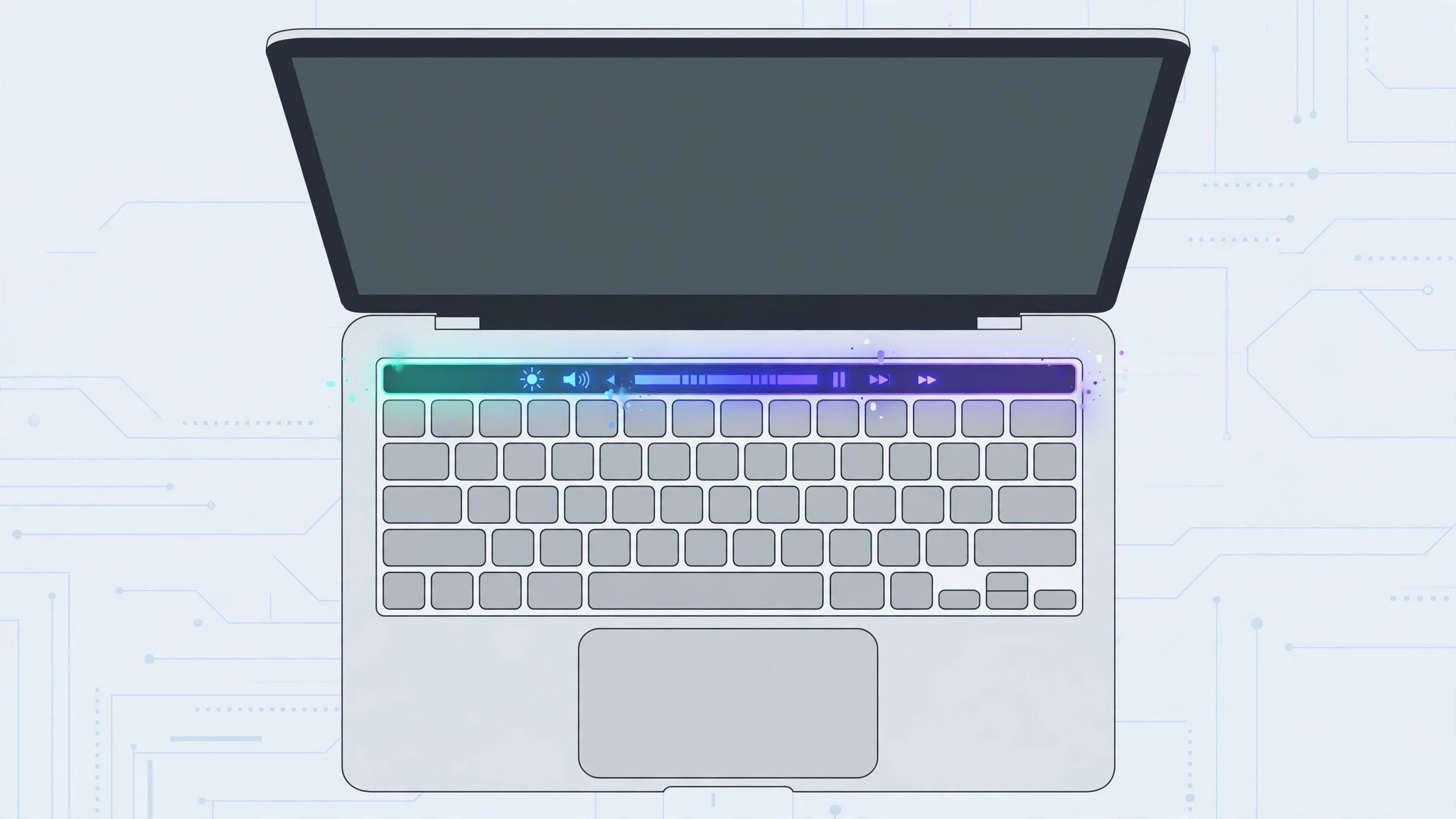
The Touch Bar was Apple’s most divisive MacBook experiment: a thin OLED strip replacing the function keys, changing with every app. Some people loved it; many just kept brushing it by accident. If you’re firmly in the second camp, you can switch the Touch Bar off so completely that it shows nothing at all.
Important: this guide only applies to MacBook Pro models that actually have a Touch Bar — the 13-inch and 15/16-inch models sold between 2016 and 2021. If your Mac has physical function keys, there’s no Touch Bar setting to look for, and that’s expected.
What “disabling” the Touch Bar means
macOS doesn’t offer a single “Touch Bar off” switch. Instead, you neuter it in three places: tell it to show only Quick Actions, hide the Control Strip and typing suggestions, then empty the Quick Actions list itself in Privacy & Security. The result is a Touch Bar that stays dark and does nothing — as close to disabled as software allows. Apple documents the available Touch Bar settings on Mac if you want to compare.
Completely disable the Touch Bar step by step
- Open System Settings → Keyboard. On older macOS versions (Monterey and earlier), this lives in System Preferences → Keyboard instead.
- Open the Touch Bar settings section. Click “Customize Touch Bar” or “Touch Bar Settings” — the exact label depends on your macOS version.
- Set “Touch Bar shows” to “Quick Actions”. This replaces the ever-changing app controls with a static set you control.
- Turn off “Show Control Strip” and “Show typing suggestions”. Both toggles live in the same section — switching them off removes the last dynamic elements.
- Empty the Quick Actions list. Go to System Settings → Privacy & Security, find the Touch Bar section, and disable every listed quick action.
- Done. Your Touch Bar is now fully inactive — it displays nothing and responds to nothing. If you use face lighting during video calls on Mac, note that any Touch Bar controls tied to it go quiet too.
Apple also explains how to customize the Touch Bar on Mac — useful if you ever want a middle ground instead of a full blackout.
If it still doesn’t work
- Double-check your Mac actually has a Touch Bar (Apple menu → About This Mac — look for a 2016–2021 MacBook Pro). No Touch Bar, no setting.
- On macOS Monterey or older, the path is System Preferences → Keyboard → Touch Bar, and the wording differs slightly.
- If the Touch Bar still lights up, revisit Privacy & Security and make sure every Touch Bar quick action is off — one leftover entry keeps it alive.
- Restart the Mac after making the changes; the Touch Bar process occasionally needs a fresh start to go fully dark.
Frequently asked questions
Can I bring the Touch Bar back later?
Yes — nothing here is permanent. Return to System Settings → Keyboard → Touch Bar Settings, set “Touch Bar shows” back to “App Controls”, re-enable the Control Strip, and re-check your quick actions in Privacy & Security.
Does disabling the Touch Bar save battery?
Slightly. An inactive OLED strip draws minimal power, so don’t expect miracles — but combined with other tweaks like muting noisy Mail notifications, every bit helps on the road.
Conclusion
Apple never gave the Touch Bar a true off switch, but the steps above get you a dark, silent strip that stays out of your way. And if you’re streamlining macOS, our guide to quickly opening the installed apps list in macOS 26 is a handy next read.





