
Why Safari looks different in iOS 26
If you updated your iPhone to iOS 26 and opened Safari, you probably noticed the browser looks unfamiliar. Apple redesigned the toolbar and tab bar as part of a system-wide visual refresh. Buttons moved around, some controls disappeared into nested menus, and the whole interface feels more minimal than before.
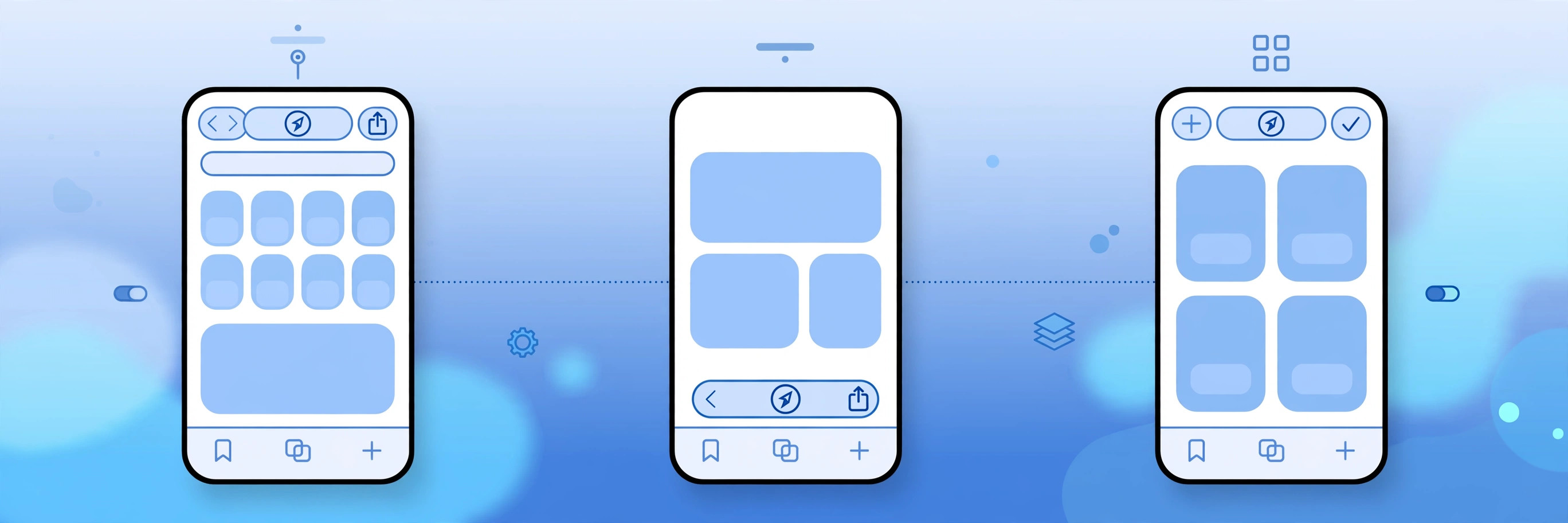
Change is annoying when muscle memory is involved, but Apple did not force the new look on everyone. Hidden in the Settings app is a choice of three tab bar layouts. You can keep the modern iOS 26 style, return to the familiar iOS 18 arrangement, or go all the way back to the classic top-mounted bar from older iOS versions. Here is what each option does and how to switch between them.
The three Safari designs explained
Compact: the new iOS 26 look
Compact is the default layout in iOS 26. The address bar shrinks into a small floating pill, and most buttons stay hidden until you need them. Web pages get maximum screen space, and the style matches the Liquid Glass aesthetic Apple introduced across the system. The trade-off is that everyday actions like sharing a page, opening the tab switcher, or reaching bookmarks now take an extra tap, because those controls live inside nested menus.
Bottom: the familiar iOS 18 style
Bottom keeps the tab bar at the bottom of the screen with a full row of buttons, just like iOS 18. The address bar, back and forward buttons, share sheet, and tab overview are all visible at once. If you were happy with Safari before the iOS 26 update, this is the layout that feels like home, with no relearning required.
Top: the classic layout
Top moves the address and tab bar back to the top of the screen, the way Safari looked on much older iOS versions. Fans of the traditional layout will feel instantly comfortable. On smaller iPhones it also keeps the bottom edge clear, which some people prefer for scrolling. It is the most old-school of the three options.
How to switch Safari’s tab design
Changing the layout takes less than a minute, and it applies instantly with no restart needed. Just follow these steps:
- Open the Settings app on your iPhone.
- Scroll down and tap Apps, then tap Safari.
- Find the Tabs section.
- Choose Compact, Bottom, or Top. Then open Safari to see the new design right away.
If it still doesn’t work
If you do not see the Tabs section under Settings, then Apps, then Safari, your iPhone is probably not running iOS 26 yet. Go to Settings, then General, then Software Update, and install the latest version. This three-way choice only exists on iOS 26 and newer. If the layout switches but Safari looks glitchy or buttons overlap, force-quit the app and reopen it. Swipe up from the bottom of the screen, flick Safari away, then launch it again. The new toolbar sometimes needs a fresh start to render cleanly.
Frequently asked questions
Will I lose my open tabs or bookmarks when I switch designs?
No. Changing the tab bar layout only rearranges Safari’s interface. Your open tabs, tab groups, bookmarks, reading list, and browsing history are completely unaffected.
Which layout is best for one-handed use?
Bottom. With the address bar and buttons at the bottom of the screen, everything important sits within thumb reach, even on larger iPhones. Compact is a close second, since the floating pill also sits low on the screen.
Conclusion
Safari’s redesign in iOS 26 does not have to slow you down. In under a minute, you can pick the Compact, Bottom, or Top layout from Settings and get a browser that matches your habits. Try living with each option for a day. You might discover the new Compact look is actually faster once your fingers learn where everything lives.
While you are refreshing your iPhone setup, take a look at our 5 Best GaN Fast Chargers in 2026 to keep it powered up fast, and our 5 Best Smartwatches in 2026 for the perfect iPhone companion on your wrist.
Sources: MacRumors’ iOS 26 roundup and Apple Support for iPhone






[…] lock screen clock guide shows how to make message notifications look their best — plus our Safari design guide covers another handy iOS 26 […]
[…] simply stop seeing Apple’s competing suggestion. If you are customizing Safari anyway, our guide to changing Safari’s design in iOS 26 covers another setting worth knowing, and our Liquid Glass lock screen clock guide shows a fun way […]
[…] additional tweak. If you are customizing the rest of the system while you are at it, our guides to changing the Safari design on iPhone and the iOS 26 Liquid Glass lock screen are worth a […]
[…] Yes — on youtube.com, click the gear icon in the player and toggle Ambient mode there as well. The app and website settings are independent. If you do a lot of browsing-side tweaking, see also how to change Safari’s design on iPhone. […]
[…] customization, a supported feature. Nothing is modified or hacked. For more iPad power tips, see how to change Safari’s design on iPhone and how to turn off AirPods charging case […]
[…] though, and they don’t make you anonymous online. For a broader privacy tune-up, see how to change the Safari design on iPhone and how to stop Safari from suggesting passwords for websites. Apple documents the feature as […]
[…] You don’t need a Mac or a sketchy website to convert iPhone photos: the Files paste trick handles HEIC to JPG, a screenshot handles PNG, and a free app covers the rest. Convert once, share anywhere. And if you do most of your sharing from the browser, you might also like how to change Safari’s design on iPhone. […]
[…] Still seeing previews play? First make sure you are running iOS 11 beta 3 or later — earlier builds lack the switch entirely. Also double-check you changed it under iTunes & App Store, not under Cellular or Display settings. If the setting seems to revert, restart the iPhone and set it again — a glitchy Settings sync can occasionally undo a toggle. For more iOS display tweaks, see our guides on turning off the Liquid Glass effect in iOS 26 and changing the Safari design on iPhone. […]
[…] on every modern iPhone. Small interface tweaks like this one — or a fresh look from our guide on how to change the Safari design on iPhone — can make daily typing noticeably […]
[…] With Handwrite on, you could write search queries anywhere on the screen with your finger, and your handwriting was converted to text in the search box. Write big, clear letters across the page: the recognizer handled cursive and print, and even let you draw letters one after another without lifting the on-screen keyboard. For more ways to tailor Safari itself, see our guide on changing the Safari design on iPhone. […]
[…] pausing it for YouTube temporarily. And while you are tidying up the browser, you may also like to change Safari’s design on iPhone or stop Safari from suggesting passwords for websites on […]