Updated your iPhone and immediately regretted it? Maybe the new design feels wrong, a favorite app misbehaves, or battery life took a nosedive. The obvious question follows: can you simply go back? Unfortunately, Apple makes rolling back iOS far harder than upgrading — here is the full picture.
The short answer: almost never
Every time Finder or iTunes installs iOS, it asks Apple to authorize the exact firmware version being installed. Once a new version is out, Apple stops signing the older one — usually within days or weeks. Without that live authorization, the installation is refused. So a downgrade from iOS X to iOS Y works only if Apple is still signing Y at the moment you try. The practical rule is simple: you can only roll back to the oldest firmware Apple is still signing for your exact device model, and that window closes fast. If you are already thinking ahead, our guide to blocking iOS 26 updates shows how to avoid an unwanted upgrade in the first place.
Step 1: Check which firmware Apple is still signing
Before doing anything else, find out whether your target version is even installable. Signing-status checkers such as ipsw.me maintain a live list of which iOS versions are signed for every iPhone and iPad model. Enter your device model and look for a green “signed” indicator next to the version you want. If it is unsigned, the restore server will reject the installation no matter what you try — Apple’s own restore documentation explains that Finder and iTunes only install authorized firmware. MacRumors also routinely reports when Apple stops signing a release, which is usually the real deadline for any downgrade plan.
Step 2: Understand the one real exception
The only reliable way to return to an unsigned version is to have prepared before the upgrade: a complete firmware backup or saved SHSH blobs of the target version, captured with third-party tools while Apple was still signing it. These signatures let specialized software pass the authorization check. Without that preparation, there is no legitimate path back. This is why upgrading is effectively a one-way street for most people — and why it is worth thinking twice before installing a major release, as our look at iOS 26’s early quirks illustrates.
Step 3: Downgrade while a version is still signed
If the checker shows your target firmware is still signed, act quickly. Here is how:
- Back up everything first. A restore can wipe the device, so make a full backup in Finder, iTunes, or iCloud before you start.
- Download the firmware file. Get the exact .ipsw file for your precise iPhone model — a file for the wrong model will fail verification.
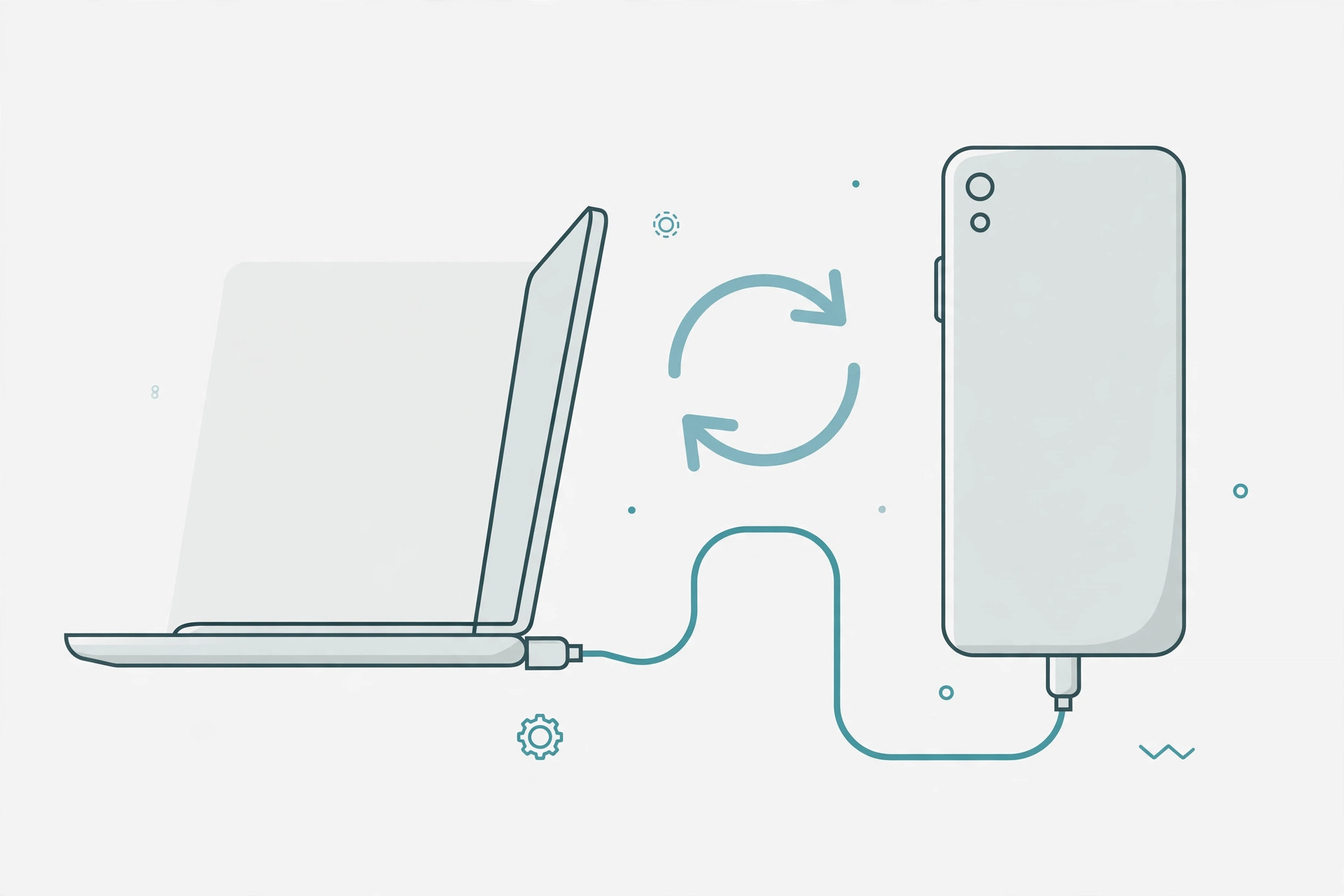
- Connect the iPhone to your computer. Open Finder on a Mac or iTunes on Windows and select your device.
- Open the manual restore dialog. Hold the Option key (Mac) or Shift key (Windows) while clicking “Restore iPhone”.
- Choose the downloaded firmware file and let the restore run. Keep the cable connected until it finishes.
After the downgrade completes, restore your backup to get your data back — then sync your messages between iPhone and Mac to make sure nothing went missing in the round trip.
If it still doesn’t work
If Finder or iTunes throws an error during the restore, double-check three things: the .ipsw file matches your exact model, Apple is still signing that version right now, and your computer software is up to date. If the version is unsigned, no error message is worth fighting — the installation will not proceed.
Frequently asked questions
Can I downgrade without a computer?
No. Over-the-air updates only move forward, so any downgrade requires a computer running Finder or iTunes and a manually selected firmware file.
Will downgrading delete my photos and apps?
A restore typically wipes the device, which is why a full backup beforehand is essential. Restoring that backup afterward brings your data back.
Conclusion
Downgrading iOS is possible only in a narrow window: while Apple still signs the older firmware, or if you saved its signatures in advance. For everyone else, the answer is to wait for the next update — or stop the unwanted update before it happens.