

If text on your Mac looks too thin and spindly — or overly bold and blurry — especially on a non-Retina external monitor, the culprit is often font smoothing (antialiasing). Apple used to expose a simple toggle in System Preferences, but since macOS Big Sur it has vanished from Settings. The good news: the underlying setting still exists, and you can change it with a single Terminal command — or with a tiny free utility if you’d rather not touch the command line.
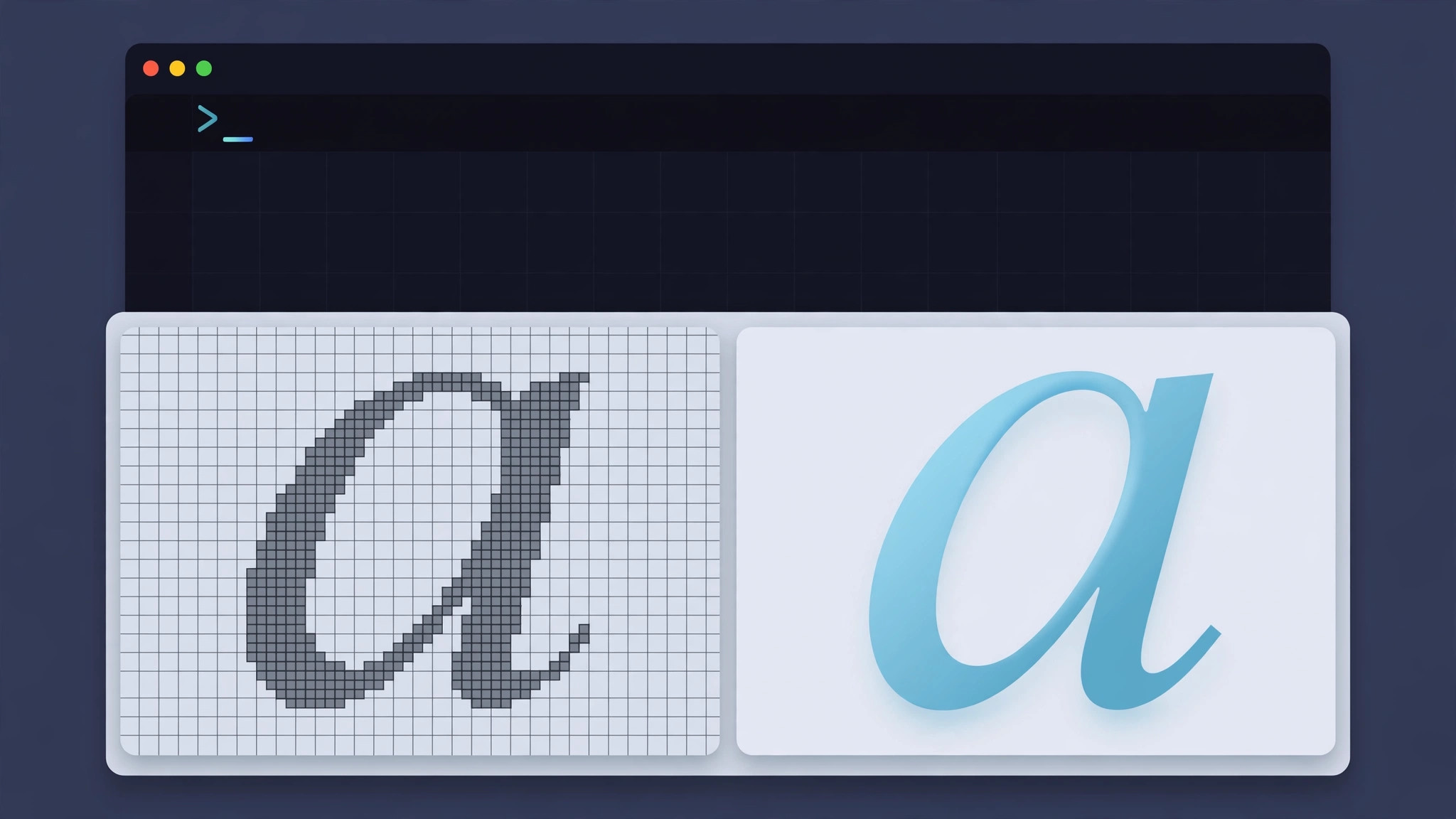
How to change font smoothing in macOS
You can pick one of three smoothing levels. Here’s how:
- Open Terminal. Press Cmd + Space, type Terminal, and hit Enter — or find it in Applications, then Utilities. (If you ever struggle to locate apps, here’s how to quickly open the installed apps list in macOS 26.)
- Run the font smoothing command. Type or paste the following line, replacing X with 1, 2, or 3, then press Enter:
defaults -currentHost write -g AppleFontSmoothing -int X
The values mean: 1 turns smoothing off, 2 is medium (Apple’s default), and 3 is maximum smoothing. The change is written instantly, but open apps won’t pick it up until you restart. - Restart your Mac. Click the Apple menu and choose Restart. When you’re back, open a text-heavy app or website and compare — the difference is most visible on non-Retina external displays, where smoothing has the biggest effect on legibility.
- Or use the Font Smoothing Adjuster app instead. If Terminal isn’t your thing, the free open-source Font Smoothing Adjuster utility offers the same 1-2-3 choice in a simple window — no commands to memorize, same result after a restart.
If it still doesn’t work
First, double-check the command: it’s -currentHost with a capital H, and the value must be 1, 2, or 3 — anything else is ignored. If text still looks wrong, the real issue may be display scaling rather than smoothing: try a different scaled resolution under System Settings, then Displays. Also keep expectations realistic on Retina screens — with that pixel density, smoothing barely matters, so if your MacBook’s built-in display looks off, investigate Night Shift or True Tone instead. Apple’s macOS User Guide documents the display settings you can adjust officially.
FAQ
What do the AppleFontSmoothing values actually change?
1 disables smoothing (crisper but thinner text), 2 is Apple’s standard medium smoothing, and 3 applies heavier smoothing that looks bolder. Most people are happiest with 2; try 1 if text looks blurry or smeared on an external monitor.
Is it safe to change this setting?
Yes — it’s an ordinary user preference, not a system hack. You can always set it back to 2 (the default) and restart. It doesn’t affect printing, and screenshots viewed on other devices look the same as before.
The bottom line
Apple may have hidden the font smoothing toggle, but the setting never left — one Terminal command, or the free Font Smoothing Adjuster, puts you back in control. It’s a two-minute fix that makes the biggest difference on external non-Retina monitors. And while you’re fine-tuning your Mac, consider muting Mail notifications for specific contacts to keep your focus intact.





