
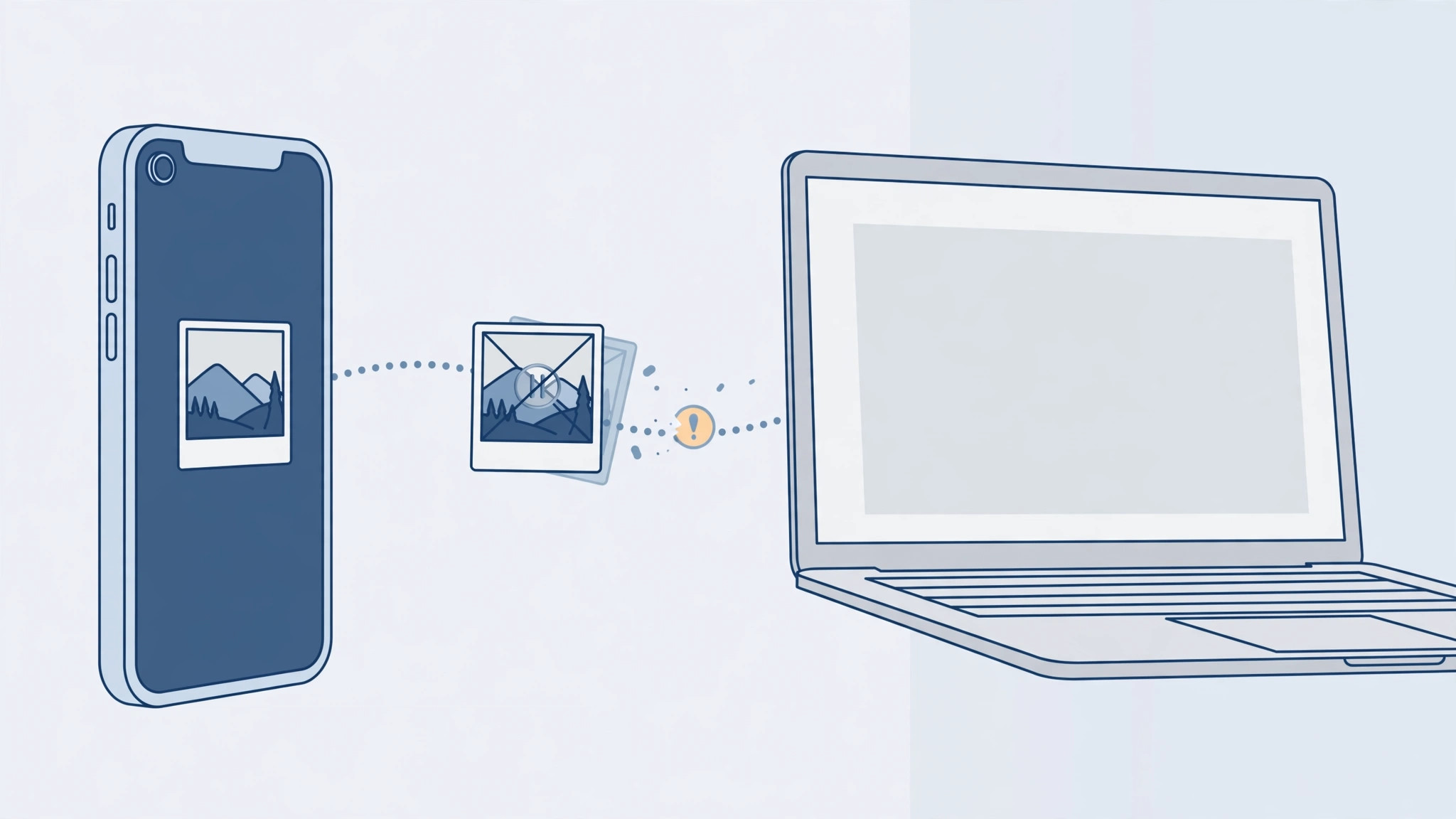
Continuity Camera is one of those Apple features that feels like magic — take a photo on your iPhone and it appears instantly in a document on your Mac. But when it stops working, it’s frustrating. If your iPhone photos aren’t transferring to your Mac, the problem is almost always a missed requirement or a connectivity hiccup. Here’s how to get it working again.
Step-by-step: fix Continuity Camera photo transfers
- Check the system requirements. Your Mac needs macOS Mojave 10.14 or later, and your iPhone needs iOS 12 or later. Continuity Camera works in the Finder, Mail, Messages, Notes, TextEdit, and in Keynote 8.2 or later, Numbers 5.2 or later, and Pages 7.2 or later. If either device is running something older, update it first.
- Sign in to the same Apple ID on both devices. Continuity Camera requires the same Apple ID on your iPhone and Mac, and two-factor authentication must be turned on for that Apple ID. Check Settings on the iPhone and System Settings on the Mac to confirm they match.
- Turn on Wi-Fi and Bluetooth on both devices. The feature uses Bluetooth for discovery and Wi-Fi for the actual transfer. Make sure both radios are on, and keep the devices near each other — within a few meters works best.
- Use it the right way. On your Mac, right-click (or Control-click) in a supported app where you want the photo — for example in a Finder window or a Pages document — and choose “Import from iPhone or iPad” or “Take Photo.” Your iPhone should wake up with the camera ready. If nothing happens, the handshake failed; move to the next step.
- Restart both devices. A fresh restart clears the wireless discovery state that Continuity Camera depends on. Power both the iPhone and the Mac fully off and on, then try again.
- Test with another device. If you have a second iPhone or iPad on the same Apple ID, see whether Continuity Camera works from it. If it does, the problem is specific to the first iPhone — try signing out of iCloud on it and signing back in.

Why it happens
Continuity Camera relies on the same underlying wireless discovery as AirDrop and Handoff. That means anything that breaks device discovery — mismatched Apple IDs, two-factor authentication turned off, Bluetooth disabled, or the devices being too far apart — will silently break photo transfers. MacRumors has documented cases where simply toggling Bluetooth off and on again restored the connection.
If you’re moving lots of photos between devices, you might also want to transfer iPhone photos while preserving edit history and metadata, or convert HEIC photos to JPG on your iPhone before sending them to a Mac that struggles with the format. And if location data is your concern, here’s how to remove or change a photo’s location on iOS.
If it still doesn’t work
Update both devices to the latest available software — Apple has fixed several Continuity bugs in point releases. If the feature worked before and suddenly stopped, check whether AirDrop works between the devices; if AirDrop is also broken, the issue is the wireless link, not Continuity Camera itself. As a last resort, Apple’s support documentation suggests restoring the iPhone or reinstalling macOS, but try everything else first.
FAQ
Does Continuity Camera work without Wi-Fi?
Both Wi-Fi and Bluetooth need to be on, but the devices don’t have to be on the same Wi-Fi network — the transfer can happen over a direct peer-to-peer connection. Bluetooth handles discovery either way.
Can I use Continuity Camera to scan documents too?
Yes. The same “Import from iPhone or iPad” menu offers “Scan Documents” alongside “Take Photo.” The scanned PDF lands directly in your Mac app. YouTube has walkthroughs showing the feature in action in Notes and Pages.
Conclusion
When Continuity Camera won’t transfer photos from your iPhone to your Mac, run through the checklist: matching Apple ID with two-factor authentication, Wi-Fi and Bluetooth on, devices close together, and supported apps and OS versions. One of those is almost always the culprit.





