
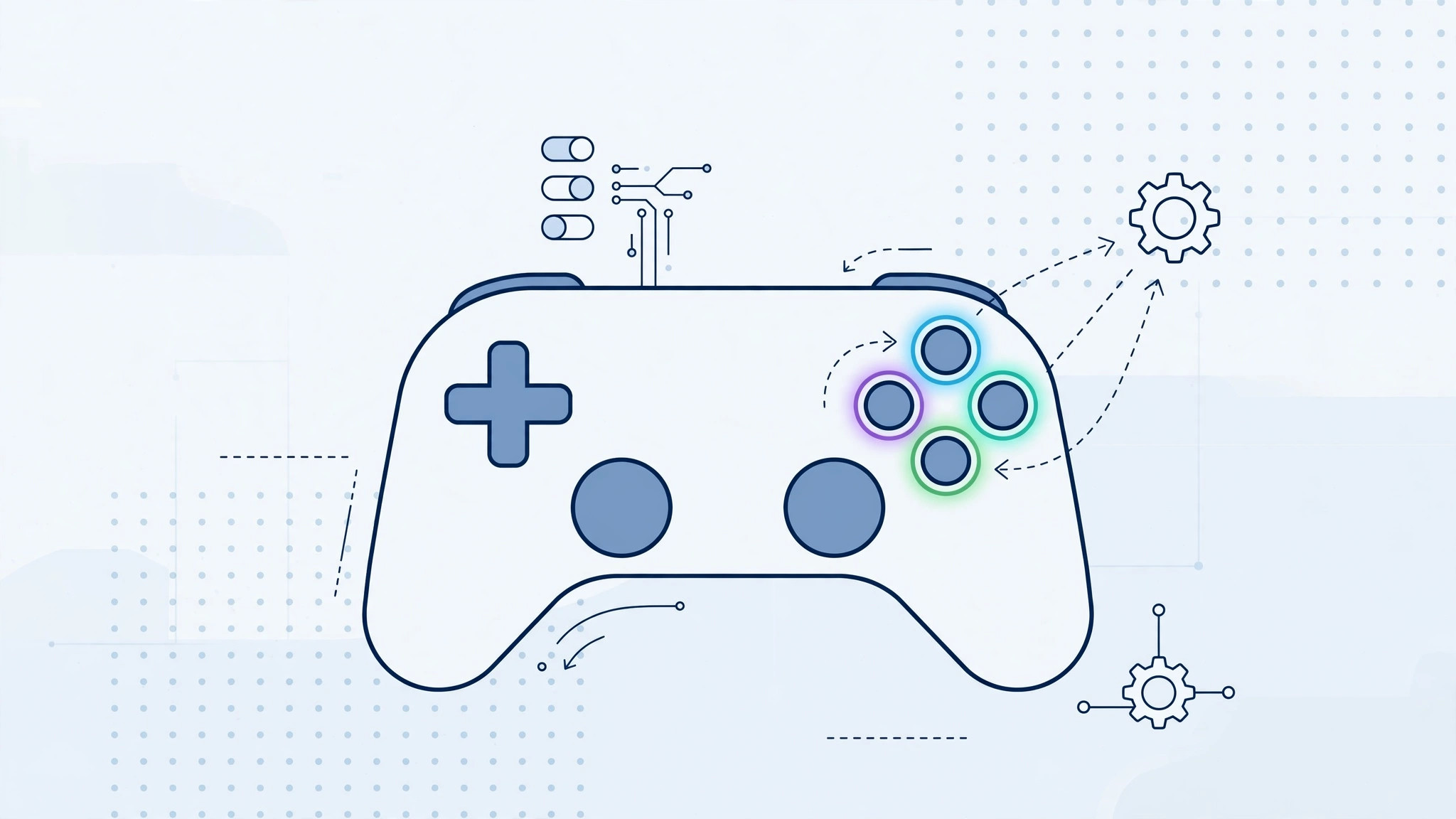
Playing games on your iPhone with a proper controller is a revelation — until muscle memory betrays you. Maybe you keep hitting the wrong button at a crucial moment, or a game’s default layout just feels backwards to your thumbs. With iOS 14, Apple quietly gave mobile gamers a powerful fix: you can remap the buttons on a paired wireless game controller right from the Settings app, with no third-party apps required.
Whether you play with an Xbox Wireless Controller, a PlayStation DualShock 4, or an MFi-certified controller, here is how to make every button do exactly what you want.
Pair your controller first
Button remapping only works for a controller that is already paired with your iPhone. If you have not connected yours yet, the process takes seconds:
- Put your controller into pairing mode. On an Xbox Wireless Controller, hold the pairing button until the Xbox button flashes; on a DualShock 4, hold the Share and PS buttons together until the light bar blinks.
- On your iPhone, open Settings > Bluetooth and make sure Bluetooth is switched on.
- Tap your controller’s name under Other Devices. Once it moves to My Devices and reads Connected, you are ready.
Apple’s own guide to connecting a wireless game controller to your Apple device covers pairing in more detail, including wired USB connections.
How to remap game controller buttons in iOS 14
With the controller connected, follow these steps:
- Open Settings > General > Game Controller.
- Tap the name of your paired controller.
- You will see a list of the controller’s inputs — face buttons, bumpers, triggers, thumbsticks, and the D-pad.
- Tap the control you want to change, for example Button A.
- When prompted, press the physical button on the controller that you want to assign to that action.
- Repeat for any other buttons you want to swap. Your changes take effect immediately in games.
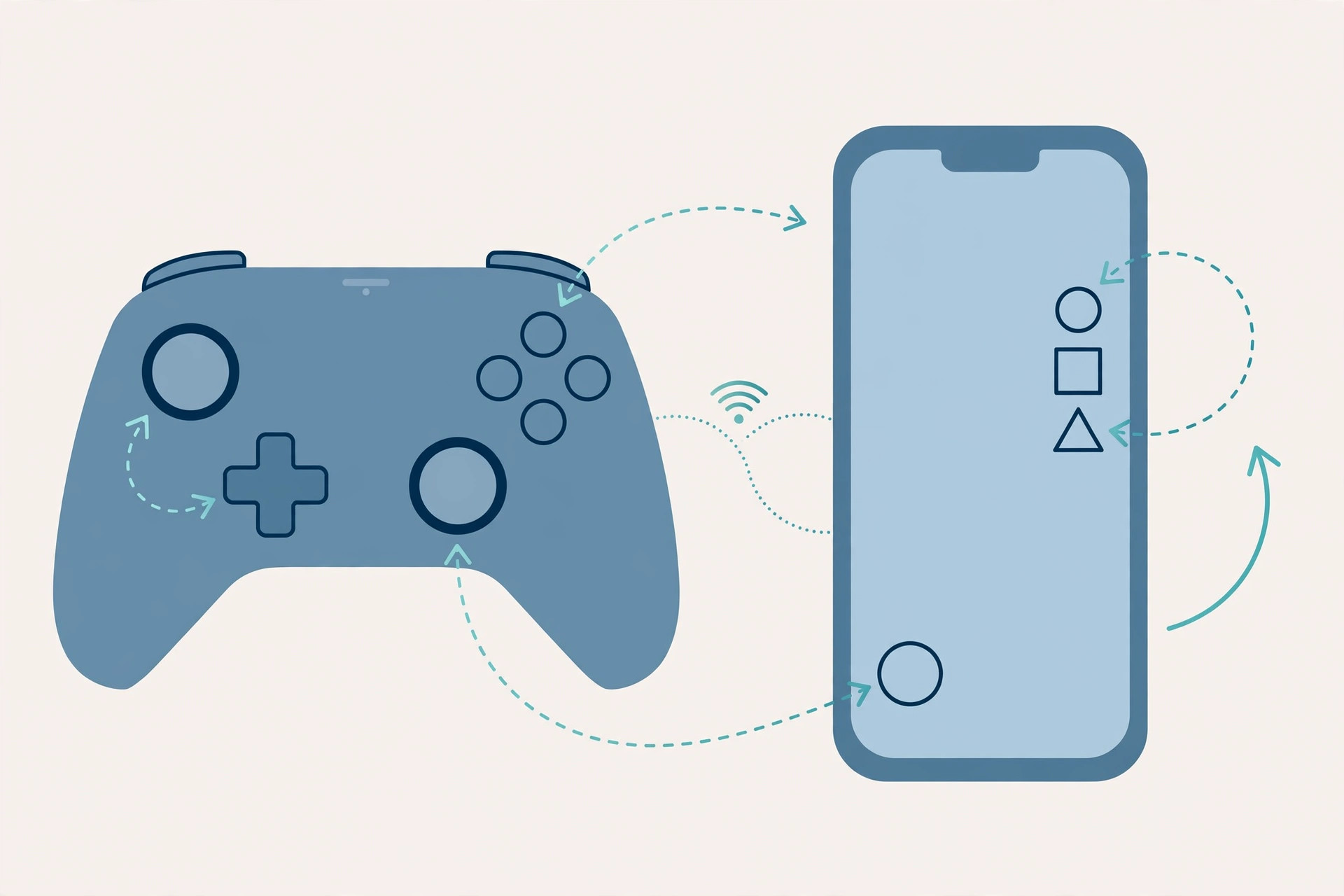
If you ever want to start over, return to the same screen and restore the default layout — handy before handing the controller to a friend. Serious about mobile gaming? Our iPhone Game Center setup guide walks through achievements, friends, and multiplayer, while our fix for game saves that disappear when you sign in with Apple can rescue a frustrating progress loss.
If it still doesn’t work
Not every controller exposes remappable buttons — if tapping your controller’s name shows no customization options, your model may simply not support the feature, and no settings tweak will add it. Also confirm your iPhone runs iOS 14 or later under Settings > General > Software Update, then try removing the controller via Forget This Device in Bluetooth settings and pairing it again. As 9to5Mac noted in its iOS 14 coverage, a small number of older MFi controllers never gained remapping support.
Frequently asked questions
Which controllers support button remapping in iOS 14?
Apple supports remapping on the Xbox Wireless Controller, the PlayStation DualShock 4, and many MFi (Made for iPhone) controllers. Support varies by model and firmware, so if the Game Controller screen shows no options for your pad, check the manufacturer’s site for a firmware update.
Do remapped buttons work in every game?
Remapping happens at the system level, so your custom layout applies in any game that uses Apple’s standard controller framework. A few games with their own in-game button settings may override your choices — check the game’s own options if a button behaves unexpectedly.
Wrapping up
Remapping your controller’s buttons in iOS 14 is one of those small quality-of-life upgrades that makes mobile gaming feel truly yours. Pair the controller, open Settings > General > Game Controller, and spend two minutes assigning buttons to match your instincts — your thumbs will thank you.





