

Your photos, notes and files sync perfectly over Wi-Fi, but the moment you step outside and switch to LTE, iCloud seems to freeze. This is one of the most common iCloud complaints, and it almost always comes down to a cellular-data permission rather than an iCloud outage. Here is how to get syncing over mobile data again.
1. Make sure cellular data itself works
- Open Safari and load any website. If nothing loads, the problem is your mobile connection, not iCloud — toggle Airplane Mode on and off, or move to an area with better signal.
- If websites load fine but iCloud does not sync, the cellular radio is healthy and the culprit is a permission or setting. Continue below.
2. Check the app’s cellular data permission
- Go to Settings → Cellular (or Mobile Data) and scroll through the app list.
- Find the app or service that is not syncing — for example, the app whose documents live in iCloud Drive — and make sure its toggle is on. A single disabled toggle silently blocks that app from using LTE while everything else works.
3. Allow iCloud Drive to use cellular data
- Open Settings, tap [your name] at the top, then iCloud.
- Tap iCloud Drive and look for a Use Cellular Data style toggle. On versions where it appears, turn it on so Drive syncs over LTE as well as Wi-Fi.
iCloud and messaging are closely linked — if your messages are also misbehaving, see how to permanently delete text messages on iPhone with iCloud for a deeper look at the message-sync side of things.
4. Turn off Low Data Mode and check your data cap
- Go to Settings → Cellular → Cellular Data Options and make sure Low Data Mode is off. Low Data Mode deliberately pauses background sync, including iCloud.
- Check whether you have hit your carrier’s monthly data cap or fair-use limit. Some plans throttle or block background sync once the allowance is used up.
5. Reset network settings
- Go to Settings → General → Transfer or Reset iPhone → Reset → Reset Network Settings.
- Note your Wi-Fi passwords first — this erases all saved networks, VPN configurations and cellular settings, then restores the defaults.
- Reconnect to your carrier network, re-enter the carrier APN settings if your provider requires them manually, and try the iCloud sync again.
SIM and carrier quirks can also block data features — our guide on verifying your SIM card and avoiding the cooling-off period covers the carrier side in more detail.
6. Retry the sync
- After the reset, open the app or Files and trigger a manual sync or refresh.
- Give it a few minutes on LTE — the first sync after a settings reset can take a while as the phone re-establishes its iCloud session.
Apple documents the cellular requirements for iCloud features on Apple Support, and 9to5Mac regularly covers iOS changes that affect background sync behavior.
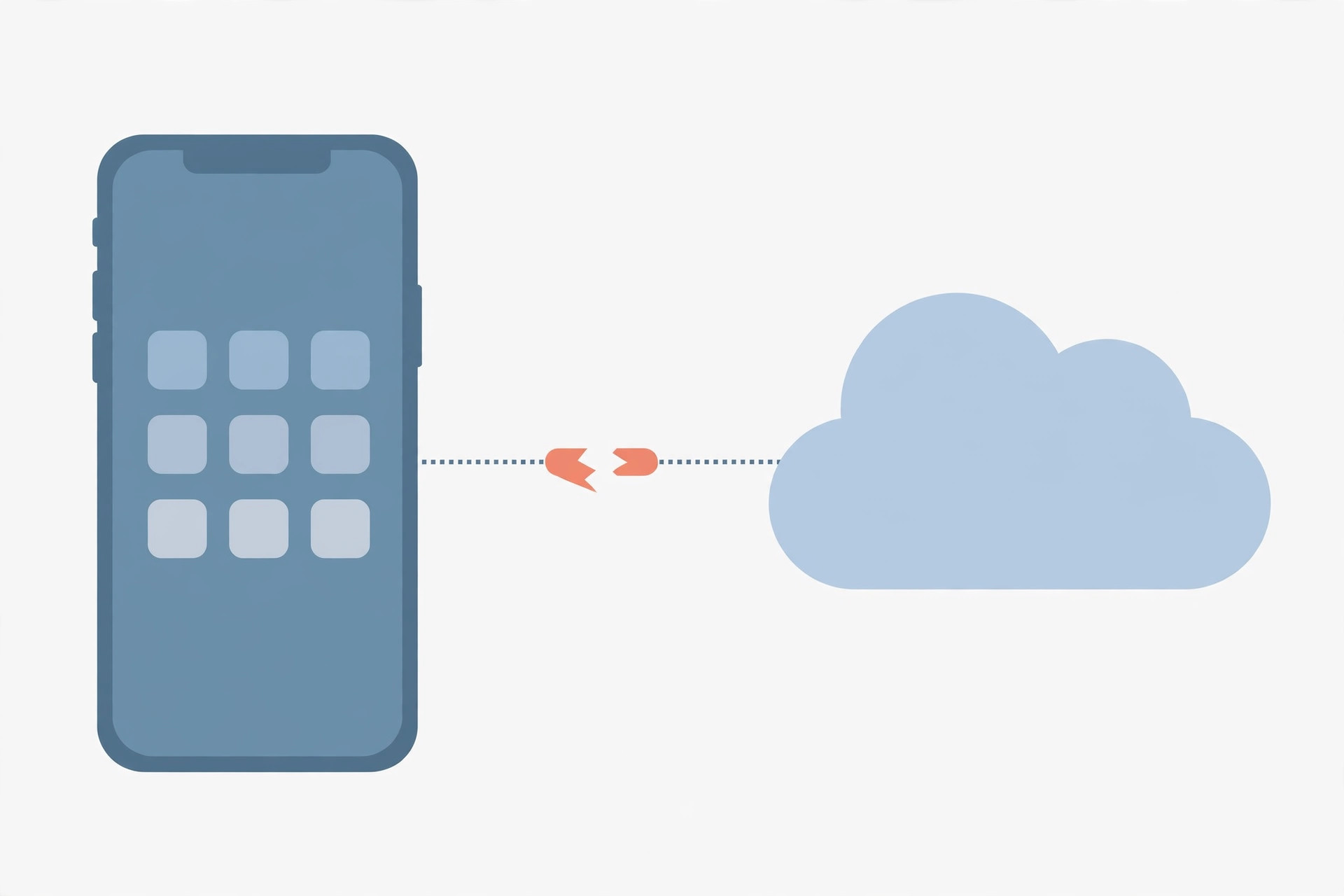
If it still doesn’t work
If iCloud syncs on Wi-Fi but stubbornly refuses over LTE after all of the above, contact your carrier. Some carriers restrict certain background data or APN types on specific plans, and only they can lift that restriction or correct a misconfigured APN profile on their side.
Frequently asked questions
Why does iCloud work on Wi-Fi but not on mobile data?
Almost always because of a permission: either the app’s cellular toggle is off in Settings → Cellular, iCloud Drive’s cellular toggle is off, or Low Data Mode is pausing background sync. iCloud itself rarely distinguishes between the two networks.
Will resetting network settings delete my photos or files?
No. Resetting network settings only erases Wi-Fi passwords, VPN and cellular configurations. Your photos, files, apps and iCloud data are untouched — but do note down Wi-Fi passwords before you reset.
Conclusion
iCloud failing over LTE is usually a settings issue, not a broken service: confirm mobile data works, allow the app and iCloud Drive to use cellular data, switch off Low Data Mode, and reset network settings if needed. One of these steps fixes it in nearly every case.





