
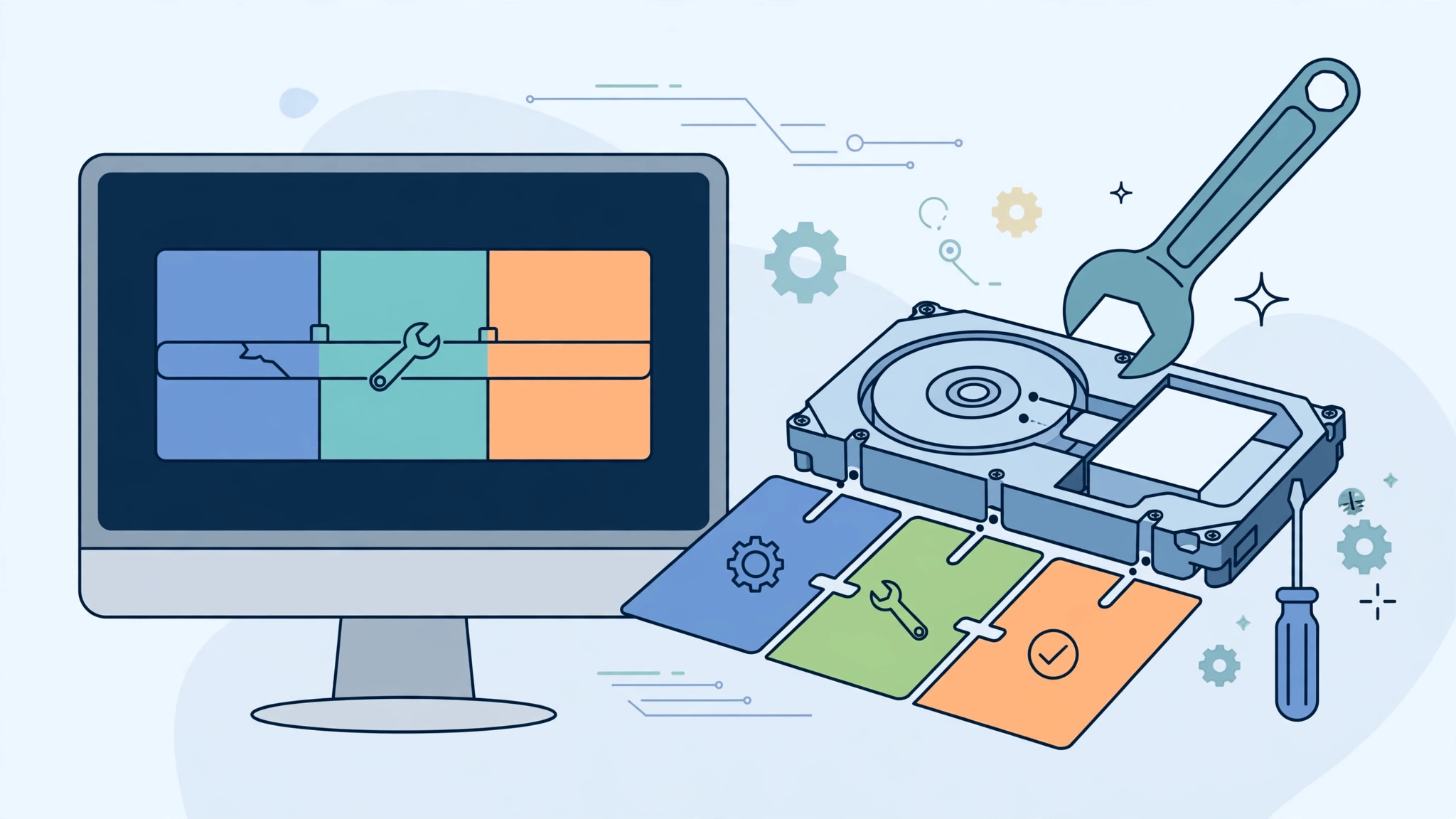
You open Disk Utility or Boot Camp Assistant, try to carve a second partition out of your Mac’s drive — and instead of a new volume you get an error and nothing changes. It’s frustrating, but the cause is almost always the same: filesystem problems on the drive are blocking the partitioning operation. The fix is equally consistent, and it uses a tool already built into macOS.
How to fix a Mac disk partitioning error
1. Run First Aid in Disk Utility
Open Disk Utility (Applications → Utilities), select the drive in the sidebar, and click First Aid — the built-in repair tool that checks the filesystem and fixes inconsistencies. Let it finish, then try partitioning again. Apple’s Disk Utility documentation walks through the same procedure. If you often dig around in macOS utilities, you’ll appreciate our guide on how to quickly open the installed apps list in macOS 26.
2. If First Aid fails, restart into Recovery Mode
Sometimes First Aid can’t complete while macOS is running from the very drive it’s trying to repair. In that case, restart into Recovery Mode: on an Apple silicon Mac, hold the power button until the startup options appear; on an Intel Mac, hold Command+R during startup. MacRumors has good overviews of the differences between the two Recovery methods.
3. Run First Aid from Recovery
From the Recovery menu bar, choose Utilities → Disk Utility, select your drive, and run First Aid again. Recovery locks the drive completely, so the repair can succeed where it failed before. Apple’s guide to macOS Recovery covers this step in detail. While you’re exploring system features, see how to enable face lighting during video calls on Mac.
4. Retry partitioning
Restart normally and try the partitioning operation again — it should now go through. As 9to5Mac has documented, this First-Aid-first sequence resolves the large majority of Boot Camp and Disk Utility partitioning errors.
A note on Apple silicon Macs
Boot Camp doesn’t exist on Apple silicon Macs — Windows-on-Mac partitioning is an Intel-only feature. If you’re on an M-series Mac, use virtualization software instead of Boot Camp, but the First Aid repair steps above still apply to any disk partitioning error.
If it still doesn’t work
If First Aid from Recovery reports that it couldn’t repair the drive, back up your data immediately (Time Machine or a manual copy) and consider erasing and reformatting the drive — or have an Apple Store or authorized provider look at it. Persistent unrepairable errors can mean the drive itself is failing.
Frequently asked questions
Will First Aid delete my files?
No. First Aid repairs filesystem structure — it doesn’t erase data. Still, having a backup before any disk operation is always wise.
Why does the error only appear when partitioning, not in daily use?
Partitioning forces macOS to rewrite the drive’s partition map, which exposes filesystem inconsistencies that normal read/write activity tolerates silently. That’s why the repair step fixes it.
Conclusion
Disk partitioning errors look scary but are usually just filesystem hiccups: run First Aid in Disk Utility, repeat it from Recovery Mode if needed, and retry. Ten minutes of patience beats hours of fighting the error dialog.





