
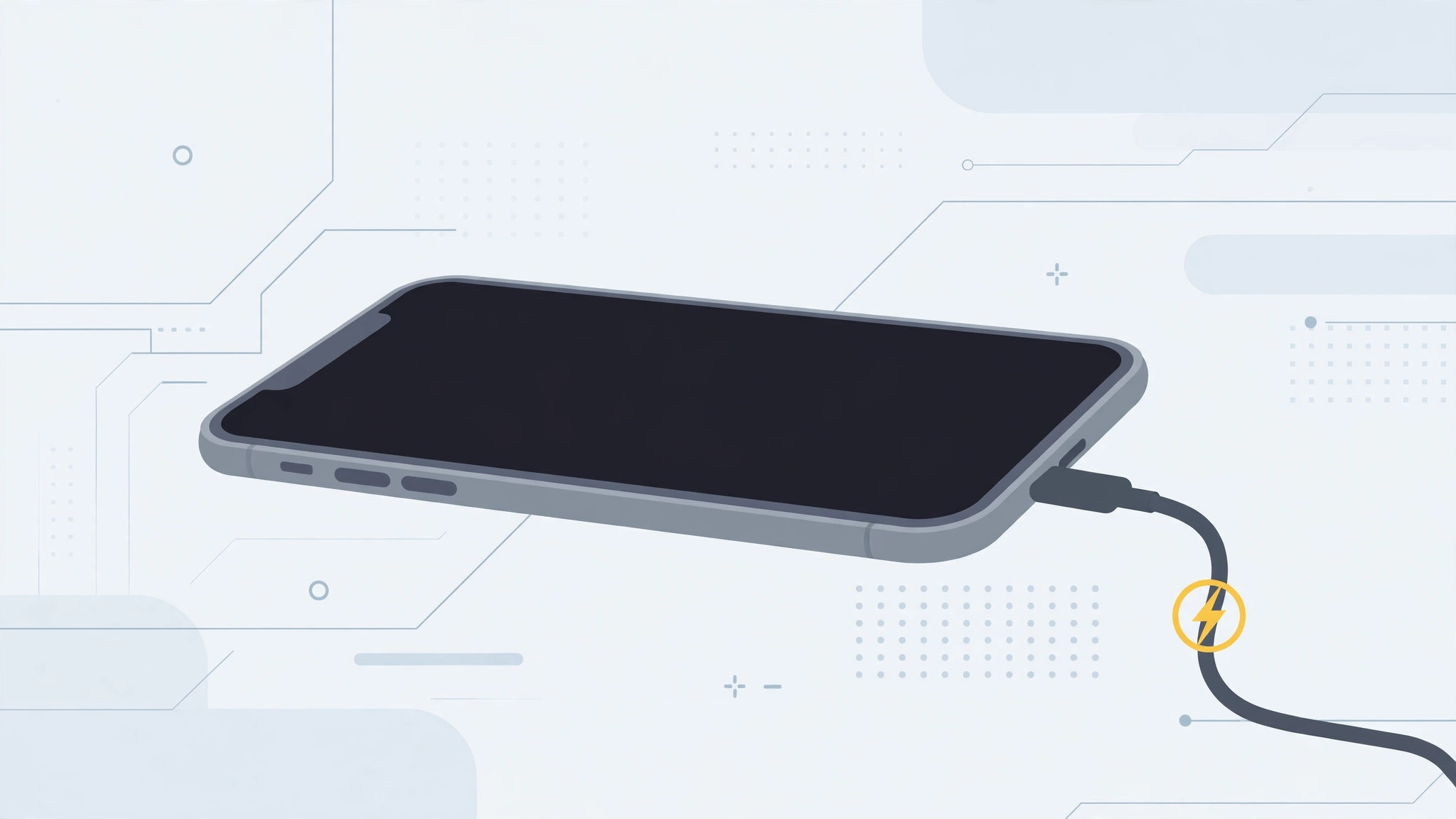
Press the side button and… nothing. Black screen, no Apple logo, no vibration. An iPhone that won’t turn on is nerve-wracking, but most of the time the cause is mundane: a dead battery, a bad cable, or a software crash. Work through these steps in order before assuming the worst.
What to do when your iPhone won’t turn on
1. Check whether it’s actually charging. Connect the iPhone to a computer first — if the screen stays black, try a wall outlet. A fully drained battery can need up to an hour on the charger before the screen responds at all, so plug it in and wait patiently. Our guide on iPhone charging problems covers cases where charging stops working over a cable.
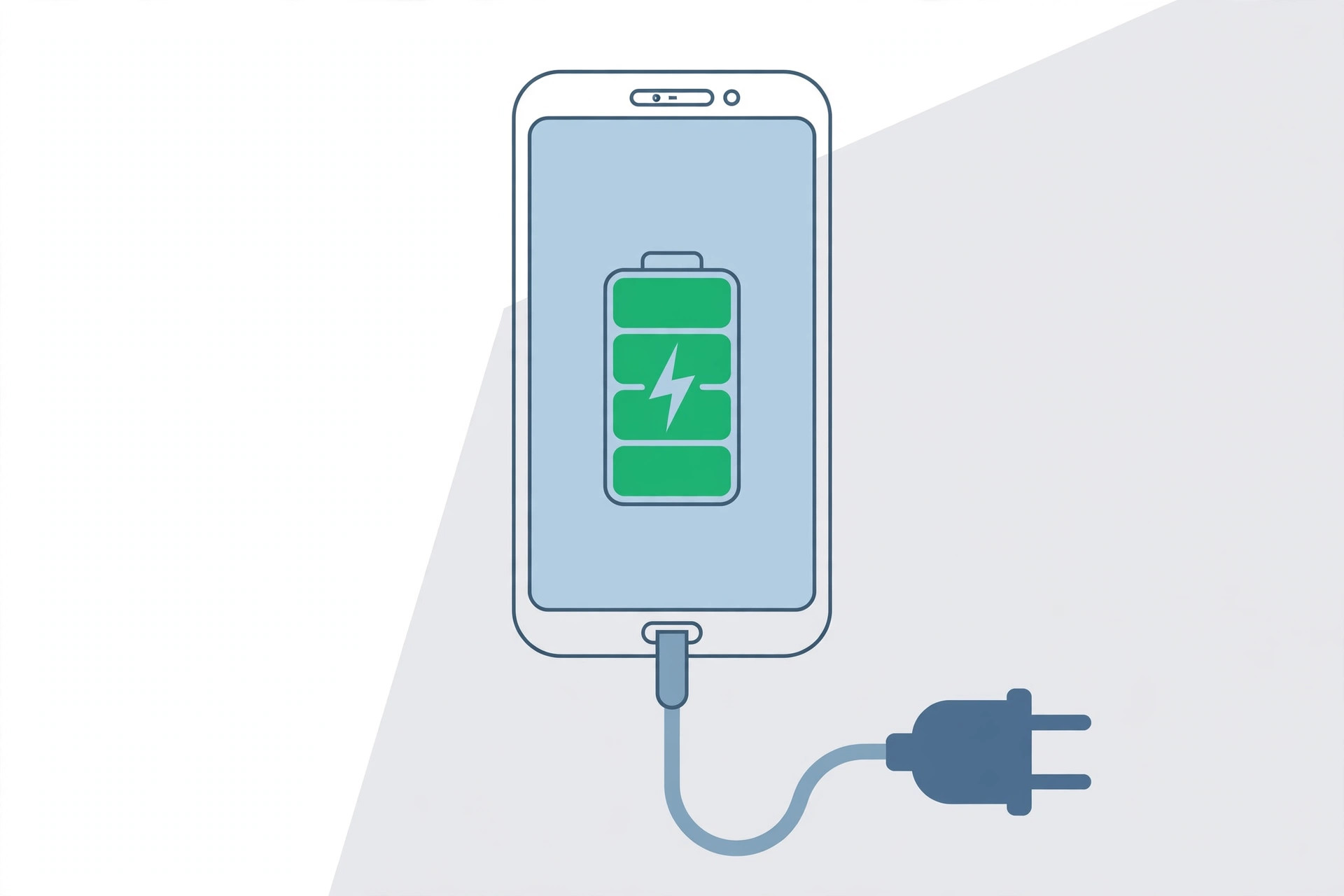
2. Inspect the cable, adapter, and port. Look for fraying, bent pins, and lint or debris in the Lightning or USB-C port. Then try a different, known-good cable and charger — a surprising number of “dead” iPhones are simply victims of a broken cable.
3. Force-restart the iPhone. If charging doesn’t help, force a restart. On iPhone 8 and later: press and quickly release Volume Up, press and quickly release Volume Down, then press and hold the Side button until the Apple logo appears. On iPhone 7/7 Plus: hold Volume Down and the Side button together. On iPhone 6s and earlier: hold Home and the Sleep/Wake button together. Apple’s official support article on iPhones that won’t turn on or are frozen walks through exactly this.
4. Restore via a computer (last resort). If it still won’t boot, connect the iPhone to a Mac or PC, open Finder (or iTunes on Windows), and put the device in recovery mode — use the same button sequence as a force-restart, but keep holding until the recovery screen appears. Choose Update first: it reinstalls iOS without erasing your data. Only choose Restore if Update fails. MacRumors has a detailed walkthrough of force-restarting and recovering newer iPhones.
If it still doesn’t work
If the iPhone still shows no signs of life after an hour of charging with a good cable and a force-restart attempt, the problem is likely hardware — a dead battery or a failed component. One exception: a phone that plays a startup chime but shows a black screen has a display issue, not a power issue; see our article on iPhone startup sounds. At this point, book a service appointment or contact Apple Support — don’t open the phone yourself.
FAQ
How long should I charge a dead iPhone?
Up to an hour. A deeply drained battery charges very slowly at first, and the screen may stay black the whole time. If nothing appears after 60 minutes on a known-good charger, move on to the force-restart.
Will a force-restart delete my data?
No. A force-restart is just a hard reboot — your data is safe. Only a full Restore via recovery mode erases the device, which is why Update is the safer first choice.
Conclusion
A black, unresponsive iPhone is scary but usually fixable: charge it properly, rule out the cable, and force-restart. Only if all three fail should you suspect a hardware fault and head to Apple.





