
Your iPhone takes excellent photos out of the box, but the camera app makes dozens of decisions for you — sharpening, noise reduction, tone mapping — and bakes them into a compressed file. If you want maximum control in editing, from recovering blown highlights to fine-tuning white balance, you need the raw sensor data. That is exactly what Apple ProRAW gives you: the flexibility of a RAW file with Apple’s computational photography still in the mix.
ProRAW is not on by default, and the toggle hides in a place many owners never open. Here is how to switch it on, how to actually shoot with it, and what to know about the much larger file sizes before you fill your storage.
If you are exploring your iPhone camera’s deeper capabilities, you might also enjoy learning to take HDR screenshots on iPhone and iPad.
What you need
Apple ProRAW requires an iPhone 12 Pro or newer — the standard (non-Pro) models do not support it. On the newest Pro models you can additionally choose between 12 MP and 48 MP ProRAW capture, which matters a lot for file sizes, as MacRumors‘ camera guides have detailed.
Turn on Apple ProRAW
- Open Settings and tap Camera.
- Tap Formats.
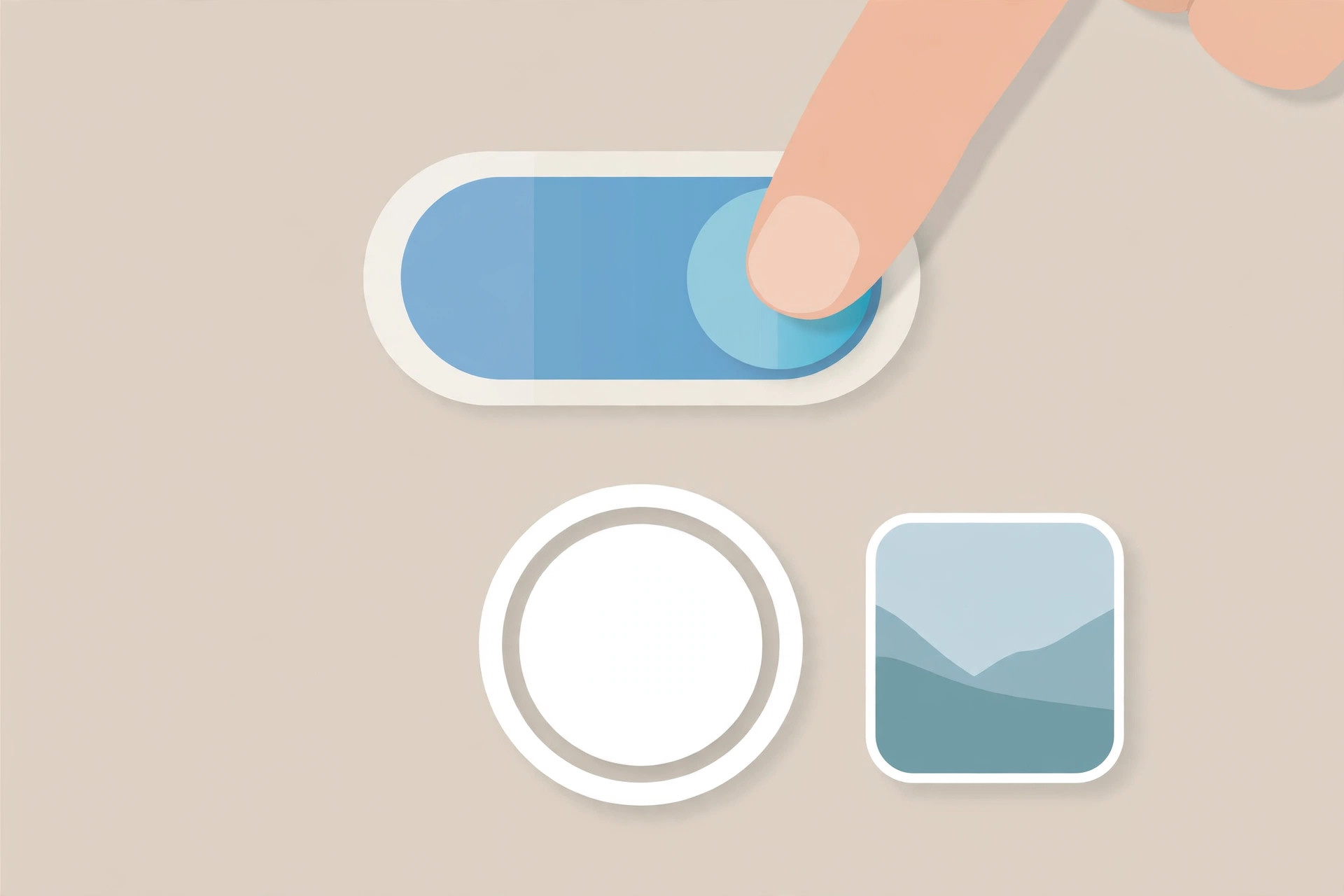
- Under Photo Capture, turn on Apple ProRAW. On newer iOS versions this toggle is labeled ProRAW & Resolution Control.
- If you see a resolution choice (12 MP or 48 MP), pick the one that suits you — 48 MP captures far more detail but produces much bigger files.
Shoot in ProRAW
Enabling the setting does not mean every photo becomes a ProRAW file — that would devour your storage. Instead, it adds a RAW button to the Camera app:
- Open the Camera app and stay in Photo mode.
- Tap the RAW indicator in the corner of the screen. When it is highlighted (not crossed out), the next shot is captured in ProRAW.
- Shoot as normal. Photos taken in ProRAW are marked with a RAW badge in the Photos app.
This per-shot control is the key detail most people miss: you toggle RAW on only for the photos you plan to edit seriously, and leave it off for everyday snaps. Apple documents this workflow on support.apple.com, and 9to5Mac has walked through the ProRAW shooting process in its camera how-tos.
What to know about file sizes
ProRAW files are dramatically larger than standard HEIF or JPEG photos — often ten times the size or more, and a 48 MP ProRAW shot is bigger still. A burst of ProRAW shooting can eat gigabytes in an afternoon. Two practical habits help: keep RAW off by default and enable it per shot, and offload finished edits to a computer or cloud storage regularly. If storage pressure is a constant battle, it may be worth revisiting how you use the hardware — for instance, disabling the quick camera launch from the Lock Screen can cut down on accidental pocket photos eating space.
If it still doesn’t work
If the ProRAW toggle is missing from Camera > Formats, double-check your model: it must be an iPhone 12 Pro or newer (Pro or Pro Max). Standard iPhones, including the newest non-Pro models, do not offer it. If the RAW button does not appear in the Camera app after enabling the setting, make sure you are in Photo mode — RAW capture is not available in Portrait, Pano, or video modes. Still stuck? Restart the Camera app; the toggle sometimes needs a fresh launch to appear. A related camera quirk worth knowing: why Spatial photo mode isn’t working in iOS 26.
Frequently asked questions
Is ProRAW better than shooting HEIF for every photo?
Only if you edit. For sharing straight from the phone, HEIF/JPEG with Apple’s processing looks better with zero effort. ProRAW shines when you push edits hard — lifting shadows, fixing white balance, or printing large — because it preserves far more data to work with.
Can I convert a ProRAW photo back to a smaller file?
Yes. Edit the ProRAW shot to taste, then duplicate or export it — the exported copy is a standard compressed image you can share, while the original stays in your library. Many photographers keep the ProRAW originals for important shots and export small versions for everyday use.
Conclusion
Apple ProRAW is the iPhone camera’s expert mode: a Settings toggle away, controlled per shot with the RAW button, and capable of dramatically better edits at the cost of much larger files. Turn it on, use it deliberately, and your most important photos will have room to become their best selves.





