
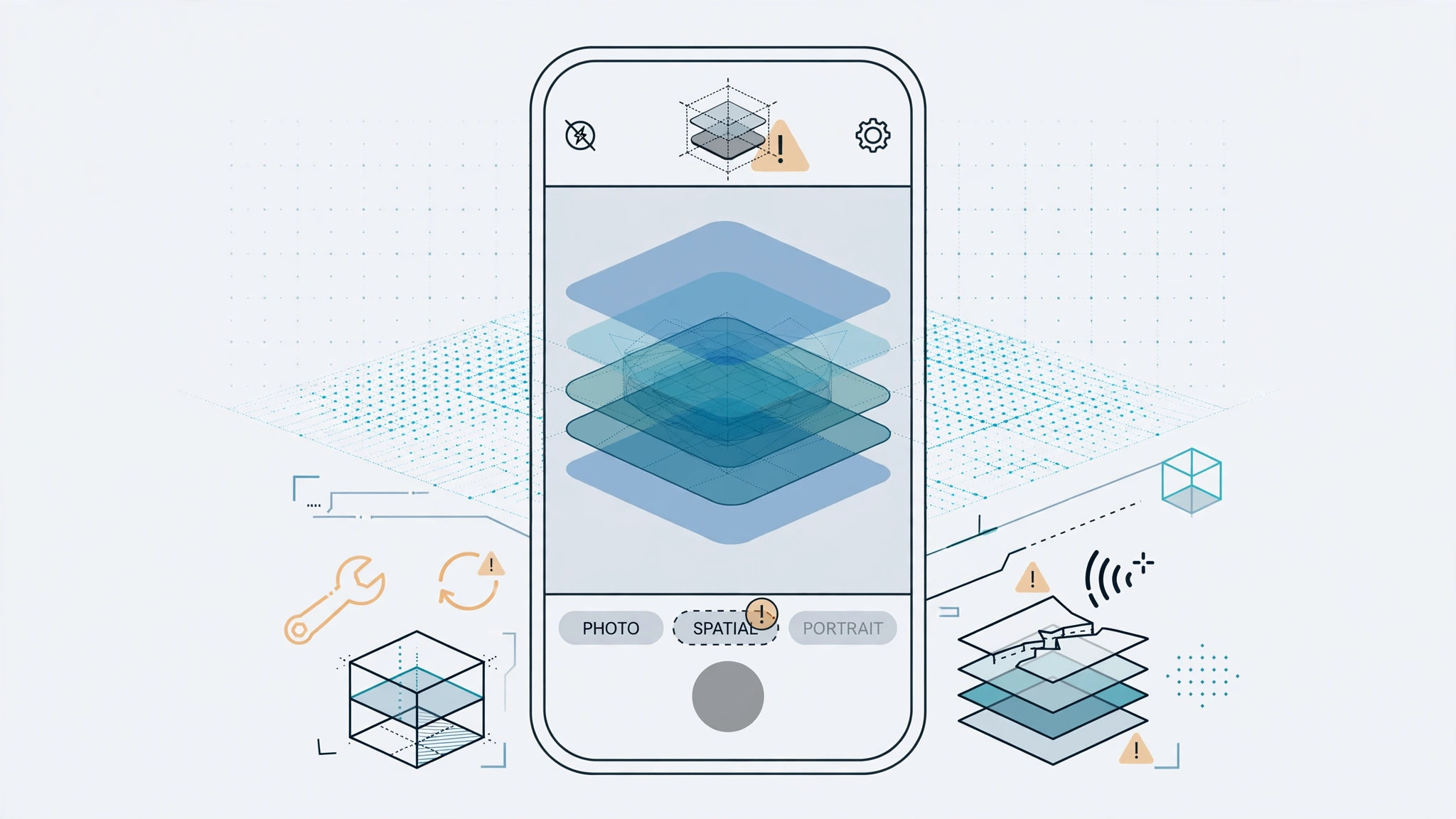
One of iOS 26’s flashiest additions is spatial photo mode. It takes an ordinary picture, separates the foreground from the background, and adds a subtle parallax effect — tilt your phone and the image seems to move. You can even set one as a three-dimensional lock-screen wallpaper. It looks fantastic, when it works.
Many users update to iOS 26 only to find the spatial option greyed out or unresponsive. The good news: the cause is almost always one of three simple things, each taking under a minute to check.
What spatial photo mode does
Spatial mode uses on-device machine learning to build a depth map of a regular 2D photo, distinguishing the subject from the scenery behind it. As MacRumors covered in its iOS 26 roundup, all processing happens locally on the iPhone — which is exactly why Apple limits the feature to newer hardware.
Why it isn’t working
1. Your iPhone doesn’t support it
Spatial photos require an iPhone 12, iPhone 12 mini, or newer. On an iPhone 11, XR, XS, or older, the option will never appear regardless of settings — the neural engine can’t run the depth processing. This is the most common cause, and the only fix is a newer device.
2. The feature is turned off
Even on supported iPhones, spatial photo creation can be disabled. Apple buried the toggle deep in Settings, so many users never know it exists. Flipping it on takes seconds — see step 3 below.
3. You’re viewing a compressed iCloud copy
With “Optimize iPhone Storage” enabled, your iPhone keeps lightweight previews while originals live in iCloud. The spatial effect needs the full original file — a compressed preview lacks the image data for depth analysis. Download the original first.
Fix it in five steps
- Confirm support. Go to Settings > General > About. You need iPhone 12/12 mini or newer.
- Update to iOS 26. Check Settings > General > Software Update. 9to5Mac’s iOS 26 guides track which release added each feature.
- Enable the toggle. Go to Settings > Apps > Photos, scroll to the bottom, and switch on “Spatial Photos”. This master switch activates the feature in the Photos app.
- Download the iCloud original. Tap any cloud-marked photo and wait for the full version to download, or temporarily choose “Download and Keep Originals” under Settings > [your name] > iCloud > Photos.
- Restart Photos. Close the Photos app from the app switcher and reopen it to clear cached state.
If it still doesn’t work
Restart the iPhone itself, and make sure you have a few gigabytes of free storage — depth processing needs working space (Settings > General > iPhone Storage). Also try a photo taken directly with your iPhone’s camera rather than an imported image. If nothing helps, Apple’s iPhone support pages offer deeper diagnostics, and YouTube demos show what the working feature should look like.
Frequently asked questions
Does it work on videos?
No — still photos only. The effect is built from a single frame, so video clips won’t get the parallax treatment.
Does it eat up storage?
Barely. Depth data is generated on demand and cached in small amounts. Prefer to skip iOS 26 altogether? Here’s how to completely block iOS 26 updates on iPhone.
Conclusion
Spatial photos turn flat snapshots into images with real depth — and make striking 3D lock-screen wallpapers. When the mode won’t cooperate, check compatibility, the hidden Settings toggle, and whether you’re viewing an iCloud original. Five minutes of checks is usually all it takes. While exploring iOS 26’s visual side, see the Liquid Glass lock-screen clock effect and how to disable quick camera launch from the lock screen. For more user discoveries, the conversation on X is worth a browse.






[…] Take screenshots exactly as you always have — press the Side button and Volume Up together, or use AssistiveTouch. The difference is in the file itself: HDR captures store a wider range of brightness and color information. If you enjoy pushing your iPhone’s camera and display to their limits, you may also want to read our guide on why spatial photo mode isn’t working in iOS 26. […]
[…] If a clean install with no backup still freezes, the fault is deeper than software — likely hardware. Contact Apple Support or book a Genius Bar visit, and tell them which diagnostic steps you have already completed. The same isolate-and-test thinking fixes other mysteries too — see our guide on why spatial photo mode isn't working in iOS 26. […]