

WhatsApp’s little checkmarks tell you a surprising amount about your messages — if you know how to read them. One grey tick means your message left your phone and reached WhatsApp’s servers. Two grey ticks mean it was delivered to the recipient’s device. Two blue ticks mean it was read. But those ticks never tell you when each of those things happened. For the exact timestamps, WhatsApp hides a neat trick in plain sight: the Message Info screen.
The gesture is simple. In the WhatsApp chat, touch your sent message and swipe it from right to left. The Message Info screen slides in, showing the exact time your message was Delivered and the exact time it was Read. Prefer buttons to gestures? Long-press the message instead and tap Info — it opens the same screen.
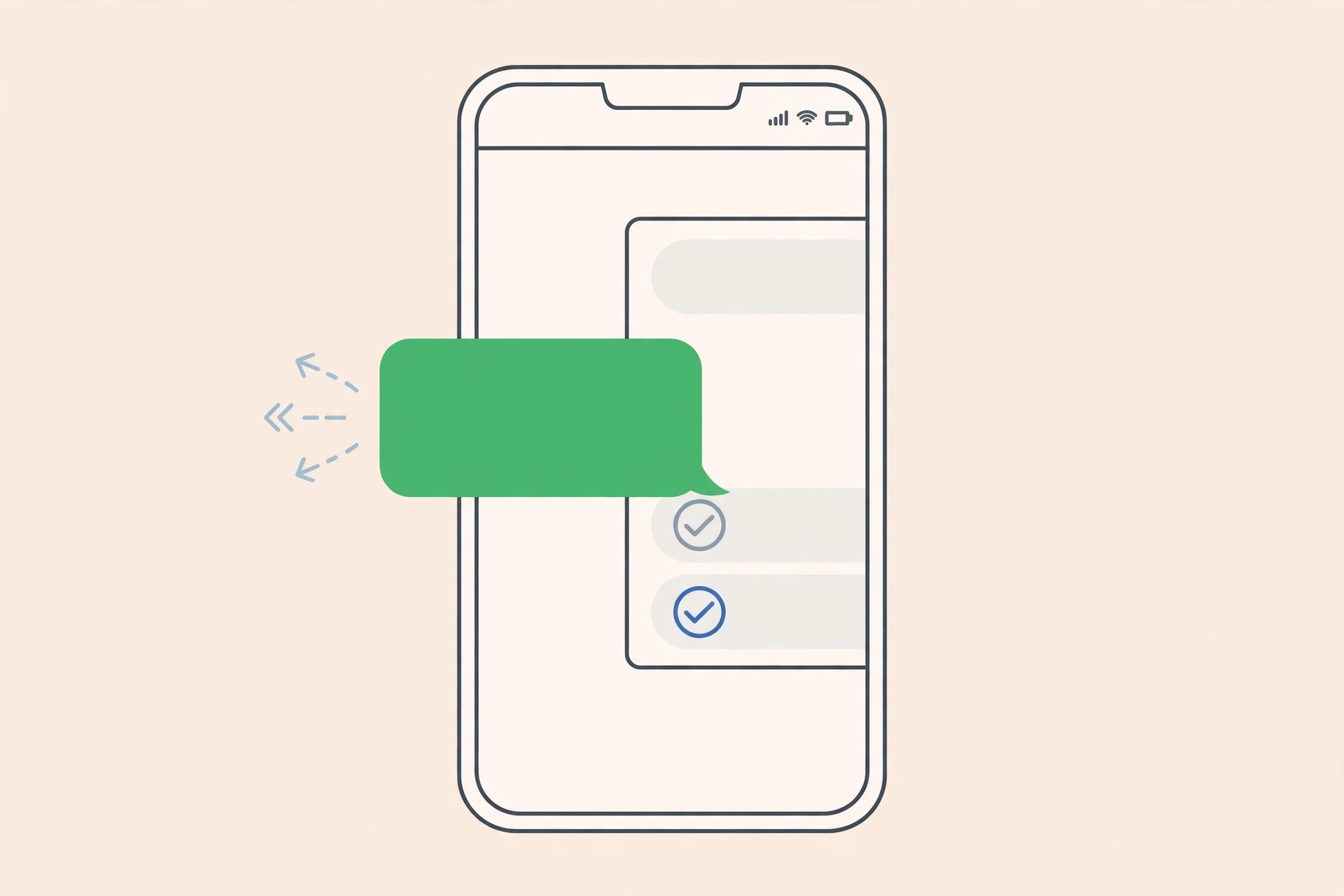
How to see exact delivery and read times in WhatsApp
- Open the chat. Launch WhatsApp and open the conversation containing the message you sent.
- Find your sent message. Scroll to the message you want to check — it must be one you sent, not one you received.
- Swipe right to left. Touch the message bubble and swipe it toward the left edge of the screen. The Message Info screen appears.
- Read the timestamps. The screen lists Delivered with the exact date and time the message reached the other person’s phone, and Read with the exact moment they opened it.
- Use Info as an alternative. Long-press the message, tap the Info icon in the toolbar, and you’ll land on the same Message Info screen.
- Check group chats too. In a group, the Message Info screen shows per-participant times: who has received the message and who has read it, each with their own timestamp.
This works for text messages, photos, videos, voice notes, and documents alike — anything you send gets its own Message Info entry. And if you like keeping your conversations in sync across devices, see our guide on how to set up message sync between iPhone and Mac. iPhone users who want to freshen up their browser at the same time can read how to change the Safari design on iPhone.
If it still doesn’t work
If swiping does nothing, make sure you’re swiping your own sent message — the gesture doesn’t work on received messages. If the Message Info screen shows a Delivered time but no Read time, the recipient may have read receipts turned off, or they simply haven’t opened the chat yet. Note that timestamps only appear if read receipts are enabled by both sides. For official help, visit WhatsApp’s website, and The Verge regularly covers WhatsApp’s newest messaging features.
Frequently asked questions
Can I see read times if the other person turned off read receipts?
No. If either side has disabled read receipts, WhatsApp won’t show blue ticks or Read timestamps — you’ll only see delivery information.
Does the swipe gesture work on WhatsApp Web and desktop?
The swipe gesture is a mobile trick. On WhatsApp Web or the desktop app, hover over your sent message, click the small arrow or three-dot menu, and choose Info to see the same timestamps.
Conclusion
Those grey and blue ticks are only half the story. One right-to-left swipe on any sent message — or a long-press and a tap on Info — reveals exactly when it was delivered and read, and group chats break it down per person. It’s the fastest way to know whether your message is sitting unread or was seen hours ago.





