
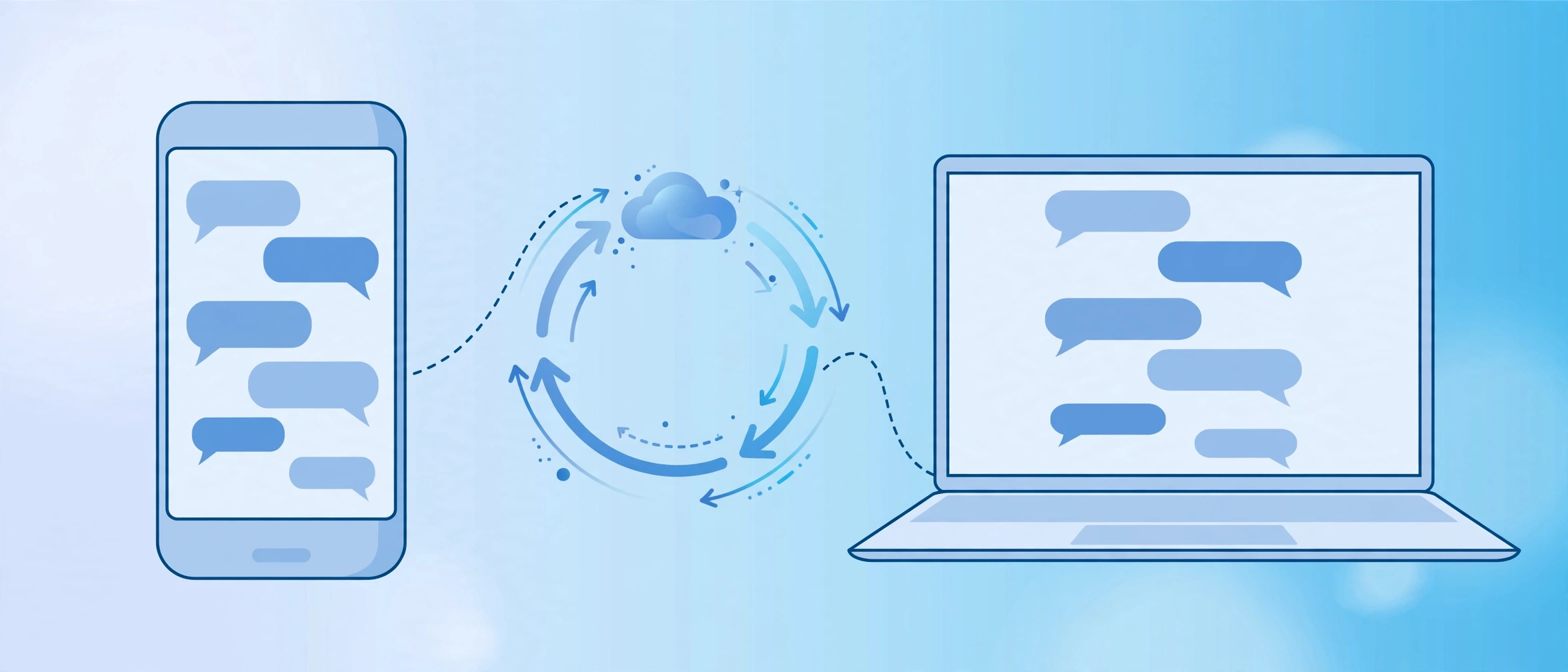
One of the best parts of owning both an iPhone and a Mac is that your messages follow you around. A bank verification code arrives while your phone is charging in another room — and there it is, popping up on your Mac’s screen. That magic has a name: message syncing. It covers both blue-bubble iMessages and green-bubble SMS texts, and setting it up comes down to two ingredients: Messages in iCloud and Text Message Forwarding.
What message syncing actually does
With everything switched on, your full message history stays in sync across your iPhone and Mac through iCloud. Start a conversation on your phone, continue it from your Mac’s keyboard, and receive SMS codes on your desktop without touching your phone. The one hard requirement is that both devices are signed into the same Apple Account — if they are not, nothing below will work.
How to sync messages between iPhone and Mac
Work through these in order; each step unlocks the next:
- On your Mac, open System Settings, click Apple Account at the top of the sidebar, then iCloud, then See all, and switch on Messages in iCloud. Apple’s Mac support pages have the full walkthrough if your menu layout looks different.
- On your iPhone, open Settings, tap your Apple Account name at the top, go to iCloud, tap See all, and switch on Messages in iCloud. Give the first sync some time — if you have years of conversations, the initial upload can take a while.
- Still on the iPhone, go to Settings, then Apps, then Messages, then Text Message Forwarding.
- Find your Mac in the device list and turn its toggle on. You may be asked to enter a verification code displayed on the Mac — type it on your iPhone to confirm the pairing.
- Open the Messages app on your Mac and check that your conversations are there. Send yourself a test message to confirm everything flows in both directions.
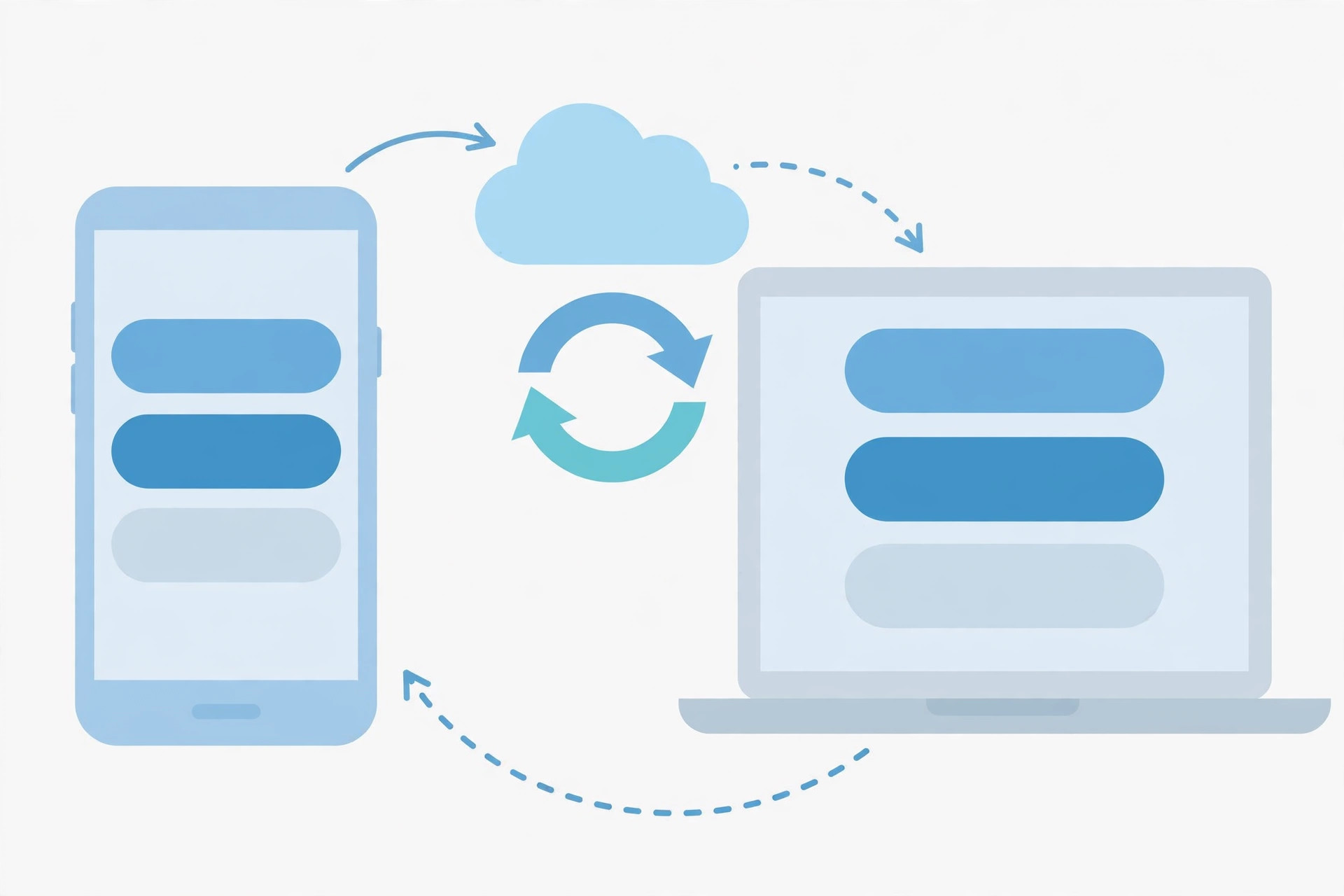
Once it is working, your Mac becomes a full messaging station. If you are deep in Apple’s ecosystem, Apple’s iPhone support hub documents even more continuity features worth trying. And while you are polishing your iPhone setup, our Liquid Glass lock screen clock guide shows how to make message notifications look their best — plus our Safari design guide covers another handy iOS 26 setting.
If it still doesn’t work
Messages not showing up on the Mac? First, confirm both devices are signed into the same Apple Account — this is the cause more often than not. Next, verify Messages in iCloud is switched on in both places, and give the first sync time on a decent connection. If iMessages sync but SMS texts do not, revisit Text Message Forwarding on the iPhone and make sure your Mac’s toggle is actually on. For stubborn cases, signing out of your Apple Account on the Mac and signing back in clears most sync glitches.
Frequently asked questions
Do I need Wi-Fi for message syncing?
You need an internet connection, but not necessarily Wi-Fi. Syncing travels through iCloud, so both devices must be online — the iPhone can use cellular data. Messages move via Apple’s servers, not a direct device-to-device link, which is why both sides need to be signed in.
Will my old messages appear on the Mac?
Yes. Once Messages in iCloud is enabled, your message history syncs over to the Mac. The very first sync can take a while if you have years of conversations, so let it run in the background and check back later.
Conclusion
A few toggles and your conversations live everywhere. Turn on Messages in iCloud on both devices, enable Text Message Forwarding for your Mac, and you will never miss a verification code again — even when your iPhone is charging in another room.






[…] Edge Light is part of the video effects Apple builds into recent macOS releases. To use it, your Mac must be running macOS 26.2 or later — on older versions the option simply will not appear. Check your version from the Apple menu > About This Mac, and install any pending update first. It also helps to confirm your camera works normally in FaceTime before you begin. Apple’s ecosystem features tie together closely, as we have seen in guides like how to set up message sync between iPhone and Mac. […]
[…] love discovering music this way, you will also enjoy sharing finds with friends; see our guide on setting up message sync between iPhone and Mac to keep those conversations flowing across […]
[…] Info entry. And if you like keeping your conversations in sync across devices, see our guide on how to set up message sync between iPhone and Mac. iPhone users who want to freshen up their browser at the same time can read how to change the […]
[…] covers the cable-free alternatives. If you like keeping your iPhone and Mac working as a team, our guide to setting up message sync between iPhone and Mac is another one worth […]
[…] pack, and transcribing your first message. If you like keeping your Apple devices in sync, our guide to setting up message sync between iPhone and Mac pairs nicely with this […]
[…] ID, the ping goes through. Keeping your devices in sync helps everything work smoothly, so see how to set up message sync between iPhone and Mac […]
[…] Some games store documents in iCloud Drive without advertising it. On the old iPhone, go to Settings → [your name] → iCloud and look for the game in the app list — if its toggle is on, its data is already in iCloud and will download automatically when you install the game on the new phone with the same Apple ID. For keeping your Apple ID consistent across devices, see our guide to setting up message sync between iPhone and Mac. […]
[…] separate switches. For a broader look at keeping data consistent between devices, see our guide to setting up message sync between iPhone and Mac, and for time-sensitive reminders our guide to setting an alarm for urgent reminders in iOS […]
[…] Mac, the iPhone shows up in the Finder sidebar — and once your devices are talking, our guide to setting up message sync between iPhone and Mac keeps them in […]
[…] Wait a moment for the changes to sync, then check the Files app on your iPhone. The recovered files should appear there automatically — iCloud syncs both ways, as explained in our guide on how to set up sync between iPhone and Mac. […]
[…] Copy on your iPhone, paste on your Mac. Universal Clipboard extends the iPhone clipboard to iPad and Mac: copy something on one device and it’s available on the others for about two minutes. The requirements: all devices signed into the same Apple ID, with Wi-Fi and Bluetooth turned on and Handoff enabled. To move bigger content between devices as well, also check our guide on setting up message sync between iPhone and Mac. […]
[…] you are tidying things up, you may also want to set up message sync between iPhone and Mac so your conversations follow you, or learn how to mute mail notifications for specific contacts in […]
[…] This is the same requirement behind other cross-device features — for example, our guide to setting up message sync between iPhone and Mac starts from the same […]
[…] be lost in the rollback. For keeping data flowing between devices afterward, our walkthrough for setting up message sync between iPhone and Mac is worth a […]
[…] you use Apple devices across the board, you may also like our guides on setting up message sync between iPhone and Mac and turning off call duplication between iPhone and […]
[…] month. Once the switch is done, keeping your devices in sync matters more than ever — see how to set up message sync between iPhone and Mac to keep your Apple gear […]
[…] your other Apple devices; if message syncing misbehaves after a big cleanup, our walkthrough on how to set up message sync between iPhone and Mac will get things consistent […]
[…] — without encryption, saved passwords and health data are not included in the backup. See our iPhone-to-Mac sync guide for more on keeping your devices’ data in […]
[…] This is the trick’s real point: unlike full sleep, a dark display does not pause anything. Big downloads, video renders, and backups keep running all night with the screen off. Check the Energy Saver / Battery settings in System Settings too, so the Mac does not fall asleep on its own while your task runs. For related cross-device tips, see how to set up an automatic hotspot connection from your iPhone on Mac and how to sync messages between iPhone and Mac. […]
[…] prompt. Signing back in fresh also re-establishes iCloud services like Messages — see how to set up message sync between iPhone and Mac once your account is healthy […]
[…] full: uploads and downloads both stop when the plan runs out of room. Related reading on our site: setting up message sync between iPhone and Mac and permanently deleting text messages from iPhone and […]
[…] contacts are moved, consider setting up message sync between iPhone and Mac so your conversations follow you too. If you are selling the old phone, permanently delete text […]
[…] more on Apple’s sync system, see our guide to setting up message sync between iPhone and Mac, and for wiping conversations everywhere, read how to permanently delete text messages from iPhone […]
[…] can at least warn your friend that the slow-motion effect won’t survive the transfer — and syncing Messages between iPhone and Mac means you can also re-send the clip from a Mac over another […]