
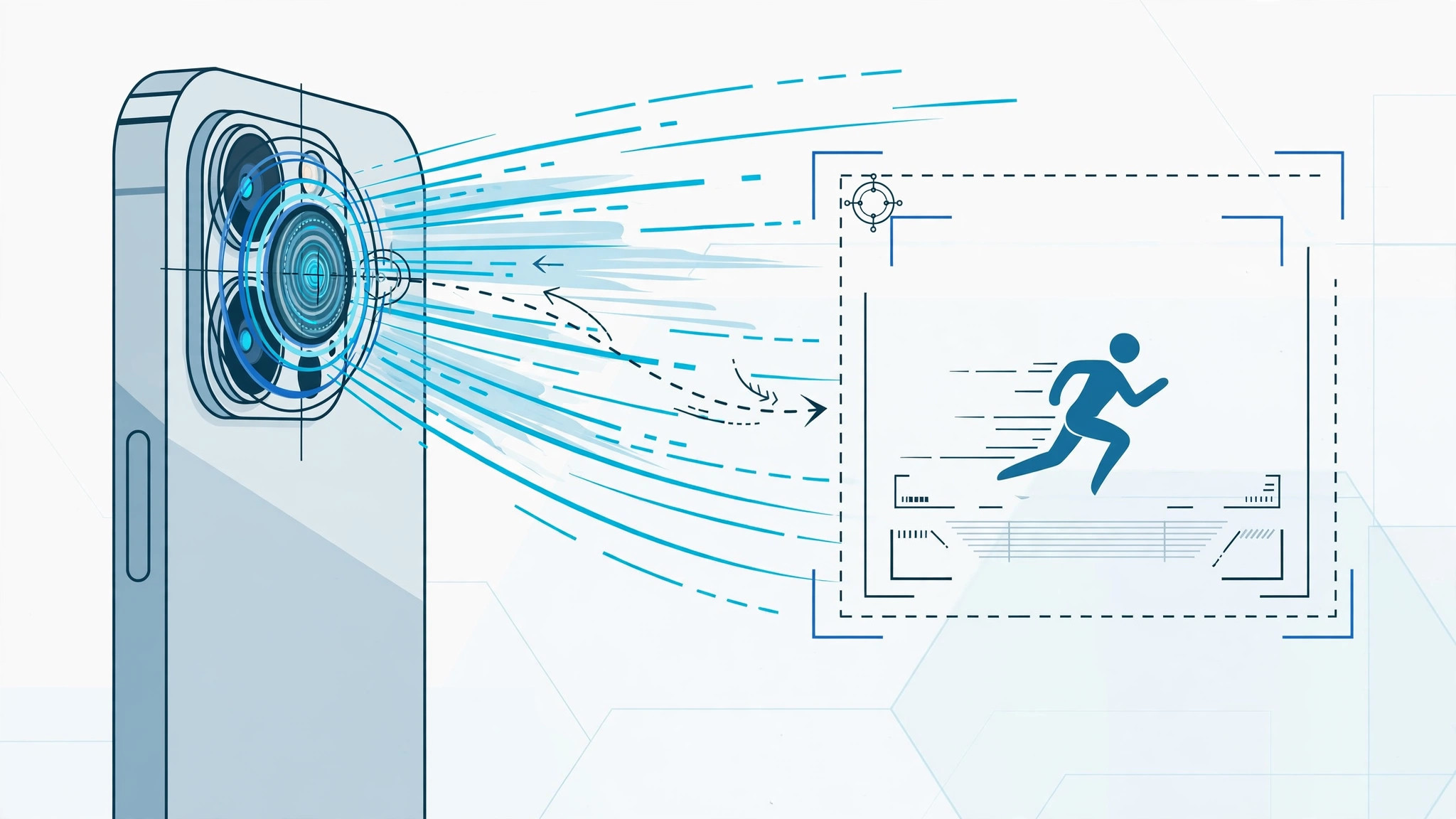
Shaky video can ruin an otherwise perfect moment. Whether you’re jogging next to a friend, filming your kid’s football match, or simply walking while recording, bumps and wobbles make footage hard to watch. Apple’s Action Mode was built for exactly this problem. It’s an extra-powerful video stabilization mode that smooths out heavy shakes and vibrations — like having a gimbal built into your iPhone. Here’s what it does, how to switch it on, and the trade-offs worth knowing.
What Action Mode is — and what it’s for
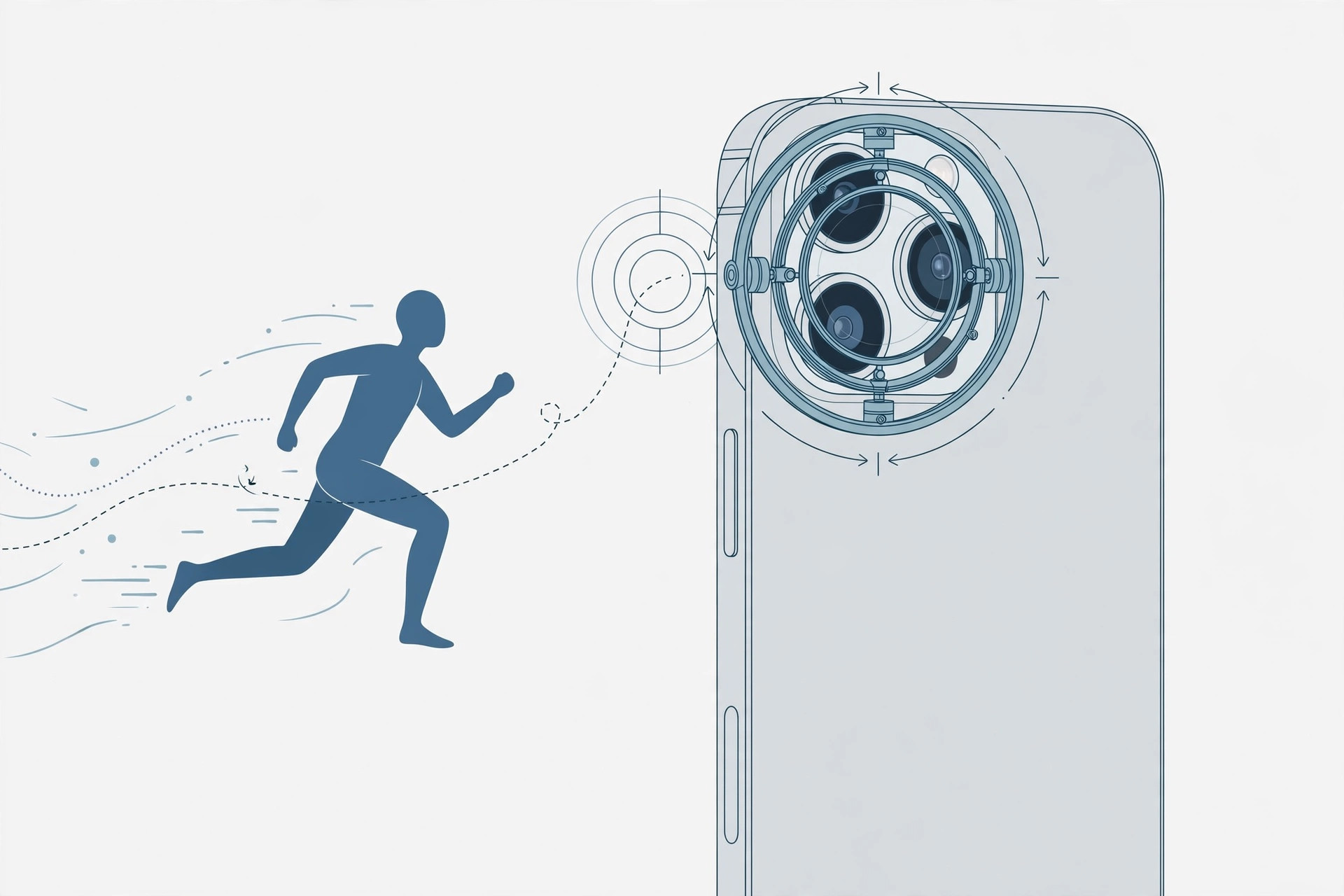
Action Mode is Apple’s most aggressive video stabilization. Your iPhone already steadies video by default, but Action Mode goes much further: it records with the ultra-wide camera and crops into the frame, creating a bigger buffer for smoothing out motion. The result is footage that stays level even when you’re moving a lot.
It’s made for situations where ordinary stabilization isn’t enough — filming while walking or running, shooting sports, recording from a moving car, or chasing after kids. If you’ve ever thought about buying a handheld gimbal, try Action Mode first. For many people it’s good enough that the extra hardware never becomes necessary. Apple describes the feature in its iPhone camera guide, and MacRumors has a step-by-step walkthrough too.
How to turn on Action Mode
- Open the Camera app. (If the lock-screen camera shortcut keeps firing by accident, here’s how to disable the quick camera launch.)
- Swipe to Video mode.
- Look for the running-figure icon near the top of the screen, next to the flash icon. Tap it — it turns yellow when Action Mode is active.
- Press the red record button and start filming. The icon stays yellow while you record.
- To switch it off, tap the running-figure icon again so the yellow highlight disappears.
Resolution, framing, and lighting: the trade-offs
Action Mode is powerful, but it isn’t free. Here’s what you give up:
Resolution. Action Mode tops out at 2.8K (not 4K), at up to 60 frames per second, with Dolby Vision HDR. If you need full 4K, turn Action Mode off. (Curious about HDR on iPhone? Here’s how HDR capture works for screenshots.)
Framing. Because it shoots on the ultra-wide sensor and crops in, your shot will be tighter than the standard wide view. Frame a little wider than you think you need.
Light. Action Mode needs good light to look its best — in dim conditions footage can turn noisy. For darker scenes, go to Settings → Camera → Record Video and enable Action Mode Lower Light. It improves image quality in low light, though stabilization becomes slightly less aggressive.
Model support. Action Mode needs an iPhone 14 or later, and it isn’t on every newer model — the iPhone 16e, for example, doesn’t have it. If you don’t see the running-figure icon, your iPhone likely doesn’t support it.
If it still doesn’t work
If the running-figure icon doesn’t appear, first confirm your iPhone model supports Action Mode (iPhone 14 and later, with a few exceptions like the 16e). Make sure you’re in Video mode — the icon doesn’t show up in Photo, Slo-mo, or Cinematic. If the icon is there but footage still looks shaky, check your lighting; Action Mode struggles in the dark even with Lower Light turned on. For other camera glitches on recent iOS versions, see why Spatial photo mode isn’t working in iOS 26.
FAQ
Does Action Mode work with the front camera?
No. Action Mode relies on the rear ultra-wide camera for its extra stabilization, so it’s only available when recording with the rear cameras in Video mode.
Can I use Action Mode and Cinematic mode at the same time?
No. Action Mode is a Video-mode feature, while Cinematic mode has its own stabilization and depth effects — the two can’t be combined. Pick Action Mode for maximum steadiness, or Cinematic when you want that shallow depth-of-field look.
The bottom line: Action Mode is one of the most practical camera features Apple has added in years. It won’t replace a gimbal for professional shoots, but for everyday moments — sports, walks, kids, travel — it makes a real difference. Switch it on when you’re moving, keep the lighting in mind, and enjoy smoother video without carrying extra gear.





