
Most of us have at least one ancient password still doing the rounds — the same short word you typed when signing up for a forum years ago, now guarding your email and your bank. Your iPhone knows about these bad habits and keeps a list. iCloud Keychain continuously checks every login you save and flags passwords that are easy to guess, reused across sites, or have turned up in a known data leak.
The best part is that you need no extra app to clean this up. Inside the Passwords section of Settings — or the standalone Passwords app on iOS 18 and later — there is a Security Recommendations screen that collects every flagged account in one place and points you straight at each site’s password-change page. Here is how to work through it.
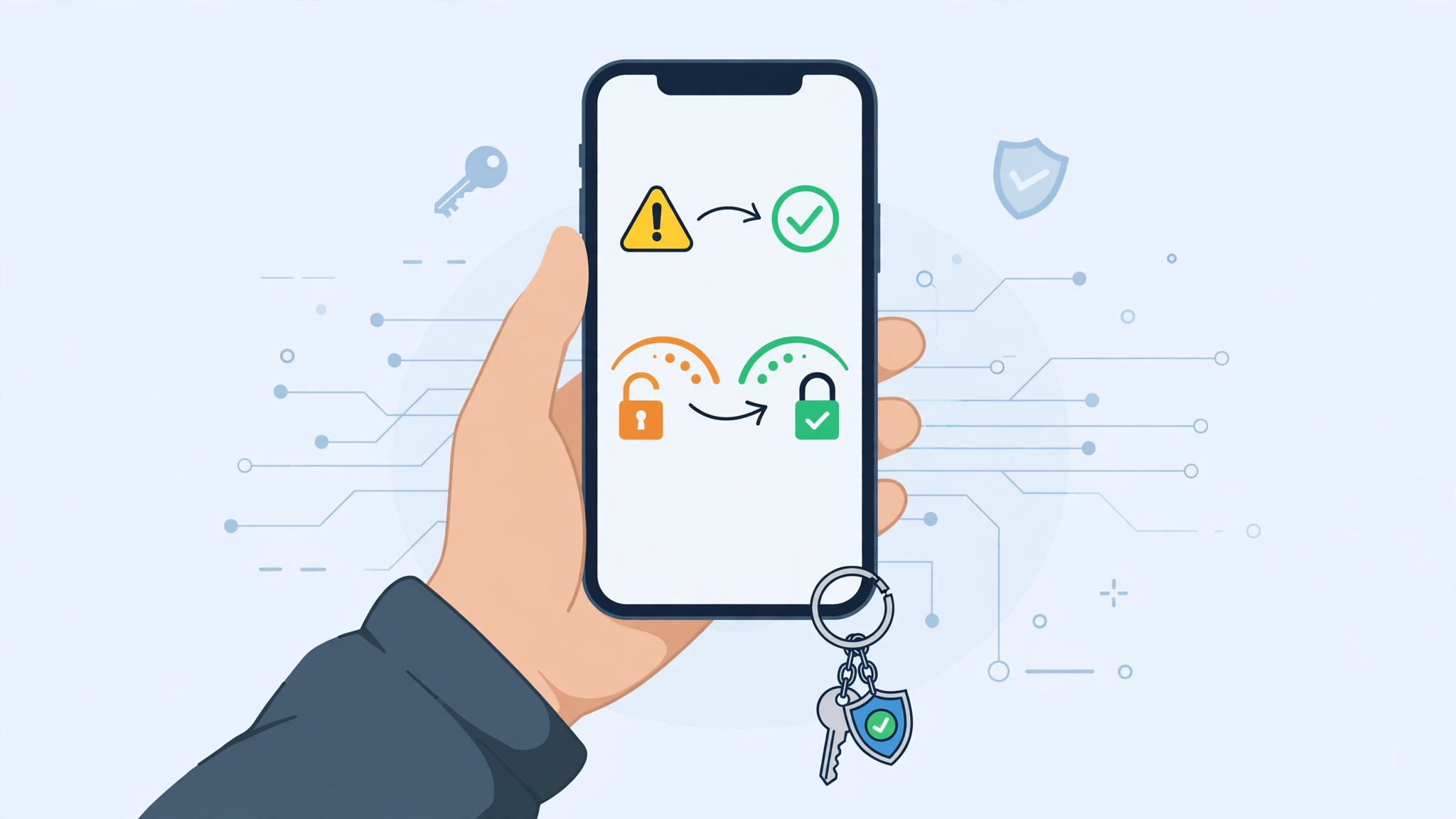
How to find and change weak passwords in iCloud Keychain
- Open your saved passwords. Go to Settings and tap Passwords. On iOS 18 or later, Apple moved this into a dedicated Passwords app, so launch it from your Home Screen or find it with Spotlight instead. Unlock the list with Face ID, Touch ID, or your device passcode.
- Open Security Recommendations. Near the top of the list, tap Security Recommendations. This screen gathers every account iCloud Keychain considers risky, giving you the full picture at a glance.
- Review each flagged account. Every entry explains why it was flagged: a password that is easy to guess, one you have reused on other websites, or credentials that appeared in a data leak. Tap an account to read the details and understand exactly what is wrong with it.
- Jump to the site’s password-change page. On the account’s detail screen, tap “Change Password on Website.” Your iPhone opens that site’s own change-password page, saving you the hunt through its settings menus. If Safari keeps interrupting you with password suggestions while you work, our guide to stopping Safari password suggestions on iPhone shows how to quiet those prompts.
- Set a new, unique password. Create a fresh password that you don’t use anywhere else. iCloud Keychain can generate a strong one for you and will offer to save it automatically once the site accepts it.
- Repeat for the rest of the list. Return to Security Recommendations and work through the rest. Tackle anything marked as compromised or leaked first — those are the logins an attacker is most likely to try. The accounts tied to your phone number matter too, so keeping your SIM card verification current is a smart companion step for account security. Apple’s own guide to changing weak or compromised passwords on iPhone walks through the same screen, and Cult of Mac’s step-by-step tutorial is a handy second reference.
If it still doesn’t work
If the “Change Password on Website” button opens a page that doesn’t actually let you change your password, complete the change manually through the site’s account settings. Then return to Passwords, open the account, tap Edit, and update the saved entry so Keychain stays in sync. And if a password you just fixed still appears under Security Recommendations, give iCloud a few minutes to sync — the warning clears once every device signed in to your Apple ID has the new value.
Frequently asked questions
Does fixing a password in Keychain change it on the website too?
No. Keychain only stores what you tell it. You must set the new password on the actual website first; updating the saved entry without doing that will simply lock you out the next time you sign in.
Will my iPhone warn me about future password leaks?
Yes. iCloud Keychain keeps comparing your saved logins against newly disclosed breach data in the background, so fresh problems surface in Security Recommendations automatically. Checking the screen every few months is still a good habit.
Conclusion
Weak and reused passwords are an open invitation, but clearing them out takes less time than most people expect. Work through your Security Recommendations list starting with the compromised accounts, let iCloud Keychain generate and store strong replacements, and you will close one of the biggest gaps in your digital security in a single sitting.





