

Safari really wants to help you with passwords. Every time you create an account on a new website, it pops up offering a strong, auto-generated password — and if you already use a third-party password manager, that well-meaning popup is just in the way. Worse, the two can fight over which one fills the form, and you risk saving the new login in the wrong place. The good news: iOS lets you switch Safari’s password suggestions off while everything else keeps working. It is a five-second fix once you know where Apple hid the switch.
What “Suggest Strong Passwords” actually does
When the option is on, Safari watches for sign-up and password-change forms and offers a long, random password, then saves it to your iCloud Keychain. That is genuinely handy if you live entirely inside Apple’s ecosystem. But if you have committed to a dedicated manager, you get two competing prompts on every registration form, which slows you down and invites mistakes. Turning Apple’s suggestion off gives your chosen manager the stage to itself. Apple’s iPhone support pages explain how Safari’s AutoFill features fit together if you want the full picture.
How to turn off Safari’s password suggestions
Three taps and the popups are gone:
- Open Settings, then tap General.
- Open Autofill & Passwords.
- Switch off Suggest Strong Passwords.
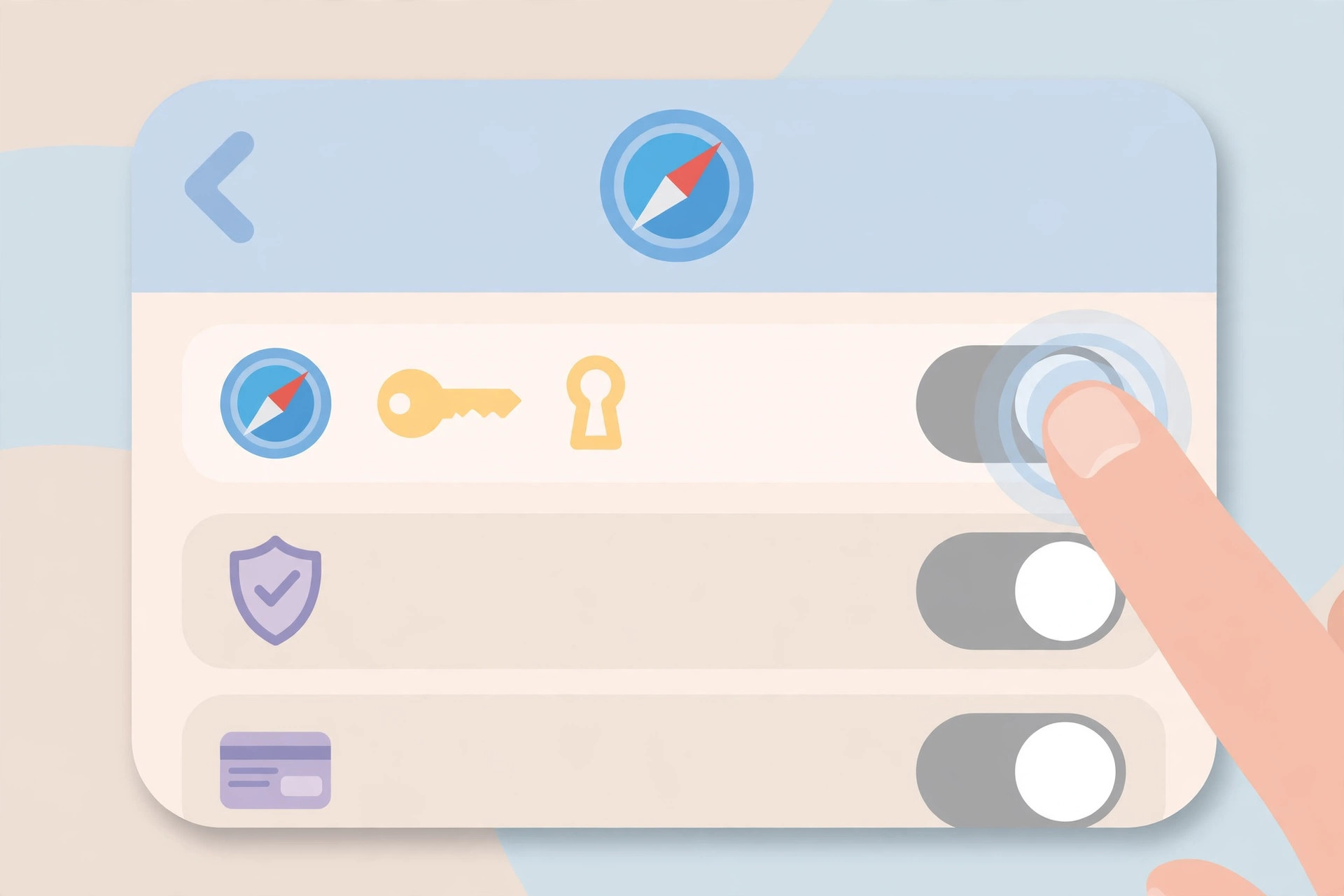
That is all it takes. Safari will no longer offer to generate passwords on websites. Your already-saved logins still autofill normally, and your third-party manager keeps working — you simply stop seeing Apple’s competing suggestion. If you are customizing Safari anyway, our guide to changing Safari’s design in iOS 26 covers another setting worth knowing, and our Liquid Glass lock screen clock guide shows a fun way to personalize the screen you see dozens of times a day.
If it still doesn’t work
Still seeing the suggestion? Make sure you flipped the right switch — Suggest Strong Passwords is a separate toggle from AutoFill itself, and turning off AutoFill entirely is not required. If your third-party manager is not offering to fill forms, go back to Settings, then General, then Autofill & Passwords, and confirm your manager is selected as the autofill provider — iOS only lets one provider take the lead. In the rare case the toggle does not take effect immediately, restart your iPhone and check again.
Frequently asked questions
Will this delete my saved passwords?
No. Turning off suggestions only stops Safari from offering newly generated passwords. Everything already saved in iCloud Keychain or the Passwords app stays exactly where it is and keeps autofilling as before.
Can I keep Safari’s suggestions alongside my password manager?
You can, but expect double prompts on every sign-up form. For the cleanest experience, pick your manager as the autofill provider under Settings, then General, then Autofill & Passwords, and switch Safari’s own suggestions off.
Conclusion
One toggle in Settings, then General, then Autofill & Passwords — and Safari stops pushing generated passwords on you. Your third-party manager gets the stage to itself, and signing up for new accounts gets a lot less noisy. Your logins stay safe, your manager stays in charge, and Safari goes back to being just a browser.






[…] The context-menu route works anywhere the suggestion bar fails to show, including in-app browsers and third-party apps that support AutoFill. If Safari keeps suggesting passwords you’d rather not see, here’s how to stop Safari from suggesting passwords for websites on iPhone. […]
[…] you’re pruning iOS annoyances, our guide on stopping Safari from suggesting passwords tackles another overeager […]
[…] you’re reviewing Apple security settings, check related guides: how to stop Safari from suggesting passwords for websites on iPhone, set up message sync between iPhone and Mac, and verify your SIM card to avoid the cooling-off […]
[…] how to change the Safari design on iPhone, and if password prompts are part of the annoyance, read how to stop Safari from suggesting passwords for websites on iPhone. Apple Support covers Safari’s website data controls in […]
[…] three layout options. And since clearing website data signs you out everywhere, you may appreciate how to stop Safari from suggesting passwords for websites on iPhone to keep the re-login process […]
[…] pairing: location metadata is just one trail your iPhone leaves — pairing this cleanup with how to stop Safari from suggesting passwords for websites on iPhone tightens up another everyday privacy leak. And if you would rather stay on your current iOS version […]
[…] solve this with a per-app list that only fires inside that one app. Just as it’s worth learning how to stop Safari from suggesting passwords for websites you don’t trust, it’s worth keeping app-specific shortcuts where they […]
[…] cost of the protection Restricted Mode provides. It’s the same settings screen where you can stop Safari from suggesting passwords for websites, so it’s worth a look while you’re […]
[…] A restart helps if the list won’t load. For more on locking down iOS privacy settings, see our guide to iOS privacy settings, and which built-in iPhone features you can […]
[…] protections and there is nothing to reset. For other account-hygiene basics, see our guides on stopping Safari password suggestions and permanently deleting messages from […]