
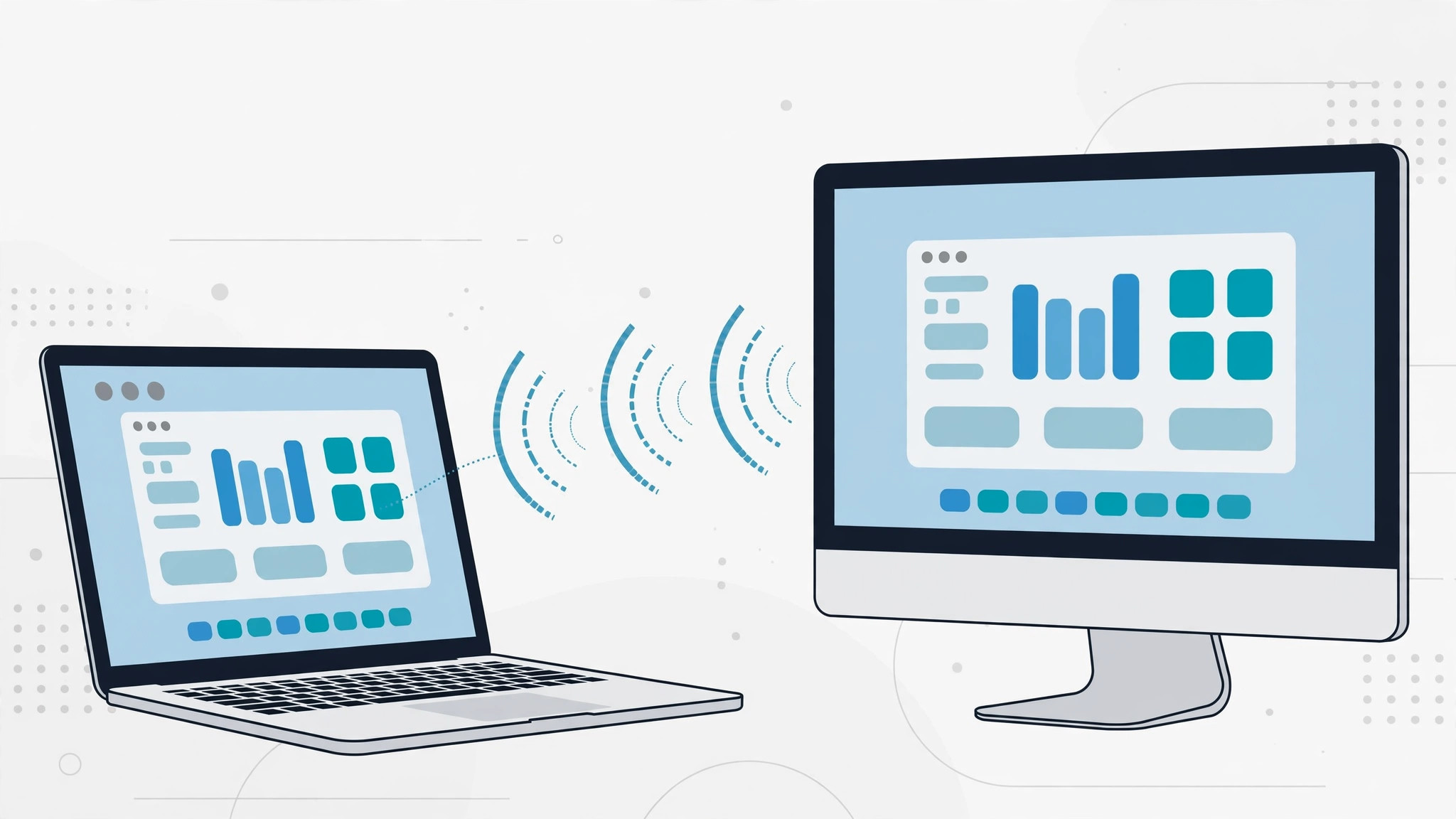
That old iMac gathering dust in the corner has a gorgeous display — and it seems like a waste to let it sit idle while you squint at a laptop screen. The good news: depending on its age, you can press that iMac into service as an external monitor for another Mac. The method depends entirely on which iMac you own, because Apple has offered (and removed) different solutions over the years. Here’s the complete guide.
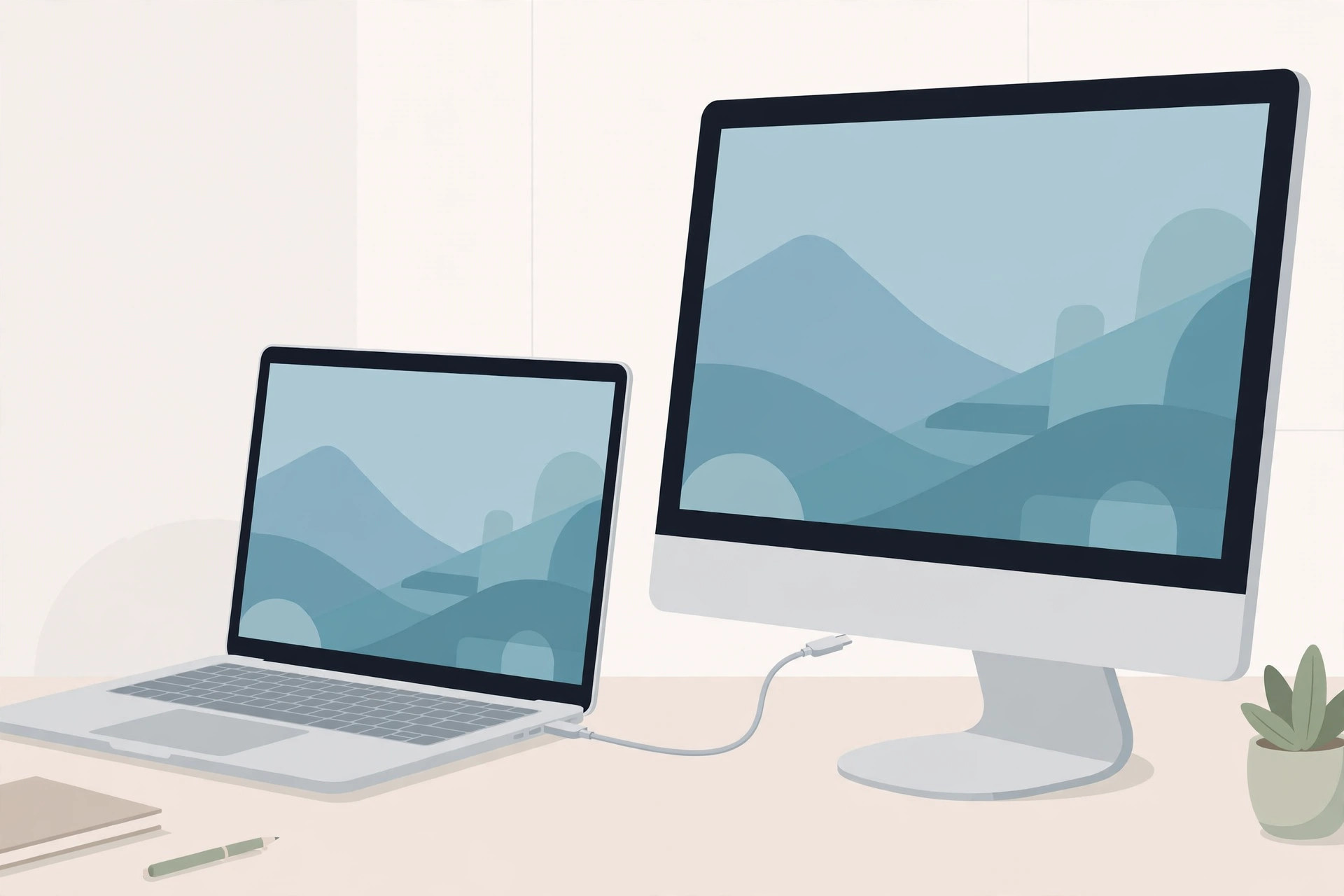
Option 1: Target Display Mode (iMac 2009–2014)
Older iMacs have a beloved feature called Target Display Mode that turns them into a pure external display with a keystroke.
- Shut down the iMac you want to use as a display.
- Connect it to the other Mac with a Thunderbolt or Mini DisplayPort cable (match the ports on both machines).
- Power on the iMac while holding Command + F2.
The iMac’s screen becomes a monitor for the other Mac — no software, no network, just a cable. Press Command + F2 again to exit. Apple’s support pages document exactly which 2009–2014 models support this; later iMacs dropped the feature when Apple moved to Retina panels with custom timing controllers, as MacRumors explained at the time.
Option 2: AirPlay receiver (iMac 2019 and later)
Modern iMacs can’t do Target Display Mode, but many can act as AirPlay receivers (macOS Monterey and later):
- On the 2019+ iMac, open System Settings and enable the AirPlay receiver option.
- On the source Mac, open Control Center or System Settings → Displays and choose the iMac as an AirPlay display.
- Your desktop extends (or mirrors) to the iMac wirelessly.
AirPlay is convenient but compressed — fine for office work, less ideal for color-critical video. 9to5Mac has a good breakdown of AirPlay-to-Mac latency expectations.
Alternatives worth knowing
If your iMac falls in the awkward middle (2015–2018, no Target Display Mode, unofficial AirPlay), you still have options: unofficial AirPlay-receiver tweaks enable the receiver on unsupported Macs; third-party receiver apps do the same over the network; and the Luna Display hardware dongle turns almost any iMac into a proper low-latency external monitor over USB-C or Mini DisplayPort. Luna isn’t cheap, but for a daily-driver setup it’s the closest to a real monitor experience.
Setting up a multi-Mac workspace pairs well with our guide on automatic hotspot connections from iPhone to Mac — handy when your desk setup moves around.
If it still doesn’t work
For Target Display Mode, the usual culprits are the wrong cable (it must be Thunderbolt/Mini DisplayPort, not HDMI) and holding Command + F2 too late — start holding before pressing power. For AirPlay, both Macs need Wi-Fi and Bluetooth on, the same Apple ID (or the receiver set to allow everyone), and no firewall blocking AirPlay. If the iMac simply isn’t supported by either method, Luna Display or a receiver app is your path — check compatibility lists on YouTube, where creators demo each approach.
Frequently asked questions
Can I use a 2015–2018 iMac as a display?
Not via Target Display Mode (Apple removed it) and not officially via AirPlay receiver. Your realistic options are third-party receiver software or a Luna Display dongle.
Does AirPlay display work for gaming?
Playable, but not great — expect noticeable latency versus a wired monitor. For desk work and media it’s perfectly fine. And once your setup is dialed in, you might enjoy face lighting for video calls on Mac to look your best on that big screen.
Conclusion
The right method depends on your iMac’s vintage: Command + F2 Target Display Mode for 2009–2014, AirPlay receiver for 2019+, and Luna Display or receiver apps for everything in between. Either way, that beautiful iMac panel deserves better than collecting dust.





