
Why automate your iPhone hotspot on Mac?
Working from a café, a train, or a client office often means Wi-Fi that vanishes at the worst moment. Instead of digging out your iPhone and toggling Personal Hotspot by hand every time, macOS Tahoe can hop onto your iPhone’s cellular connection automatically the instant Wi-Fi drops. The switch is seamless — you may not even notice it happened. See Apple’s macOS Tahoe page for what else is new in this release.
What you need before you start
Your Mac must run macOS Tahoe or later, and your iPhone needs an active cellular plan that allows tethering. Sign in to the same Apple Account on both devices, and switch on Wi-Fi and Bluetooth on each — the Mac finds your iPhone’s hotspot over Bluetooth and connects over Wi-Fi. 9to5Mac has a good rundown of Tahoe’s continuity features if you want the full picture.
Set up automatic hotspot connection on Mac
- On your iPhone, allow the hotspot. Open Settings > Personal Hotspot and turn on Allow Others to Join. Your phone is now discoverable to your Mac.
- On your Mac, open System Settings. Click the Apple menu and choose System Settings.
- Go to the Wi-Fi section. It sits near the top of the sidebar.
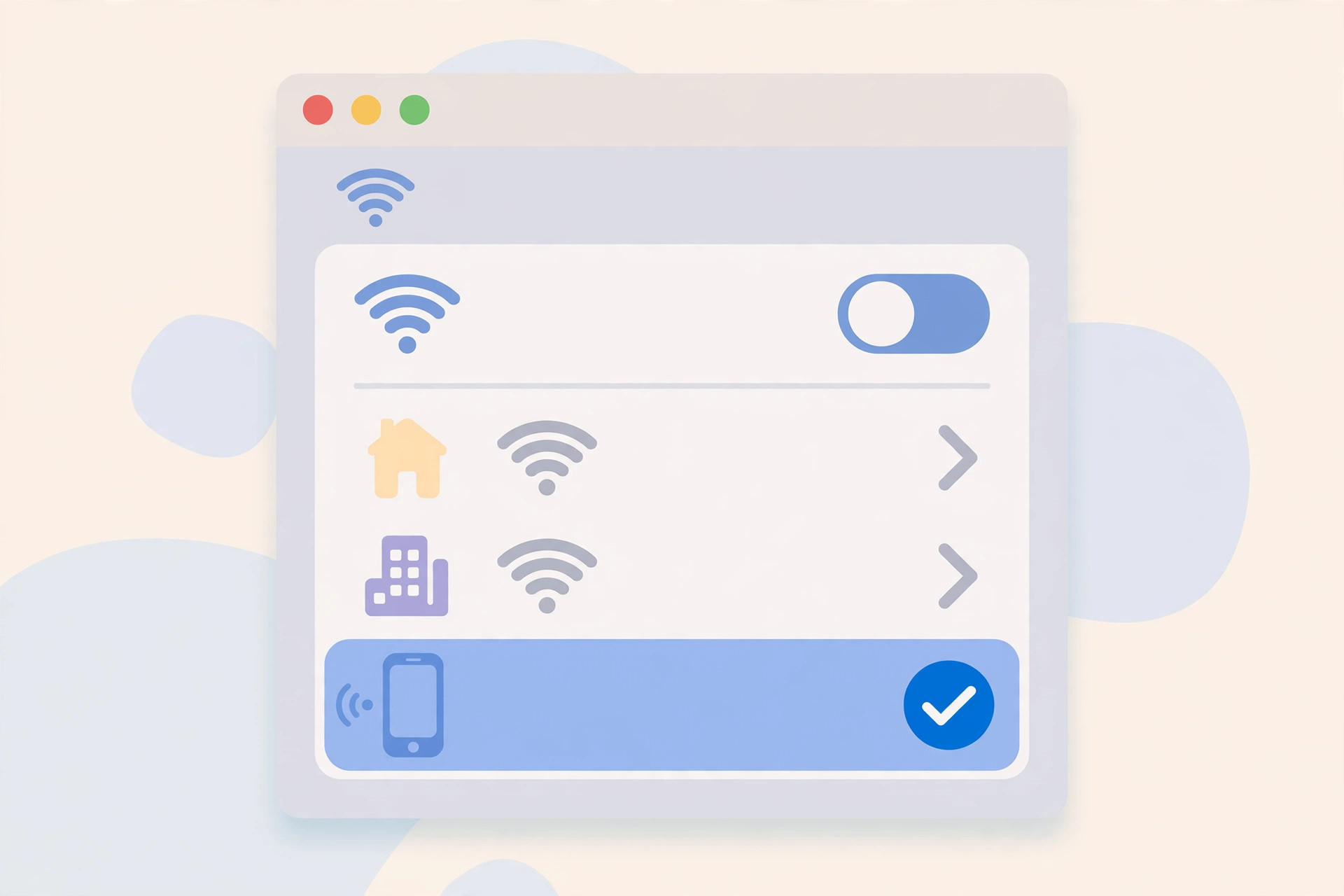
- Find “Ask to join hotspots” and set it to Automatic. From now on, whenever your known Wi-Fi networks disappear, the Mac connects to your iPhone’s Personal Hotspot on its own — no prompts, no manual tapping.
- Optional: include family hotspots. If you want the Mac to join a family member’s iPhone hotspot the same way, make sure the extra confirmation request for family hotspots is switched off.
That is the whole setup. Walk away from Wi-Fi and your Mac quietly switches to the iPhone’s cellular data, then switches back when a known network returns. For more Mac productivity tips, see how to mute Mail notifications for specific contacts in macOS.
If it still doesn’t work
First, verify both devices share the same Apple Account — that is the most common trip-up. Next, confirm Bluetooth and Wi-Fi are switched on at both ends, and that your carrier plan actually includes Personal Hotspot (some plans hide it). If the iPhone’s hotspot never appears, toggle Personal Hotspot off and on, then restart both devices. Also confirm you’re on macOS Tahoe: the automatic option doesn’t exist in older releases. For video-call polish while you work remotely, read how to enable face lighting during video calls on Mac.
Frequently asked questions
Will this burn through my iPhone’s mobile data?
It uses cellular data whenever Wi-Fi is unavailable, so keep an eye on your plan’s hotspot allowance. macOS drops the connection when Wi-Fi returns, which limits the damage — but large downloads on a metered connection are still your responsibility.
Does it connect to any hotspot, or only my iPhone?
Only hotspots tied to your Apple Account — your own iPhone, plus family members’ iPhones if you allow it. It will not silently join a stranger’s hotspot.
The bottom line
One settings change removes the most annoying part of working on the go. Set “Ask to join hotspots” to Automatic once, and your Mac and iPhone handle the rest together. Apple’s TikTok channel and Apple’s YouTube channel both post short tips on features like this if you prefer watching.






[…] Check the wireless basics. Make sure Wi-Fi and Bluetooth are both turned on, the two devices are near each other (a few meters at most), and Personal Hotspot is off — an active hotspot blocks AirDrop. Getting iPhone-to-Mac wireless features cooperating is a theme in our other guides too, like setting up automatic hotspot connections from iPhone on Mac. […]
[…] login. It comes in handy whenever you are troubleshooting a home network — for example after you set up an automatic hotspot connection from your iPhone to your Mac and want to confirm which gateway your traffic is actually […]
[…] up a multi-Mac workspace pairs well with our guide on automatic hotspot connections from iPhone to Mac — handy when your desk setup moves […]
[…] use Apple’s own charging puck. And if you’re sharing internet rather than power, our guide to setting up automatic hotspot connection from iPhone on Mac covers the wireless […]
[…] the camera is back, get more from the iPhone–Mac combo: sync Messages between iPhone and Mac, set up an automatic hotspot connection from your iPhone, or enable face lighting during video calls on Mac for a better […]
[…] you’re tidying up Continuity, learn how to set up message sync between iPhone and Mac and how to set up automatic hotspot connection from iPhone on Mac to get your devices working exactly the way you […]
[…] and it is regularly discussed on MacRumors and MakeUseOf. For more connectivity fixes, see how to set up automatic hotspot connection from iPhone on Mac and how to verify a SIM card and avoid the cooling-off […]
[…] grip, and choose a metal-free case. And if weak signal keeps you on Wi-Fi calling all day, you can set up an automatic hotspot connection from your iPhone to your Mac so your other devices stay connected […]
[…] Open the Home app and wait a few seconds — statuses often refresh once the phone is on the right network. Connectivity can be fragile across devices, as seen with the automatic network connections between your Mac and iPhone. […]
[…] screen appears. Until that screen is up, the other phone has nothing to react to. Our guide to setting up automatic hotspot connection from iPhone on Mac covers a related Apple continuity trick that also depends on this kind of device-to-device […]
[…] This is the tidiest desk option. It also helps if you sometimes work tethered to your phone — see how to set up an automatic hotspot connection from your iPhone on a Mac. […]
[…] Reset network settings. If nothing else helps, go to Settings → General → Transfer or Reset iPhone → Reset → Reset Network Settings. This wipes saved Wi-Fi passwords, cellular preferences, and VPN configurations, and is one of the steps Apple Support recommends for persistent Wi-Fi trouble. You’ll need to re-enter your Wi-Fi passwords afterward — and if you need internet meanwhile, see our guide on setting up an automatic hotspot connection from iPhone on Mac. […]