
Let’s be honest up front: on the iPhone’s own display, the jump from 1080p to 4K is subtle. iPhone screens are marvels of pixel density, but their physical resolution sits below true 4K, so a 2160p stream gets downscaled before it ever reaches your eyes. It still looks a touch sharper — finer text, cleaner edges — but the real payoff comes when you AirPlay that video to a 4K TV, where every extra pixel finally gets room to breathe. If you want the sharpest possible picture, here’s how to make sure YouTube isn’t quietly serving you 1080p.
The key detail: 4K YouTube playback works in the YouTube app, not in Safari. Apple never brought Google’s VP9 codec — the format YouTube uses for 4K streams — to Safari on iPhone, but the YouTube app has supported it since iOS 14. So step one is simply using the right app. For more ways to squeeze quality out of your iPhone’s display, see our guide to taking HDR screenshots on iPhone and iPad.
How to switch a YouTube video to 4K on iPhone
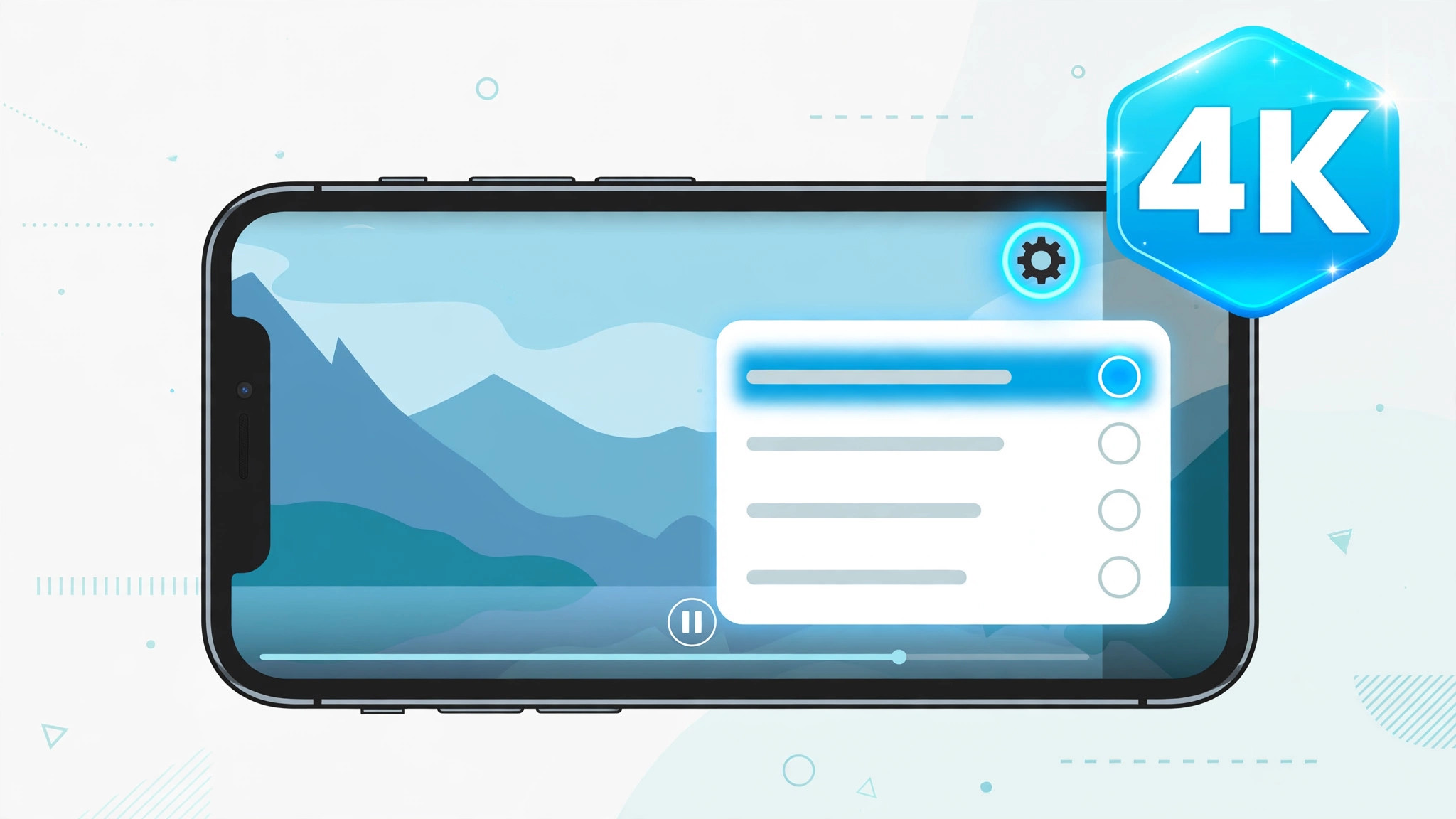
- Open the YouTube app and start playing the video you want to watch. Make sure the app is updated — the quality controls have moved around over the years.
- Tap the video once to reveal the playback controls overlay.
- Tap the gear (Settings) icon, usually in the top-right corner. On older versions of the app, tap the ⋮ (More) button instead — the quality menu lives there.
- Tap Quality in the menu that appears.
- Choose 2160p or 2160p60 from the list. The 60 refers to the frame rate — pick 2160p60 for the smoothest motion if both are offered.
One important caveat: the 2160p option only appears if the video was uploaded in 4K. YouTube can’t invent detail that isn’t there, so for older or lower-resolution uploads the top option might be 1080p or 1440p. That’s normal — just pick the highest available.
Stop YouTube from auto-downgrading your quality
YouTube loves to “help” by dropping your resolution to save data — sometimes mid-video. To lock in higher quality by default:
- In the YouTube app, tap your profile picture, then Settings.
- Tap Video quality preferences.
- Set both Video quality on mobile networks and Video quality on Wi-Fi to Higher picture quality.
This doesn’t force 4K on every video, but it tells YouTube to prefer the sharpest stream your connection can handle instead of defaulting to data-saver mode. Apple’s iPhone support pages note that high-resolution streaming is among the biggest mobile data consumers, so consider keeping the mobile-data setting conservative if your plan is limited.
If it still doesn’t work
- No 2160p option in the Quality menu. The video wasn’t uploaded in 4K. Try a known 4K demo clip to confirm the feature works on your device.
- The gear icon looks different or is missing. Update the YouTube app from the App Store — Google periodically redesigns these menus, and older versions may bury quality settings under the ⋮ button.
- 4K stutters or buffers constantly. Your connection can’t sustain the bitrate. Drop to 1440p, which still looks excellent on a phone screen, or wait for Wi-Fi. If you do most of your browsing outside the YouTube app, you may also like how to change the Safari design on iPhone.
Frequently asked questions
Does watching YouTube in 4K drain the battery faster?
Yes — noticeably. Decoding a 2160p VP9 stream keeps the processor busier than 1080p, and the radio works harder pulling down all that data. For long viewing sessions, plug in or stick to Wi-Fi. Coverage from 9to5Mac and MacRumors has long noted that maximum-quality streaming is among the heaviest workloads you can put on a phone.
Can I watch 4K YouTube in Safari instead of the app?
No. Safari on iPhone doesn’t support the VP9 codec YouTube uses for 4K, so the app is your only route to 2160p. If you’re a Safari loyalist for everything else, the YouTube app is worth keeping around just for this.
Conclusion
Getting 4K YouTube on iPhone takes ten seconds: open the app, tap the gear, choose 2160p. The difference on the phone itself is modest — be honest with yourself about that — but pair it with the “Higher picture quality” defaults and AirPlay to a 4K TV, and you’ll see exactly what those extra pixels were for.





