
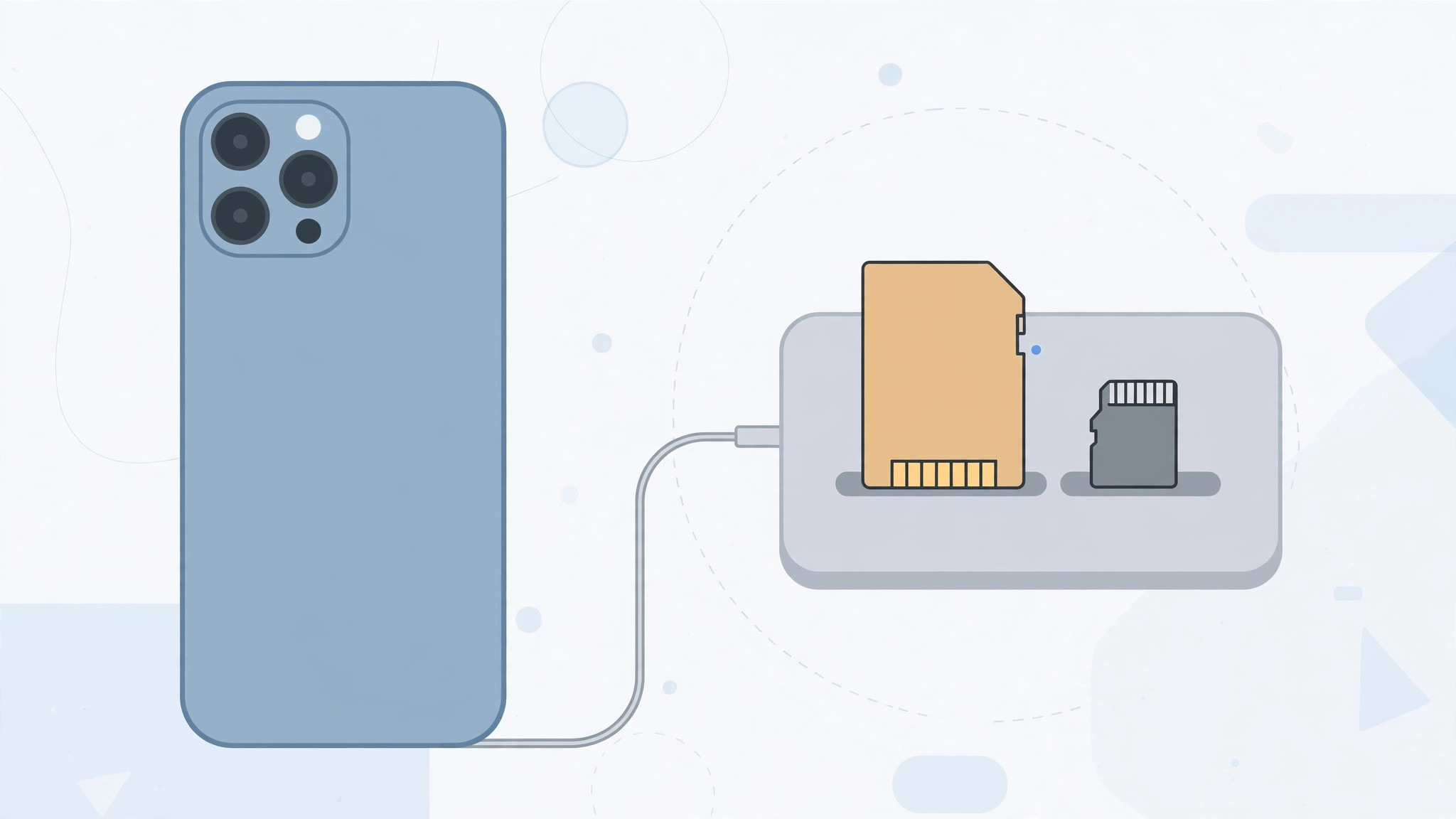
Here’s a question that surprises a lot of iPhone owners: can you use a memory card with an iPhone? The phone famously has no card slot — Apple has never built one in, and likely never will. But that doesn’t mean you’re stuck. A small, inexpensive card reader bridges the gap, turning your iPhone into a device that reads and writes SD and microSD cards. Whether you want to offload photos, carry movies for a flight, or shuttle documents around, here’s how it works — and the crucial detail of picking the right reader for your iPhone model.
Picking the right card reader: Lightning vs USB-C
This is the one decision that matters, and it depends entirely on your iPhone:
- iPhone 15 and later (USB-C): Get a USB-C card reader. These are cheap, widely available, and often read both SD and microSD.
- iPhone 14 and older (Lightning): You need a Lightning-to-SD card reader — Apple’s own or a certified third-party one. Standard USB-C readers won’t fit.
Buy the wrong one and it physically won’t connect, so check your iPhone’s port before ordering. (Apple’s iPhone support pages cover external storage accessories in more detail.)
How to use a memory card with your iPhone
- Insert the memory card into the reader (SD into the SD slot, microSD into its slot — many readers handle both).
- Plug the reader into your iPhone.
- Open the Files app — the card appears under Locations in the sidebar, just like a USB drive on a computer.
- Browse, copy, and move files freely. The Photos app may also pop up offering to import photos and videos directly from the card.

What you can store on a memory card
Pretty much anything. A card connected to your iPhone is just external storage, so:
- Photos and videos — import shots from a camera’s card, or export your iPhone library to free up space.
- Documents — PDFs, presentations, spreadsheets, anything the Files app can hold.
- Music and movies — load up films for offline viewing on a flight, no streaming required.
- Any files at all — it works both directions: iPhone → card to offload storage, card → iPhone to load content.
Running out of room is a common iPhone complaint — if you’re auditing what’s eating your storage, see which built-in iPhone apps you can delete to claw some space back, and how to take HDR screenshots on iPhone and iPad for more camera know-how.
Format matters: use exFAT or FAT32
One technical gotcha: iOS can read and write exFAT and FAT32 formatted cards, but NTFS is not writable on iPhone. If your card was formatted on a Windows PC as NTFS, your iPhone will refuse to write to it. Reformat the card to exFAT (best for large cards and big video files) using a computer before you start.
If it still doesn’t work
- The card doesn’t appear in Files. Unplug and reconnect the reader, and make sure the card is fully seated. Try a different reader if you have one — cheap no-name readers can be flaky.
- “Accessory not supported” message. On Lightning iPhones, uncertified readers often trigger this. Use an Apple or MFi-certified reader.
- Photos doesn’t offer to import. Open the Photos app manually with the card connected — the import screen should appear. If not, copy the files via the Files app instead.
Frequently asked questions
Can I expand my iPhone’s storage with a memory card?
Not in the Android sense — apps can’t run from the card, and iOS won’t treat it as internal storage. But for media, documents, and file shuffling, it’s the next best thing. MacRumors and 9to5Mac have both covered how capable the Files app has become with external storage.
What’s the biggest card I can use?
There’s no practical iOS-imposed limit — 512GB and 1TB cards work fine as long as they’re formatted exFAT. The bottleneck is the reader’s quality, not the card’s size.
Conclusion
No built-in slot, no problem. Match the reader to your port — USB-C for iPhone 15 and up, Lightning for older models — format the card as exFAT, and your iPhone gains a whole new storage dimension. Offload, carry, shuttle: the card is yours to command.





