
Portrait mode is wonderful until it isn’t. That creamy blurred background looks professional — right up until it blurs the wrong thing: a friend’s face at the edge of the frame, the sign you were posing with, or half of your dog. The good news is that in iOS 17 and later, you don’t have to live with it. Apple lets you dial the blur down — or remove it entirely — after the photo is taken. Here are the two ways to do it, starting with the most flexible.
Method 1: Use the depth slider (the primary fix)
You can’t remove the blur before shooting — other than by using plain Photo mode instead of Portrait — but you can neutralize it afterwards in the Photos app:
- Open the Portrait photo in the Photos app.
- Tap Edit in the top-right corner.
- Tap the depth / f-number control (it looks like “ƒ4.5”, usually at the top-left of the edit screen).
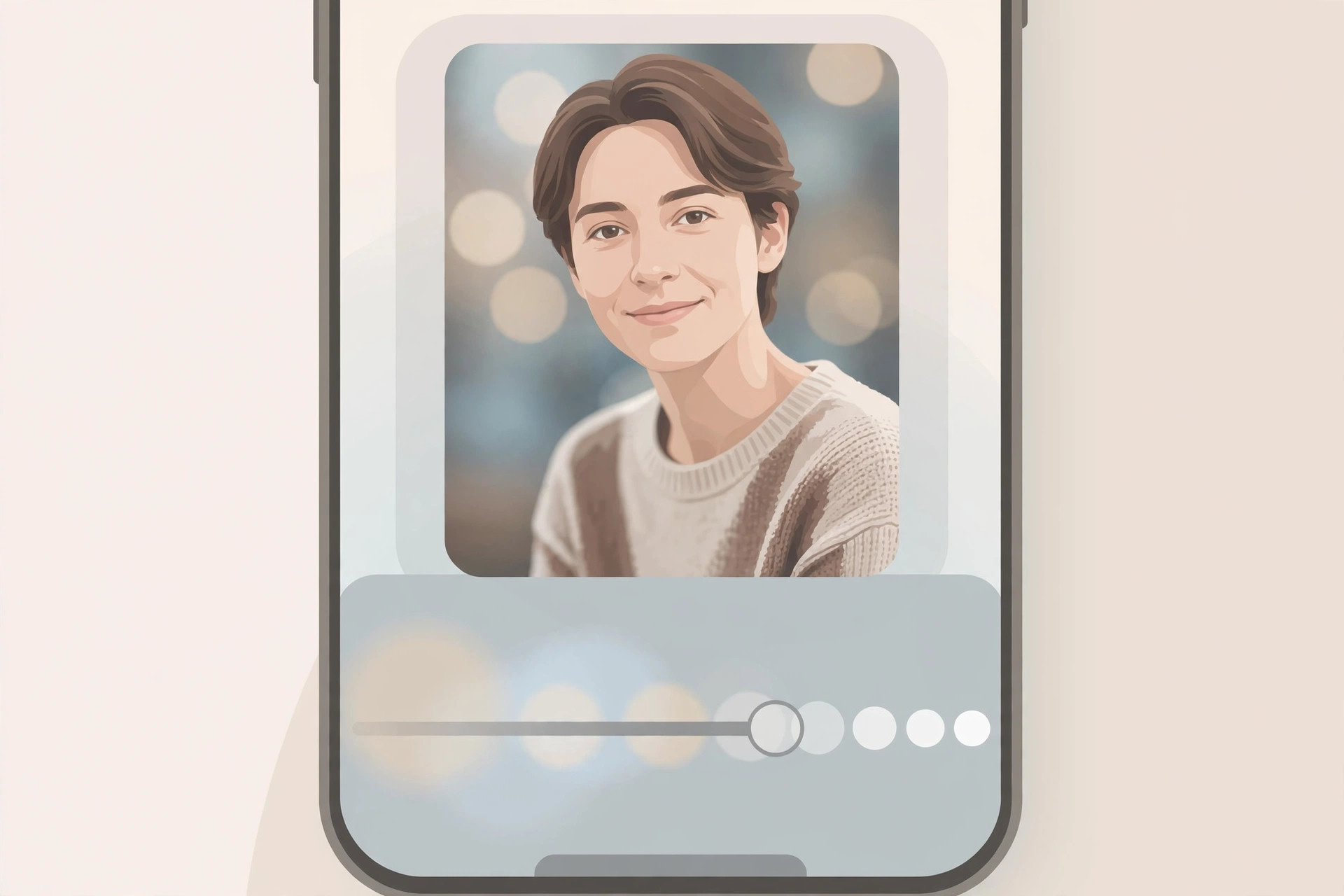
- Drag the Depth slider all the way to the right — toward ƒ16. The background blur melts away almost entirely, leaving a photo that looks like a normal shot.
Think of the slider as a blur dial: left for dreamy, right for sharp. A fun bonus on iPhone 15: regular Photo-mode shots of people and pets now carry depth info too, so you can open them, tap Edit, and the same Portrait depth controls appear — letting you add or remove blur retroactively on photos you never shot in Portrait mode. Apple’s iPhone support pages document depth editing in more detail.
Method 2: Toggle the PORTRAIT badge off (the quick alternative)
If you want the effect gone in one tap rather than fine-tuned, look at the top of the edit screen for the yellow PORTRAIT badge. Tapping it disables the Portrait effect entirely — depth, blur, and all — reverting the photo to its plain capture. Tap it again to bring the effect back. It’s the nuclear option to the slider’s scalpel.
Both methods are non-destructive: your original is always safe. Tap Revert at any point to restore the photo exactly as it was shot. For more iPhone camera troubleshooting, see why spatial photo mode isn’t working in iOS 26 and how to disable quick camera launch from the lock screen.
If it still doesn’t work
- No depth slider appears. The slider only shows for photos that actually contain depth data, on supported devices (iPhone XS/XR or newer). Screenshots, downloaded images, and photos from other cameras won’t have it.
- The PORTRAIT badge is missing. The photo may not have been taken in Portrait mode. On iPhone 15 and later, check whether depth info was captured — otherwise there’s no Portrait effect to toggle.
- The blur looks odd after adjusting. Extreme slider positions can produce halos around hair and glasses. Nudge it back a touch for a more natural result — or explore HDR screenshots for a different kind of image upgrade.
Frequently asked questions
Can I turn off the blur before taking the photo?
Not within Portrait mode itself — the blur is the point of the mode. If you know you won’t want it, just shoot in regular Photo mode instead. On iPhone 15 and newer you can always add the effect later, so there’s little downside. 9to5Mac and Cult of Mac have both highlighted how flexible Apple’s retroactive depth editing has become.
Does removing the blur reduce photo quality?
No. Depth adjustments don’t re-compress or degrade the image — they just change how the already-captured depth map is applied. The underlying photo data is untouched.
Conclusion
Blur regret is a solved problem: drag the depth slider to ƒ16 for fine control, or tap the PORTRAIT badge to kill the effect outright. Either way, your original stays intact — so edit boldly.





