
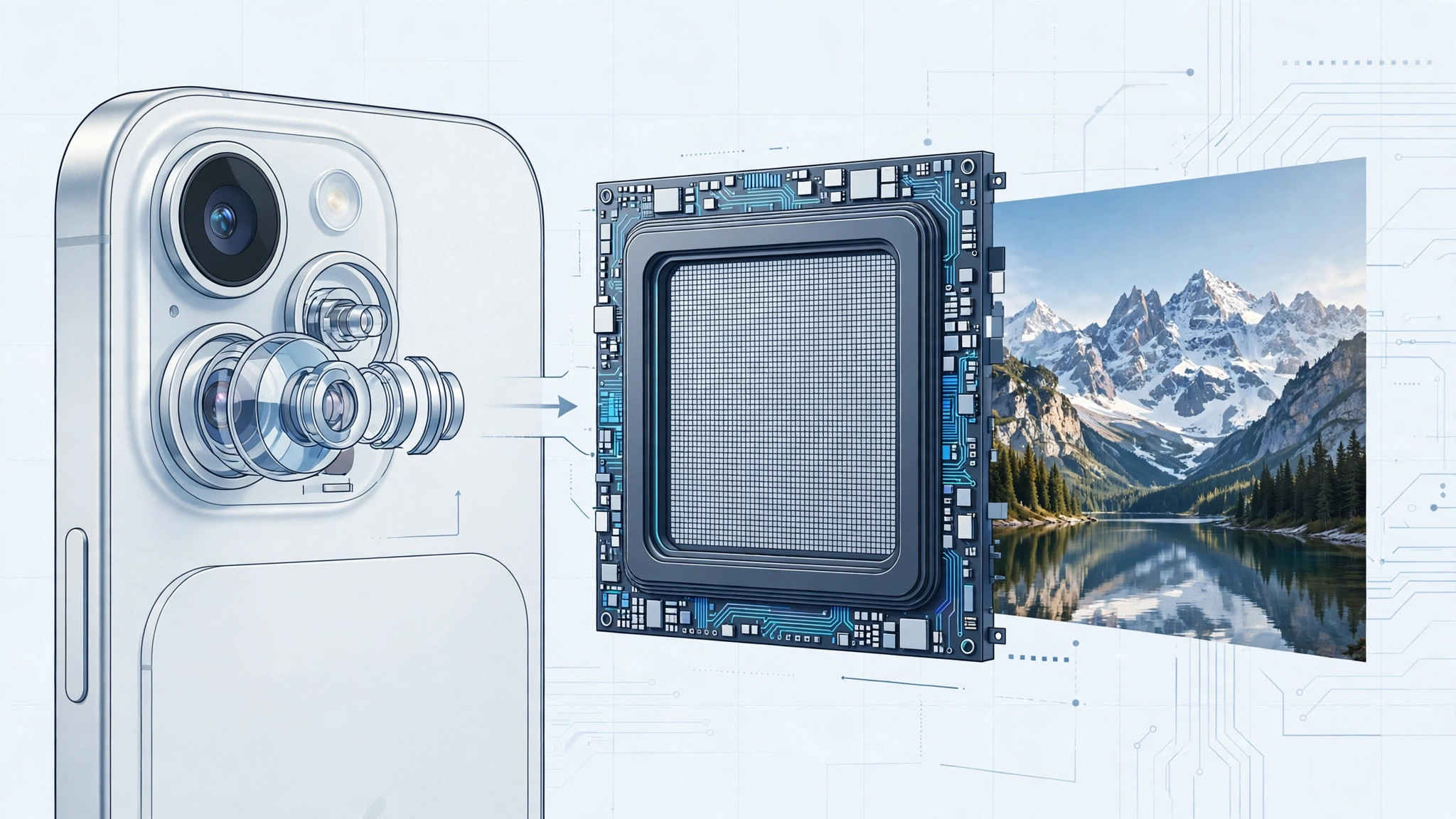
Your iPhone 15 packs a 48-megapixel main camera — yet out of the box, every photo it takes is 24 megapixels. That’s not a bug. Apple uses pixel-binning to merge sensor data into smaller, cleaner 24MP files by default, holding the full 48MP resolution in reserve for when you actually want it.
If you’re printing large, cropping aggressively, or just want maximum detail, here’s how to unlock the full 48MP mode on your iPhone 15.
Why your iPhone 15 shoots 24MP by default
A 48MP sensor capturing every shot at full resolution would produce enormous files and noisier low-light results. So Apple’s default blends four sensor pixels into one, delivering sharp 24MP photos with better light sensitivity and manageable file sizes. The full 48MP is there when you want it — you just have to ask. Apple’s iPhone User Guide details the camera format options, and 9to5Mac has a good breakdown of when the extra resolution actually matters.
How to enable 48MP capture on iPhone 15
- Open Settings → Camera → Formats.
- Turn on Resolution Control (on Pro models it’s labeled “ProRAW & Resolution Control”). This adds a resolution toggle to the Camera app.
- Open the Camera app and switch to Photo mode.
- Tap the HEIF MAX (or “JPEG MAX”) button now visible near the top of the screen. It lights up to show full-resolution capture is armed.
- Frame and shoot as normal. Your photo is now captured at the full 48 megapixels.
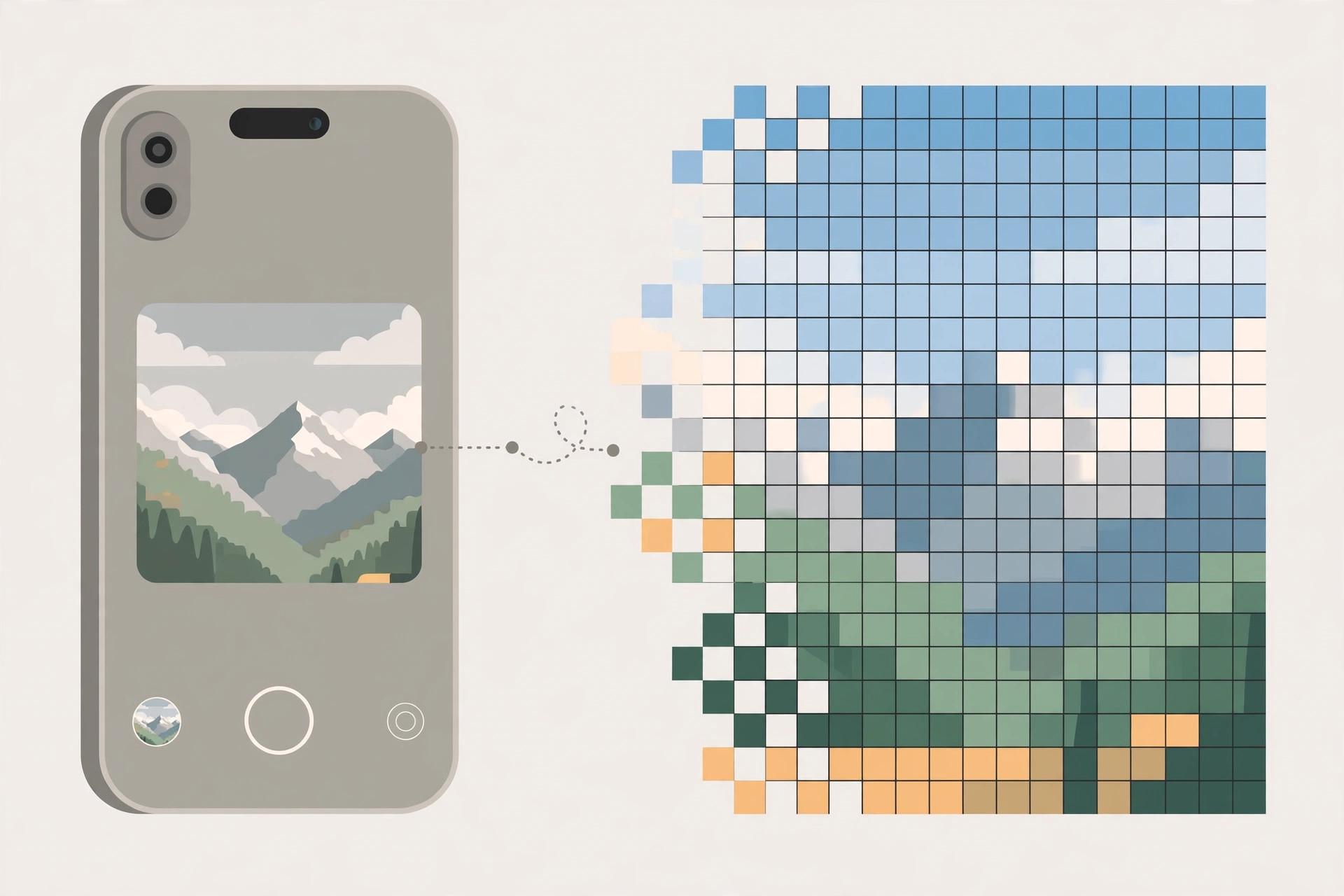
Limitations worth knowing
Full-resolution mode only works with the main camera at 1x zoom — switch lenses or pinch to zoom and you’re back to 12MP. It also disables Night mode, flash, and macro photography, and Live Photos can’t combine with HEIF Max. Think of 48MP as a daylight, main-camera specialist. File sizes stay reasonable at around 5MB per HEIF Max shot — a fraction of the ~75MB a ProRAW file demands.
If it still doesn’t work
If you don’t see the HEIF MAX button, double-check that Resolution Control is enabled under Settings → Camera → Formats — the button only appears once the toggle is on. Make sure you’re in Photo mode with the 1x main camera; the option hides itself on other lenses. If the Camera app is misbehaving from the lock screen, see our guide on disabling quick camera launch from the lock screen. And for a different kind of capture upgrade, learn how to take HDR screenshots on iPhone and iPad.
Frequently asked questions
Do 48MP photos look better than 24MP?
For large prints and heavy crops, yes — the extra detail is real. For everyday sharing on a phone screen, the 24MP default often looks just as good with smaller files.
Does 48MP mode work at night?
No. Night mode requires pixel-binning, so low-light shots stay at 12MP. Use 48MP in good lighting for the best results.
The bottom line
Your iPhone 15’s 48MP sensor is a specialist tool hiding behind a simple toggle. Enable Resolution Control once, tap HEIF MAX when the scene deserves it, and you’ll have maximum detail on demand — without filling your storage with giant files for every snapshot.





