
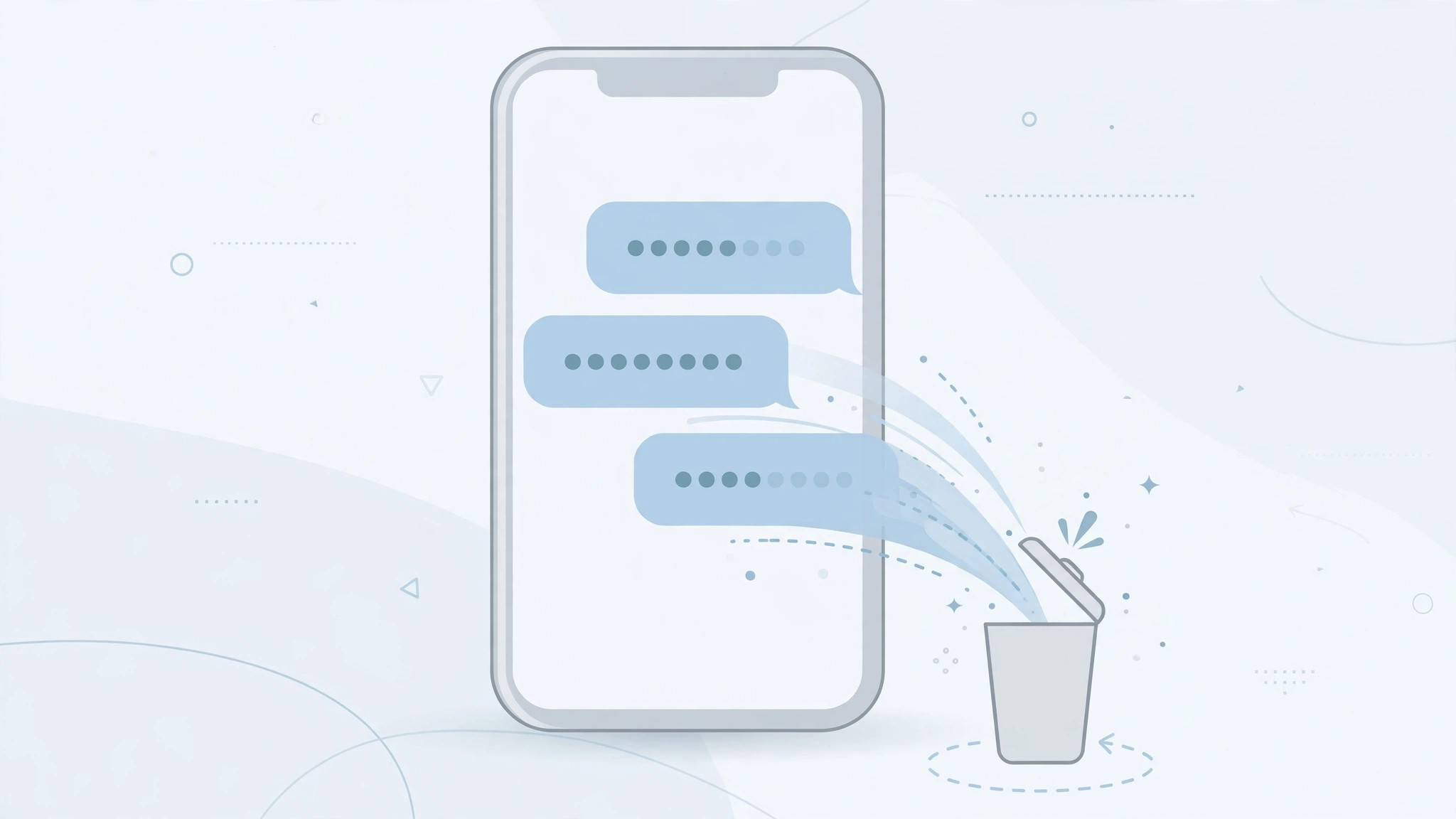
Your Messages app is probably full of them: one-time verification codes from banks, apps, and websites, piling up long after you’ve used them. They’re useless once entered, yet most of us never get around to deleting them. Starting with iOS 17, your iPhone can clean them up automatically — you just have to switch the feature on.
Here’s how to enable automatic deletion of verification codes, how it works, and what it won’t delete.
What “Clean Up Automatically” does
When you receive a one-time code by text or email and your iPhone fills it in for you with AutoFill, iOS can delete that message the moment the code is used. The feature lives under your password settings and is called Clean Up Automatically (labeled “Delete After Use” on some iOS versions). Apple’s iPhone User Guide documents AutoFill behavior, and 9to5Mac highlighted the cleanup option when iOS 17 launched.
How to turn on auto-delete for verification codes
- Open Settings on your iPhone.
- Go to Passwords and authenticate with Face ID, Touch ID, or your passcode.
- Tap Password Options.
- Under Verification Codes, turn on Clean Up Automatically (or “Delete After Use” if that’s the label on your version).
- That’s it. From now on, codes that your iPhone autofills from Messages or Mail are deleted right after use.
What gets deleted — and what doesn’t
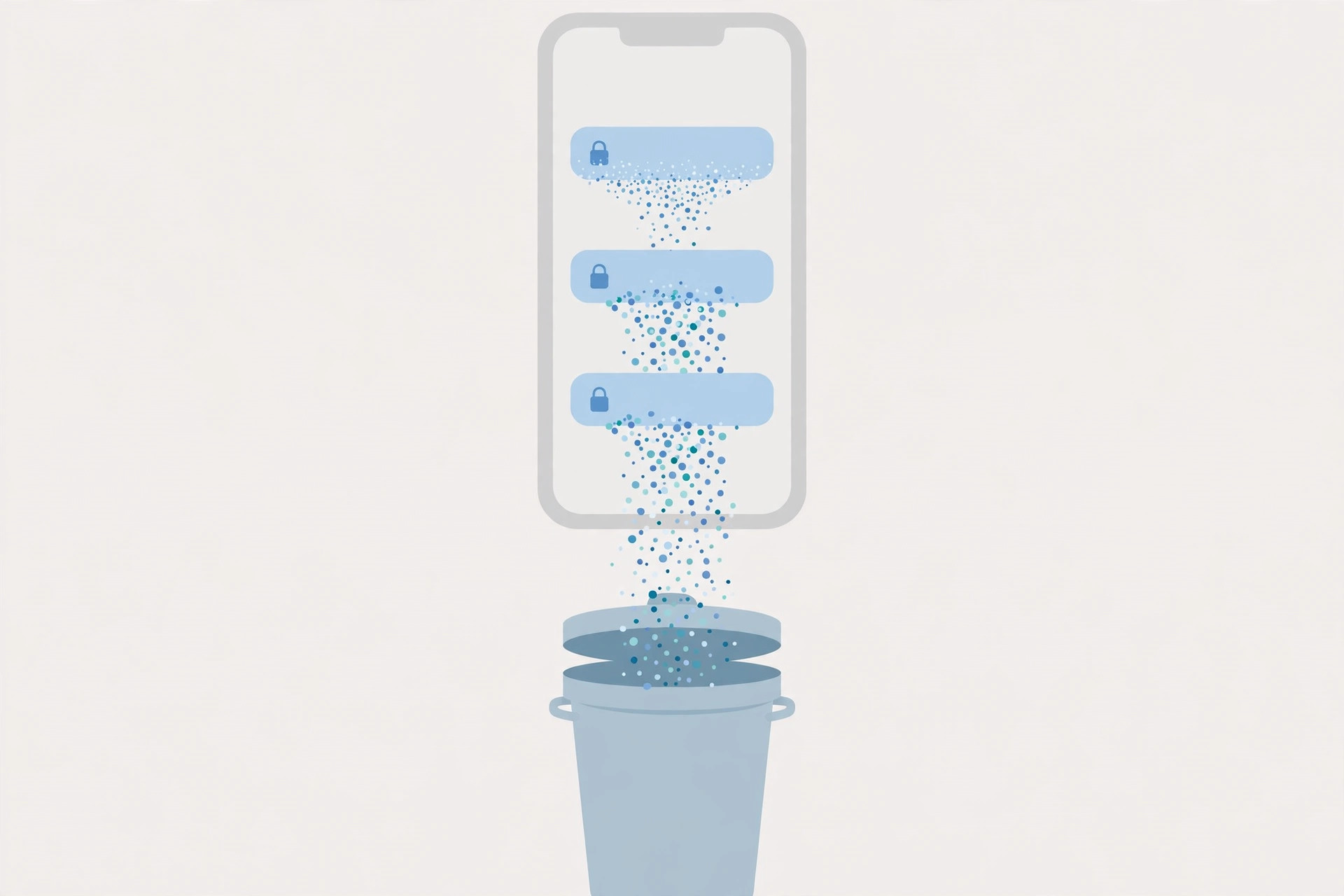
Only codes that iOS autofills for you are cleaned up. If you type a code in manually, or if the code arrives in a third-party app like Gmail where system AutoFill doesn’t apply, the message stays put. Deleted codes aren’t vaporized instantly either — they linger briefly in the Recently Deleted or Trash folder, so a code you need again within a short window can still be recovered. Note that on the very latest iOS releases the same toggle has moved to Settings → General → AutoFill & Passwords.
If it still doesn’t work
First, confirm you’re on iOS 17 or later — the feature doesn’t exist on older releases. Next, make sure AutoFill itself is working: the code must appear as a suggestion above your keyboard for the cleanup to trigger. If codes aren’t being suggested at all, check that AutoFill Passwords and Passcodes is enabled in the same Password Options screen. And remember, messages you open and read without using AutoFill won’t be touched — that’s by design. For related annoyances, see our guides on stopping Safari from suggesting passwords and verifying your SIM card.
Frequently asked questions
Will this delete all my text messages?
No — only messages containing one-time verification codes that were autofilled and used. Your regular conversations are completely unaffected.
Can I recover a code after it’s auto-deleted?
Usually, yes, for a short time. Auto-deleted messages sit in Recently Deleted (Messages) or Trash (Mail) before being permanently removed, so check there if you need a code again.
The bottom line
Verification codes are digital clutter with a shelf life of about thirty seconds. Turning on Clean Up Automatically lets iOS 17 tidy them away the moment they’ve served their purpose — one less thing to manage in your Messages app.





