
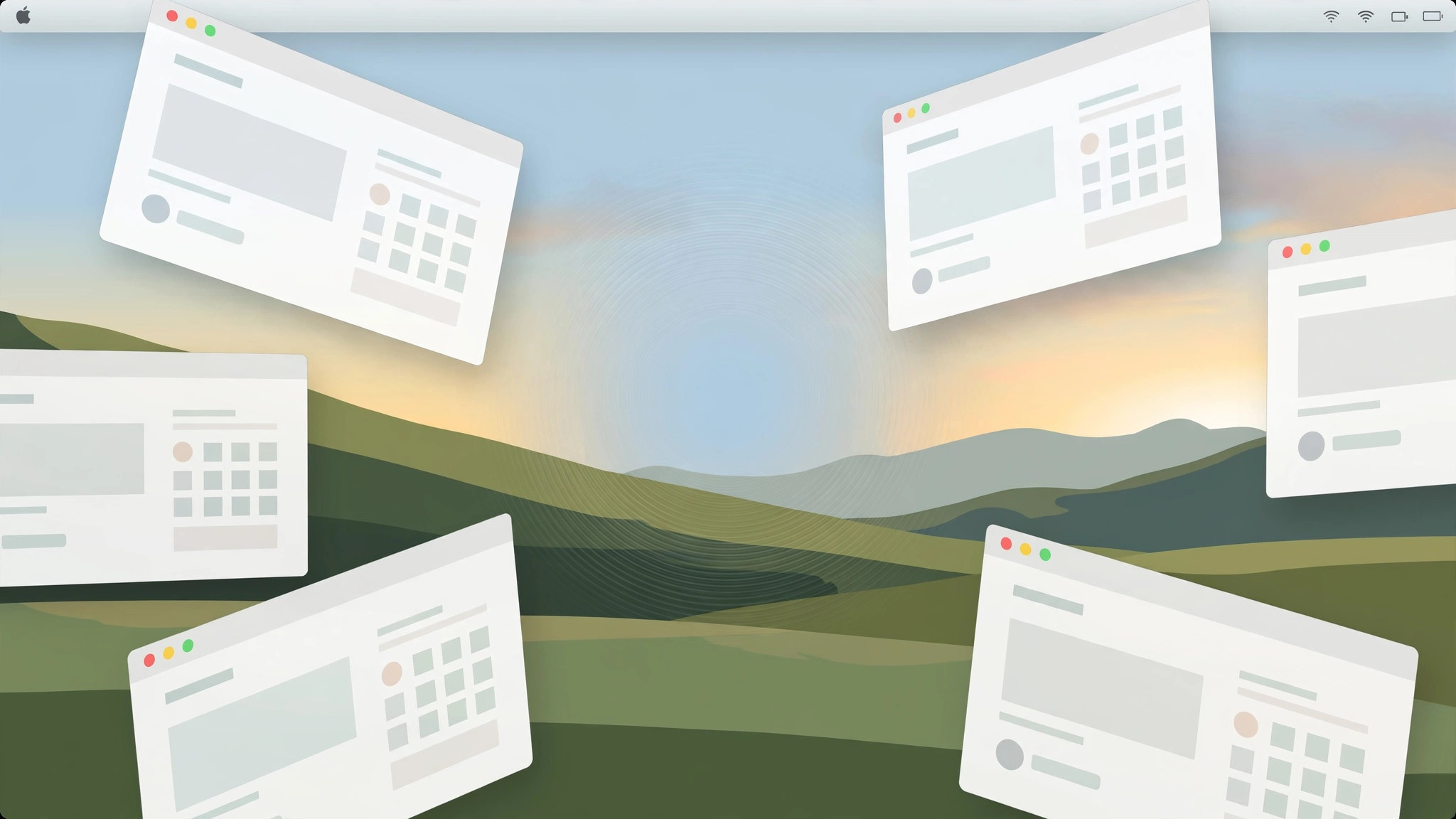
You’re in the middle of something, you click the desktop to grab a file — and every window flies off to the edges of the screen. It feels like a glitch, or like you triggered some hidden gesture. You didn’t. In macOS Sonoma, that dramatic window scatter is a deliberate feature, and it can be switched off in a single setting.
Here’s what’s actually happening and how to stop it.
It’s a feature, not a bug: “click wallpaper to reveal desktop”
macOS Sonoma introduced desktop widgets, and with them a new convenience: clicking the wallpaper shoves all open windows aside so you can reach those widgets instantly. Apple calls it “Show desktop when clicking wallpaper,” and it’s enabled by default. The first time it triggers, it genuinely feels like something broke. Apple’s Mac User Guide documents the Desktop & Dock settings where it lives, and MacRumors covered the strong reactions when Sonoma shipped.
How to stop windows from scattering
- Open System Settings on your Mac.
- Go to Desktop & Dock in the sidebar.
- Scroll to the Desktop & Stage Manager section.
- Find “Show desktop when clicking wallpaper” and change it from Always to Only in Stage Manager.
- Close Settings. Clicking the desktop in normal mode will no longer scatter your windows.
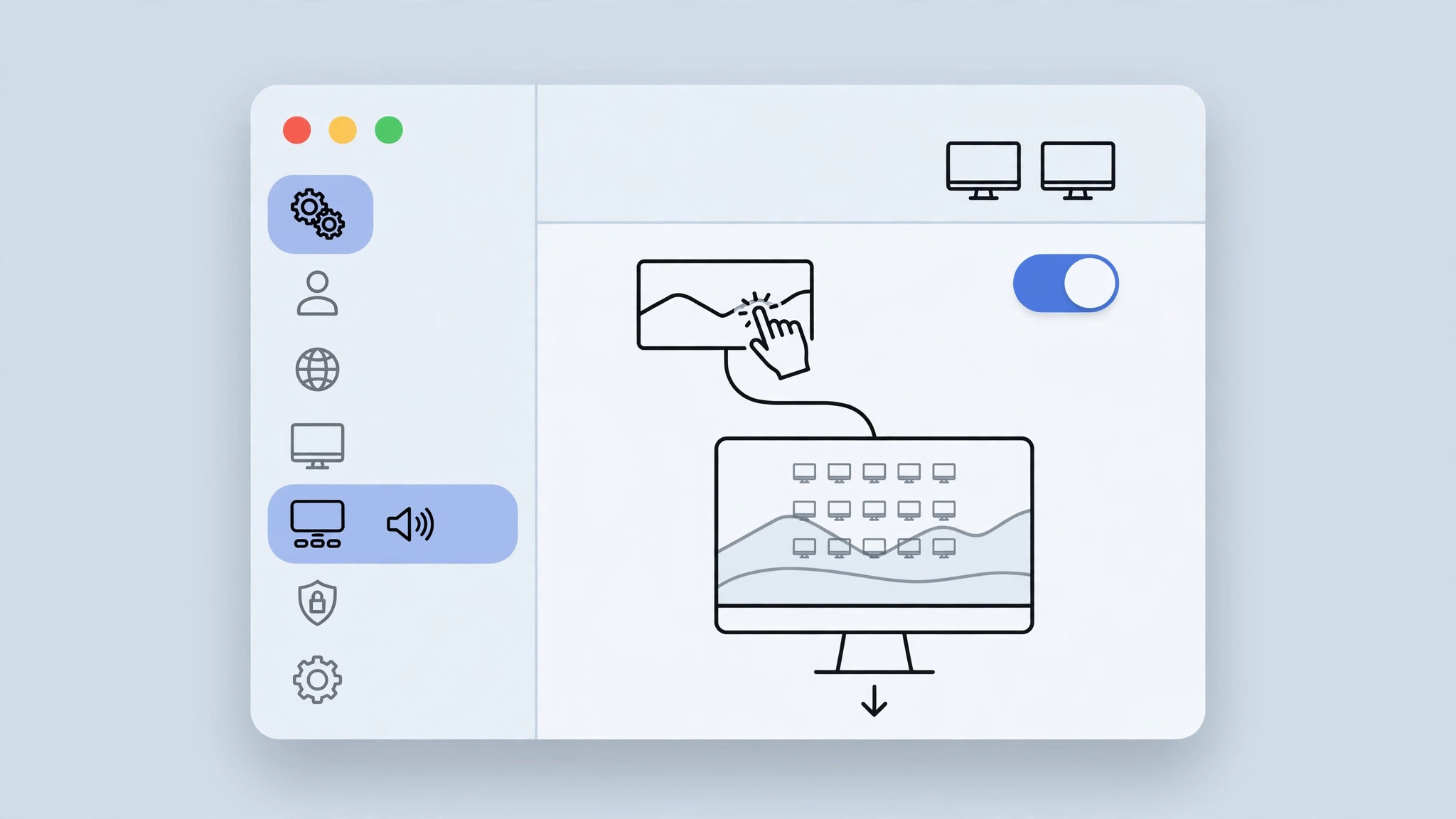
What the “Only in Stage Manager” option means
Stage Manager is Apple’s window-organizing mode where the desktop stays visible by design — so keeping the click-to-reveal behavior there makes sense. In regular desktop mode, your windows now stay put when you click the wallpaper. You lose nothing: widgets are still one click away in Notification Center, and your workflow stops getting interrupted by accidental clicks.
Prefer a gesture instead? Try the trackpad spread
If you sometimes do want to fling windows aside — to see the desktop in a hurry — macOS has long offered a trackpad gesture for it: spread your thumb and three fingers apart on the trackpad. It reveals the desktop on demand without changing any settings, giving you the best of both worlds.
If it still doesn’t work
If windows still scatter after changing the setting, make sure you’re running macOS Sonoma or later — the option doesn’t exist on Ventura and older. Also check whether Stage Manager is actually enabled; the “Only in Stage Manager” choice behaves like “Always” while Stage Manager is on. For more Mac desktop customization, see our guides on changing folder colors and adding emoji in macOS 26 and muting Mail notifications for specific contacts.
Frequently asked questions
Why did Apple add this feature?
Sonoma put widgets directly on the desktop, and Apple wanted a fast way to reach them. Clicking the wallpaper to sweep windows aside was their answer — logical on paper, startling in practice.
Does disabling it affect Stage Manager?
No. With “Only in Stage Manager” selected, the click-to-reveal behavior still works whenever Stage Manager is active. It only stops triggering in the standard desktop layout.
The bottom line
Nobody enjoys their windows exploding across the screen by accident. One setting — System Settings → Desktop & Dock → Show desktop when clicking wallpaper → Only in Stage Manager — ends the surprise for good.





