

macOS 26 — also known as macOS Tahoe — finally gives your Finder folders a personality. You can now recolor any folder and stamp it with an emoji or symbol, right from the right-click menu. If you juggle work projects, photo libraries, and download chaos, a red folder for urgent tasks or a video-project folder marked with an emoji is recognizable at a glance, no reading required.
Before Tahoe, dressing up a folder meant the old copy-and-paste dance through the Get Info window — a fiddly trick most people never bothered with. The new built-in customization panel replaces all of that with a couple of clicks. And if you are still settling into the new system, our guide on how to quickly open the list of installed apps in macOS 26 will help you master the redesigned app launcher too.
How to change a folder’s color and add emoji in macOS 26
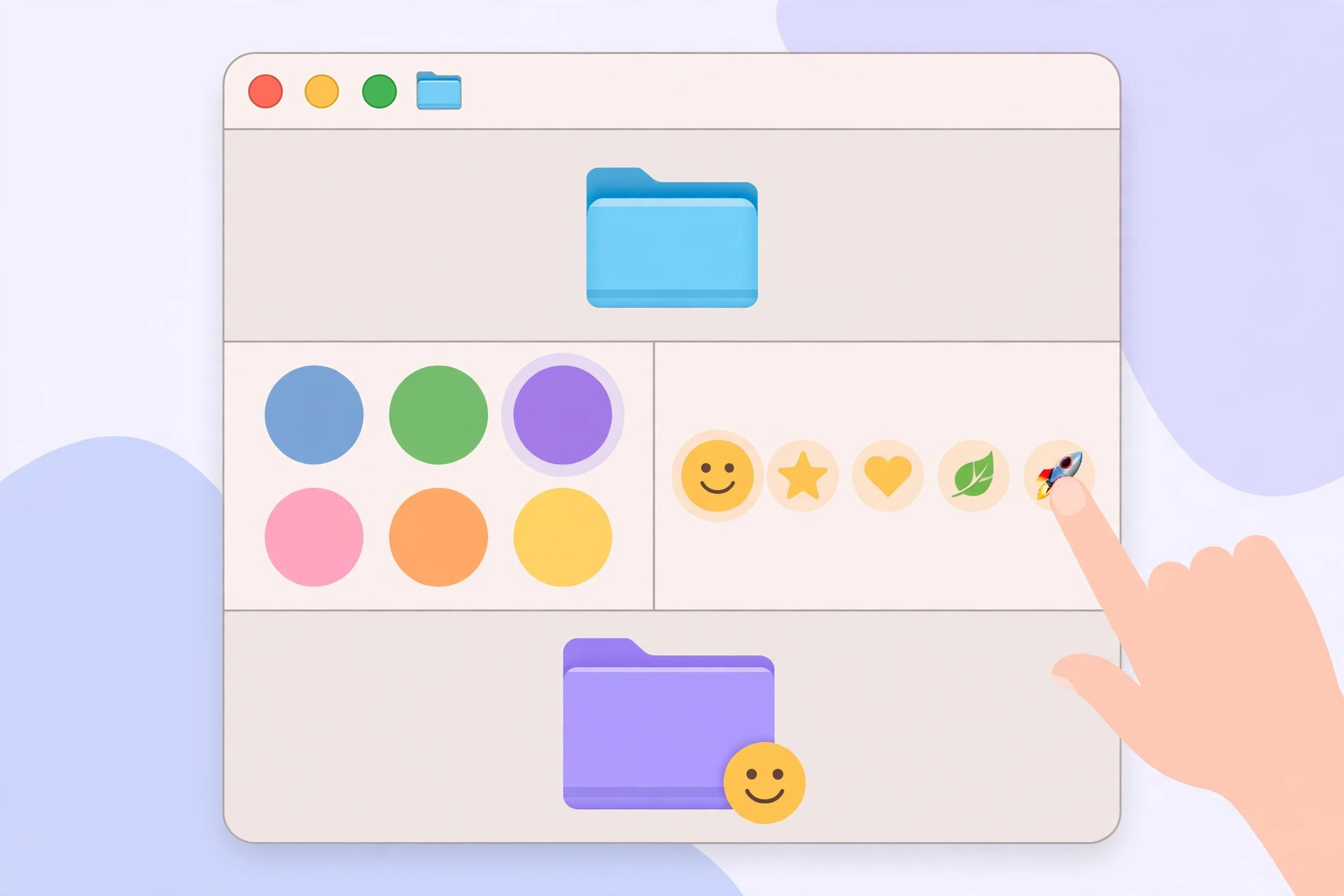
Recoloring a folder takes less than a minute. Here is the full process:
- Open Finder and find the folder you want to restyle. This works in any view — icon, list, column, or gallery — and with folders on your desktop, in iCloud Drive, or on external drives.
- Right-click (or Control-click) the folder to open its context menu.
- Choose Customize Folder from the menu. A small customization panel appears.
- Pick a color from the palette. The folder instantly takes on the new tint. Behind the scenes, macOS also assigns a matching Finder tag, so you can find the folder later through tag-based search in Spotlight or smart folders.
- Switch to the symbols tab in the same panel and choose an emoji or icon. The glyph is overlaid on the folder, replacing its plain default look.
- Close the panel — your changes apply immediately. The new appearance follows the folder everywhere: Finder windows, the desktop, and Open/Save dialogs.
You can use color alone, emoji alone, or both together. Colors are ideal for categories — green for finance, blue for personal, red for urgent — while emoji are best for lightning-fast visual scanning.
If it still doesn’t work
If the Customize Folder option is missing from the menu, you are probably not on macOS 26 yet — the feature arrived with Tahoe. Check the Apple menu, then About This Mac, and install the update; Apple’s macOS page lists which models support it. If the panel opens but nothing changes, make sure you right-clicked a real folder: smart folders and aliases cannot be recolored this way. And if an emoji refuses to stick, close and reopen the Finder window, or relaunch Finder by Option + right-clicking the Finder icon in the Dock and choosing Relaunch.
Frequently asked questions
Does changing a folder’s color affect the files inside it?
No. The color and emoji only change how the folder looks. Everything inside — files, subfolders, and permissions — stays exactly the same.
Will my customized folders look the same on my other devices?
Yes, as long as the folder lives in iCloud Drive. The color, emoji, and tag sync to your other Macs signed in with the same Apple ID. Folders on external drives keep their styling when moved between Macs running macOS 26, though older systems will simply show them as plain blue folders.
Conclusion
A tiny splash of color goes a long way. In under a minute you can turn a sea of identical blue folders into a visual map of your work — and once you start, it is hard to go back. For more ways to make your Mac your own, learn how to enable face lighting during video calls on Mac or how to set up automatic hotspot connection from iPhone on Mac for working on the go. As 9to5Mac‘s Tahoe coverage shows, folder customization is just one of many thoughtful touches in Apple’s latest desktop release — and video walkthroughs on YouTube are a great way to discover the rest.






[…] Mac tips: learn how to change folder colors and add emoji in macOS 26 or quickly open your installed apps list in macOS […]
[…] more Mac customization, learn how to change folder colors and add emoji in macOS and quickly open the installed apps list. Officially, Apple’s guide to changing how folders […]
[…] The official Apple guide to using your keyboard like a mouse covers Mouse Keys in detail, and MacRumors’ Mac tips guide has more keyboard tricks. Also check our guides on quickly opening the installed apps list and changing folder colors and adding emoji in macOS. […]