
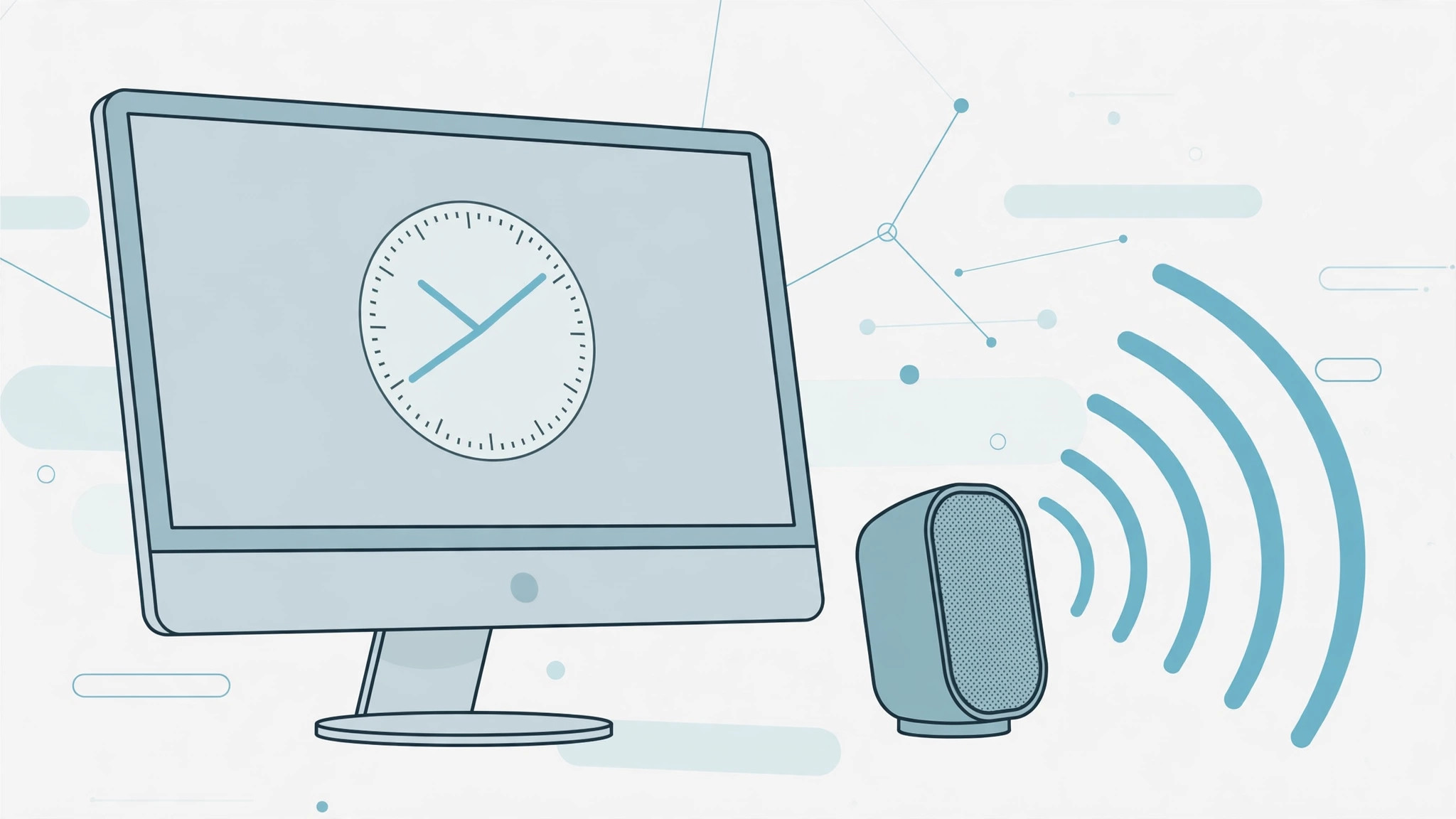
Your Mac has a charming, genuinely useful feature hiding in plain sight: it can speak the current time aloud — on the hour, every half hour, or every fifteen minutes. It is perfect for staying aware of the time while you work, cook, or study without glancing at the clock. You can even pick the voice that announces it and adjust how fast it speaks. Here is how to set it up on any modern macOS version.
Where the setting lives (it moved over the years)
Apple has relocated this option a few times, so use the path that matches your macOS. On recent macOS (Ventura and later), open System Settings → Control Center and scroll to the Clock section. On macOS Big Sur and Monterey, it is under System Preferences → Dock & Menu Bar → Clock. On Catalina and earlier, look in System Preferences → Date & Time → Clock tab. Apple Support documents the current location if you are unsure which one applies to you.
Step-by-step: make your Mac announce the time
- Open System Settings (or System Preferences on older macOS) from the Apple menu in the top-left corner.
- Navigate to the Clock section using the path for your macOS version described above.
- Turn on “Announce the time”. Check the box or flip the toggle, depending on your macOS version.
- Choose the interval. Pick on the hour, on the half hour, or on the quarter hour, depending on how often you want the reminder.
- Customize the voice. Click “Customize Voice” (or the Voice dropdown) to choose who announces the time — macOS offers several voices — and drag the speaking-rate slider to make it faster or slower. Press Play to preview your choice.
- Check your volume. Announcements play at the system volume, so if you cannot hear them, raise the volume in Sound settings. Note that the Mac only announces while it is awake — a sleeping Mac stays silent.
Tips for getting the most out of it
Quarter-hour announcements are great for focused work sessions; hourly chimes suit a more relaxed day. If you use your Mac for video calls, you might also like learning how to enable face lighting during video calls on Mac. And if you live in Apple’s ecosystem, see how to set up message sync between iPhone and Mac to keep conversations flowing across devices. Publications like Macworld and Beebom regularly cover these hidden macOS gems.
If it still doesn’t work
No announcement plays: confirm the Mac is not muted and the output device is correct in Sound settings — the feature cannot speak through a muted or disconnected output. Can’t find the setting: you are likely looking in the wrong place for your macOS version — re-check the paths above. Voice sounds wrong or is missing: some voices need to be downloaded first; pick another voice or check your network connection while it downloads.
Frequently asked questions
Does announcing the time drain the battery?
Negligibly. Speaking a short phrase a few times an hour uses minimal processor and audio power — far less than video playback or a bright display.
Can I make it announce only during certain hours?
Not natively — the toggle is all-or-nothing. As a workaround, simply turn the feature off at night; it takes five seconds in System Settings.
Conclusion
A Mac that tells the time is a small delight that keeps you on schedule without breaking focus. Set your interval, pick a voice you like, and let your Mac do the clock-watching for you.





