
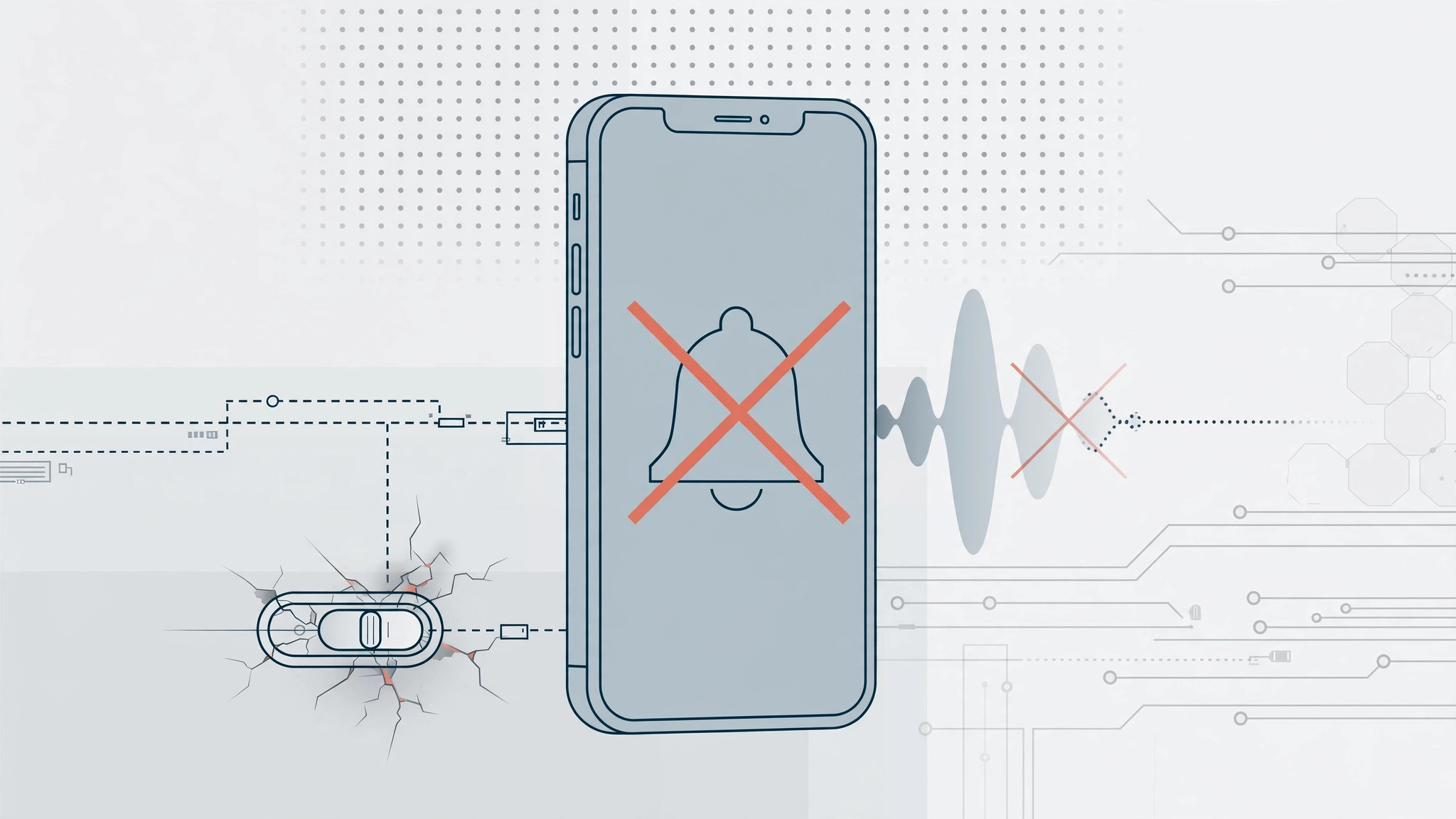
The tiny mute switch above the iPhone’s volume buttons is one of the most-used controls on the phone — and when it breaks, gets stuck, or snaps off, silencing your iPhone becomes a real headache. The good news: iOS includes two built-in Accessibility workarounds that toggle silent mode without touching the switch at all — AssistiveTouch and Back Tap. Here is how to set each of them up.
Option A: toggle silent mode with AssistiveTouch
AssistiveTouch adds a floating on-screen button that can perform all kinds of actions — including flipping the mute switch for you.
- Open Settings → Accessibility → Touch.
- Turn on AssistiveTouch. A small floating button appears on your screen; you can drag it to any edge where it stays out of the way.
- Add the Mute action. Tap “Customize Top Level Menu” and add Mute to the menu (it also lives under Device → Mute). Prefer gestures? Assign Mute to Double-Tap or Long Press on the floating button instead.
- Toggle silent mode. Tap the floating button (or use your chosen gesture) to switch silent mode on and off. A bell-with-a-slash icon confirms the phone is muted.
Option B: toggle silent mode with Back Tap (no floating button)
If you would rather not have a button floating on your screen, Back Tap lets you trigger actions by tapping the back of your iPhone. It requires iPhone 8 or later.
- Open Settings → Accessibility → Touch → Back Tap.
- Choose Double Tap or Triple Tap, whichever feels more natural to you.
- Select Mute from the list of available actions.
- Tap the back of your iPhone twice (or three times) to toggle silent mode on and off — no switch needed.
Quick check: is the switch really broken?
Before settling into a workaround, rule out the simple stuff: remove the case and check whether it was pressing on the switch, gently clean around the switch with a soft brush, and restart your iPhone. If the switch is merely stuck rather than broken, that may free it. And remember — these Accessibility tricks are workarounds, not repairs. For a permanent fix, visit an Apple Store or authorized service provider. Apple documents both AssistiveTouch and Back Tap on Apple Support, and you will find step-by-step walkthroughs at MakeUseOf and Guiding Tech.
Related sound fixes: learn how to turn off AirPods charging case sounds, or — if your mornings are the problem — how to bring back the alarm Stop button in iOS 26.
If it still doesn’t work
Back Tap doesn’t respond: it needs iPhone 8 or later; try firmer taps near the center of the back, and note that very thick cases can make it unreliable. The AssistiveTouch button is in the way: drag it to a screen edge, or lower its idle opacity in the AssistiveTouch settings. Silent mode toggles but the phone still makes sound: check alarms and media volume separately — silent mode mutes ringtones and alerts, not in-app audio.
Frequently asked questions
Will AssistiveTouch drain my battery?
Negligibly. It is a tiny on-screen button, not a hungry background process — its battery impact is effectively zero.
Can I still use the physical switch later if it gets fixed?
Absolutely. These software toggles and the hardware switch control the same setting, so they stay in sync — use whichever is convenient.
Conclusion
A broken mute switch doesn’t mean a noisy iPhone. With AssistiveTouch or Back Tap assigned to the Mute action, you can silence your phone in a single tap — no hardware required.





