
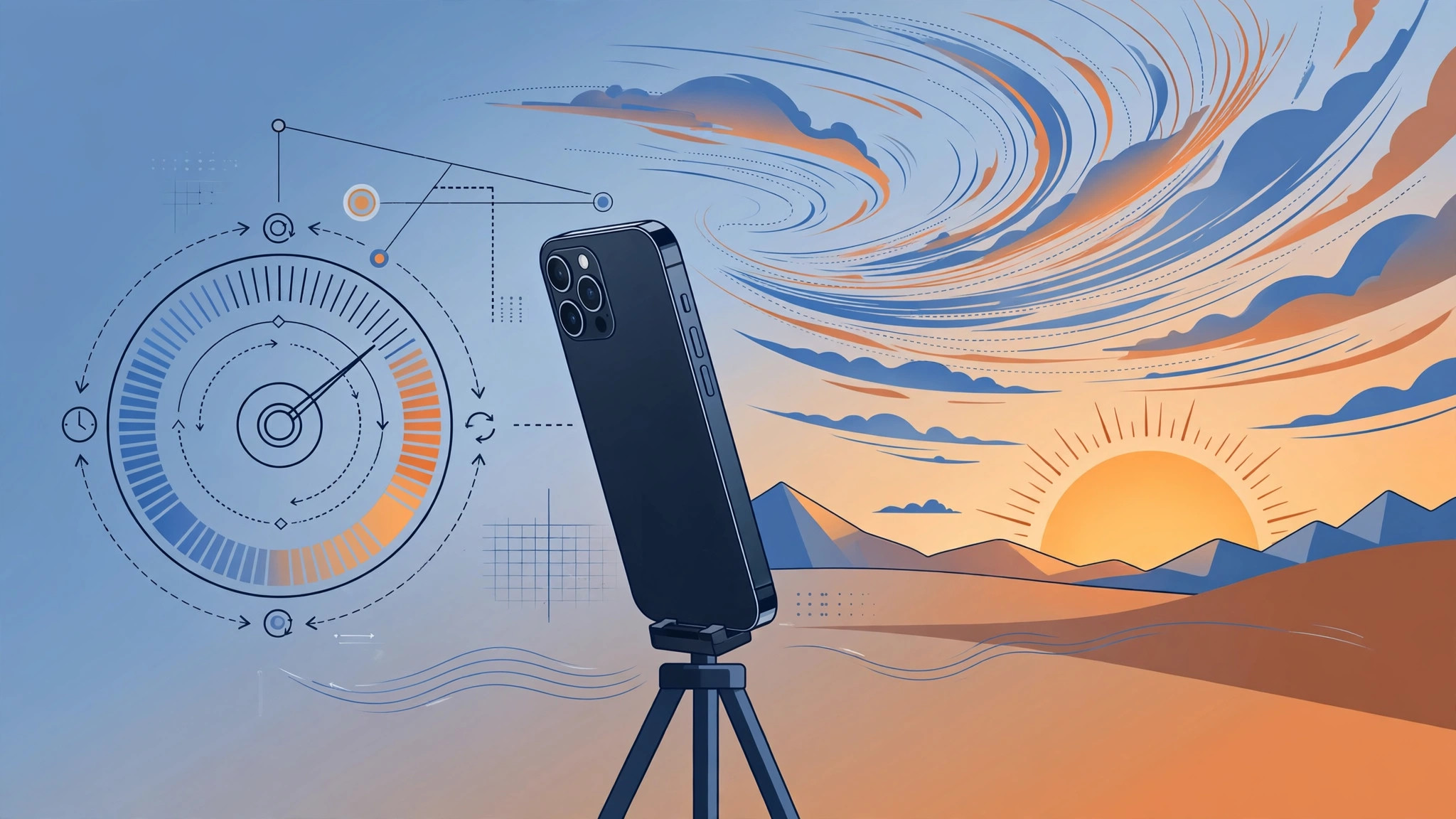
Ask what frame rate the iPhone uses for time-lapse videos and you will get a confusing mix of answers — because there are really two numbers involved. Here is the headline takeaway: time-lapse videos on iPhone always play back at 30 fps. The “frame rate” people are actually asking about is the capture interval — how often the iPhone snaps a frame while recording — and that changes automatically with the recording length.
Playback is always 30 fps
Every time-lapse you shoot on iPhone plays back at 30 frames per second, recorded at 1080p. That part never changes, no matter how long you record.
The capture interval depends on recording length
You cannot set the frame rate manually — the iPhone picks the capture interval from how long you record. Here is Apple’s full table (recorded length → capture rate):
| Recorded length | Capture rate |
|---|---|
| Under 10 min | 2 frames per second |
| 10–20 min | 1 frame per second |
| 20–40 min | 1 frame every 2 seconds |
| 40 min–1h20 | 1 frame every 4 seconds |
| 1h20–2h40 | 1 frame every 8 seconds |
| 2h40–5h20 | 1 frame every 16 seconds |
| 5h20–10h40 | 1 frame every 32 seconds |
| 10h40–21h20 | 1 frame every 64 seconds |
| 21h20–42h40 | 1 frame every 128 seconds |
How to get smoother time-lapse clips
For short clips of just a few minutes, keep recording under 10 minutes for the smoothest result — that gives you 2 captured frames per second. For long processes like sunsets or construction, just let it run; the iPhone handles the interval automatically. Practical tips: keep the phone perfectly still (a tripod helps enormously), lock focus and exposure on your subject, and make sure you have enough battery and storage for very long sessions.
Apple documents the iPhone camera’s time-lapse behavior on Apple Support, and camera quirks are regularly covered by MacRumors and 9to5Mac. For more camera fixes, see why spatial photo mode isn’t working in iOS 26 and how to take HDR screenshots on iPhone and iPad.
If it still doesn’t work
Time-lapse option missing: open Camera and swipe through the modes — on some models it sits at the far end of the mode dial. Video looks choppy: that is the sparse capture interval on long recordings; keep clips under 10 minutes for the smoothest motion. Recording stopped on its own: long time-lapses eat storage and battery — free up space and keep the phone charged or plugged in.
Frequently asked questions
Can I change the time-lapse frame rate manually?
No. The iPhone picks the capture interval automatically based on recording duration — there is no manual frame-rate setting for time-lapse in the Camera app.
Why does my time-lapse look choppy compared to normal video?
Because it is built from far fewer captured frames: a 30-minute recording captures only 1 frame every 2 seconds, then plays those frames at 30 fps. Shorter recordings capture more densely and look smoother.
Conclusion
Remember the two numbers: playback is always 30 fps, and the capture interval is automatic and duration-dependent. Shoot short for smooth, shoot long for dramatic — and let the iPhone do the math.





