
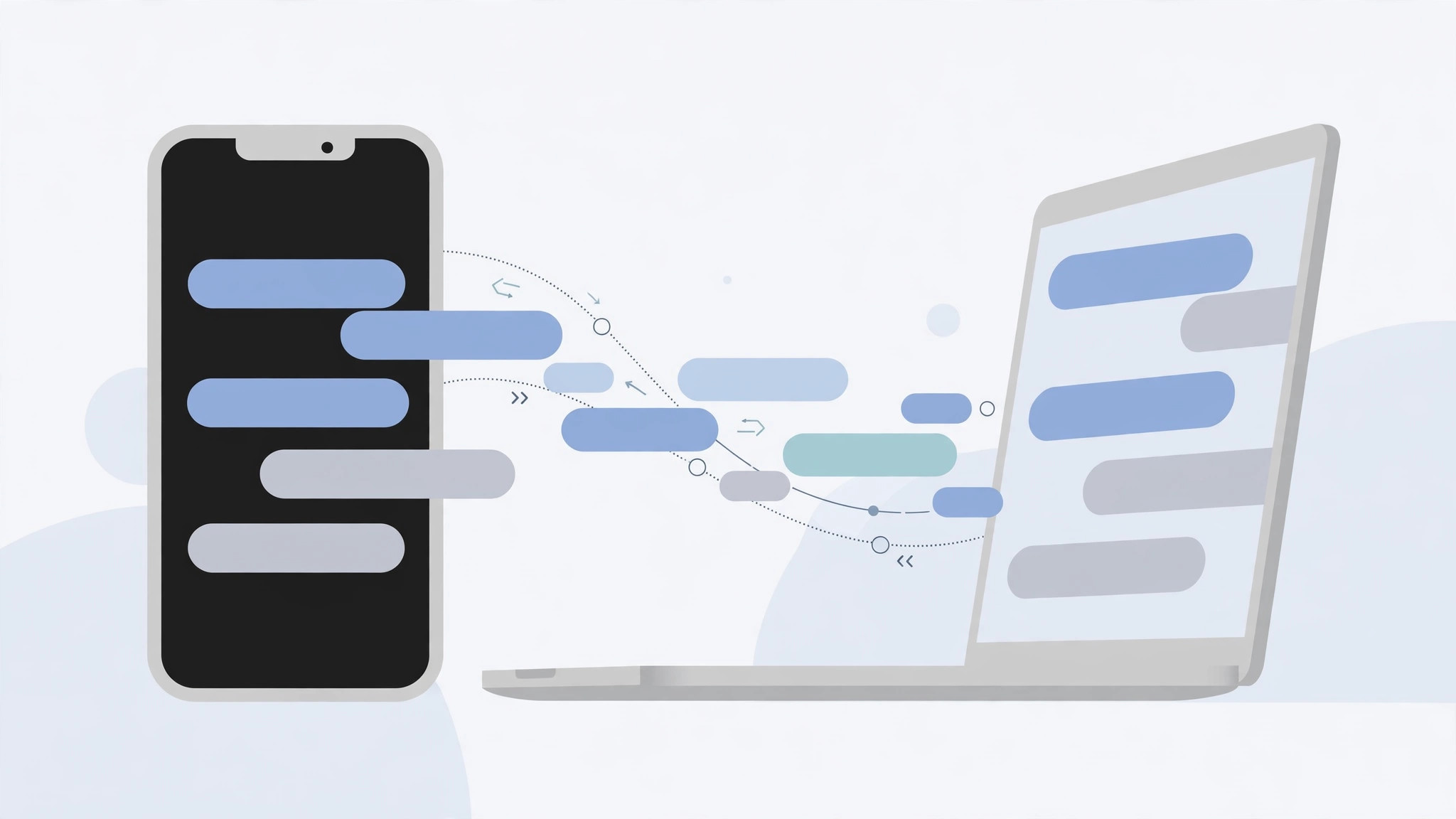
Apple’s Messages app is supposed to keep every conversation in sync across iPhone and Mac — start a chat on one, continue on the other. When that breaks and texts appear on your iPhone but never reach your Mac (or vice versa), it’s maddening. The good news: the cause is almost always one of three settings.
Usually it’s Messages in iCloud being switched off, the two devices signed into different Apple IDs, or Text Message Forwarding disabled for green-bubble SMS. Work through the steps below — they apply to macOS Ventura as well as Sonoma and Sequoia — and sync should come back.
Fix Messages sync step by step
- On the Mac, enable Messages in iCloud and force a sync. Open Messages → Settings → iMessage, tick “Enable Messages in iCloud”, then click “Sync Now”. Give it a few minutes.
- On the iPhone, confirm Messages syncing is on. Open Settings → [your name] → iCloud and make sure Messages is enabled.
- Use the same Apple ID on both devices. In Messages settings on the Mac and in Settings → Messages → Send & Receive on the iPhone, verify both are signed into the same Apple ID for iMessage.
- Turn on Text Message Forwarding for SMS. Blue iMessages sync via iCloud, but green SMS texts need forwarding: on the iPhone go to Settings → Messages → Text Message Forwarding and enable your Mac.
- Still stuck? Re-sign in on both. Sign out of iMessage on the Mac and iPhone, restart both devices, then sign back in. This clears stale authentication tokens.
- Update both devices. Check Settings → General → Software Update on iPhone and System Settings → General → Software Update on Mac — sync bugs are often fixed in newer releases.
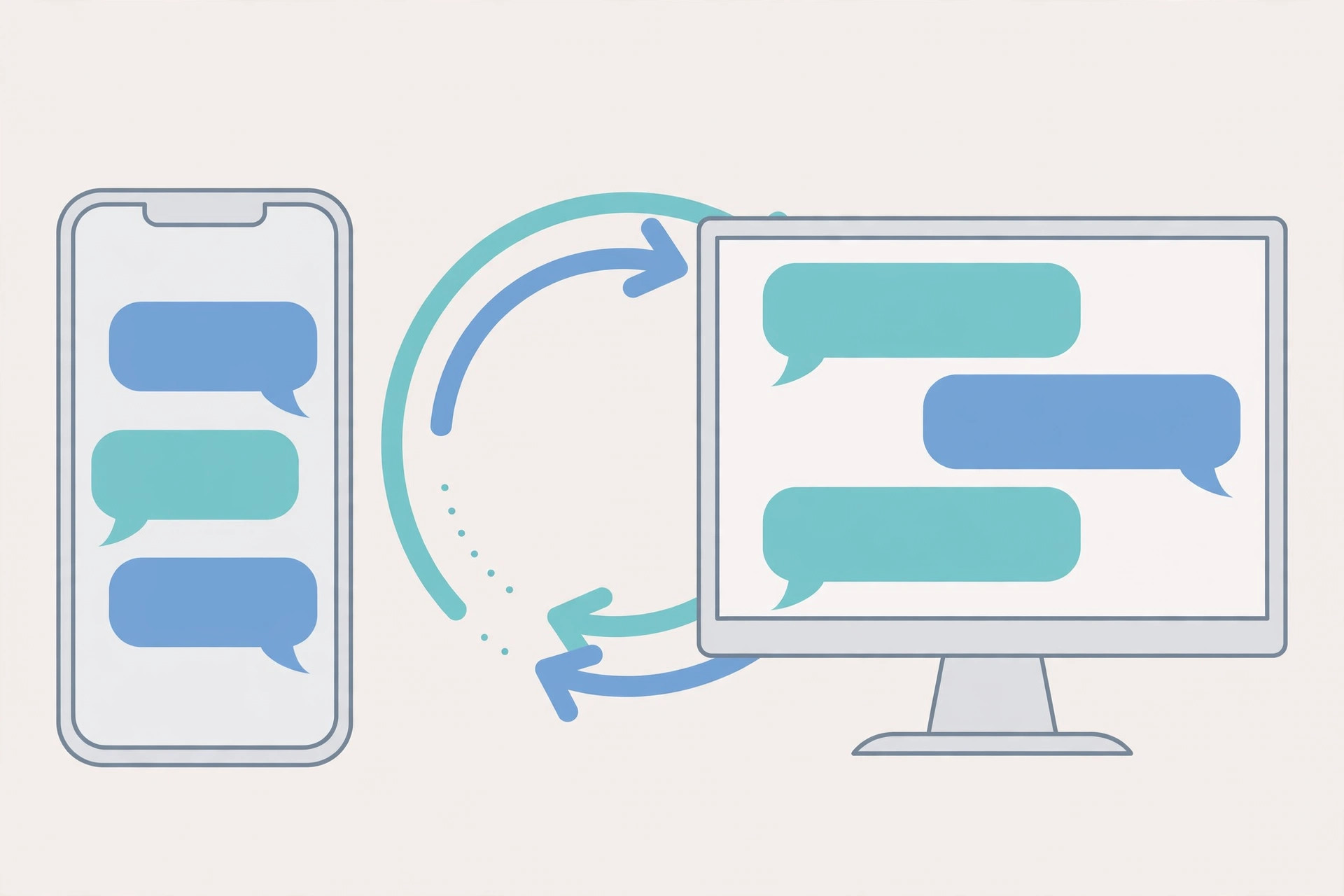
For the full initial setup, our guide to setting up message sync between iPhone and Mac walks through the same screens. Apple also documents how to set up iCloud for Messages on all your devices, and Macworld’s fix guide for Messages syncing on Mac covers additional edge cases.
If it still doesn’t work
- Check Apple’s System Status page — if iMessage or iCloud is down, syncing pauses for everyone.
- Make sure both devices have a stable network connection; sync can’t complete on flaky Wi-Fi.
- Verify date and time are set automatically on both devices (wrong clocks break iCloud auth).
- If only some conversations are missing, check whether they’re SMS (green) — that’s the Text Message Forwarding setting, not iCloud.
Frequently asked questions
Why do messages show on my iPhone but not my Mac?
The usual culprit is Messages in iCloud disabled on the Mac, or Text Message Forwarding off for SMS texts. iMessages (blue) sync through iCloud; carrier SMS (green) only reaches the Mac if forwarding is enabled on the iPhone.
Do these steps work on macOS Sonoma and Sequoia too?
Yes. The settings live in the same places — Messages → Settings → iMessage on the Mac — across Ventura, Sonoma, and Sequoia. If you’re also tidying up notifications, see how to mute Mail notifications for specific contacts in macOS.
Conclusion
Nine times out of ten, broken Messages sync comes down to iCloud toggles, mismatched Apple IDs, or forwarding. Run through the six steps above and your iPhone and Mac should be mirroring conversations again within minutes.





