
When callers start sounding distant and muffled, the instinct is to assume the iPhone is dying. In reality, a quieter earpiece speaker is one of the most fixable iPhone annoyances — it’s usually pocket lint packed into the speaker mesh or a misbehaving audio setting, not broken hardware. Work through these seven fixes before you book a repair.
7 fixes for a quiet iPhone earpiece speaker
- Turn the volume up during a call. iPhone keeps call volume separate from media volume. The media slider can be maxed out while call volume sits near zero — so make a call, then press the volume-up button and watch the on-screen indicator.
- Remove the case and screen protector. Check that nothing covers the earpiece grille at the top of the screen. Thick cases and misaligned protectors muffle sound more than you’d think.
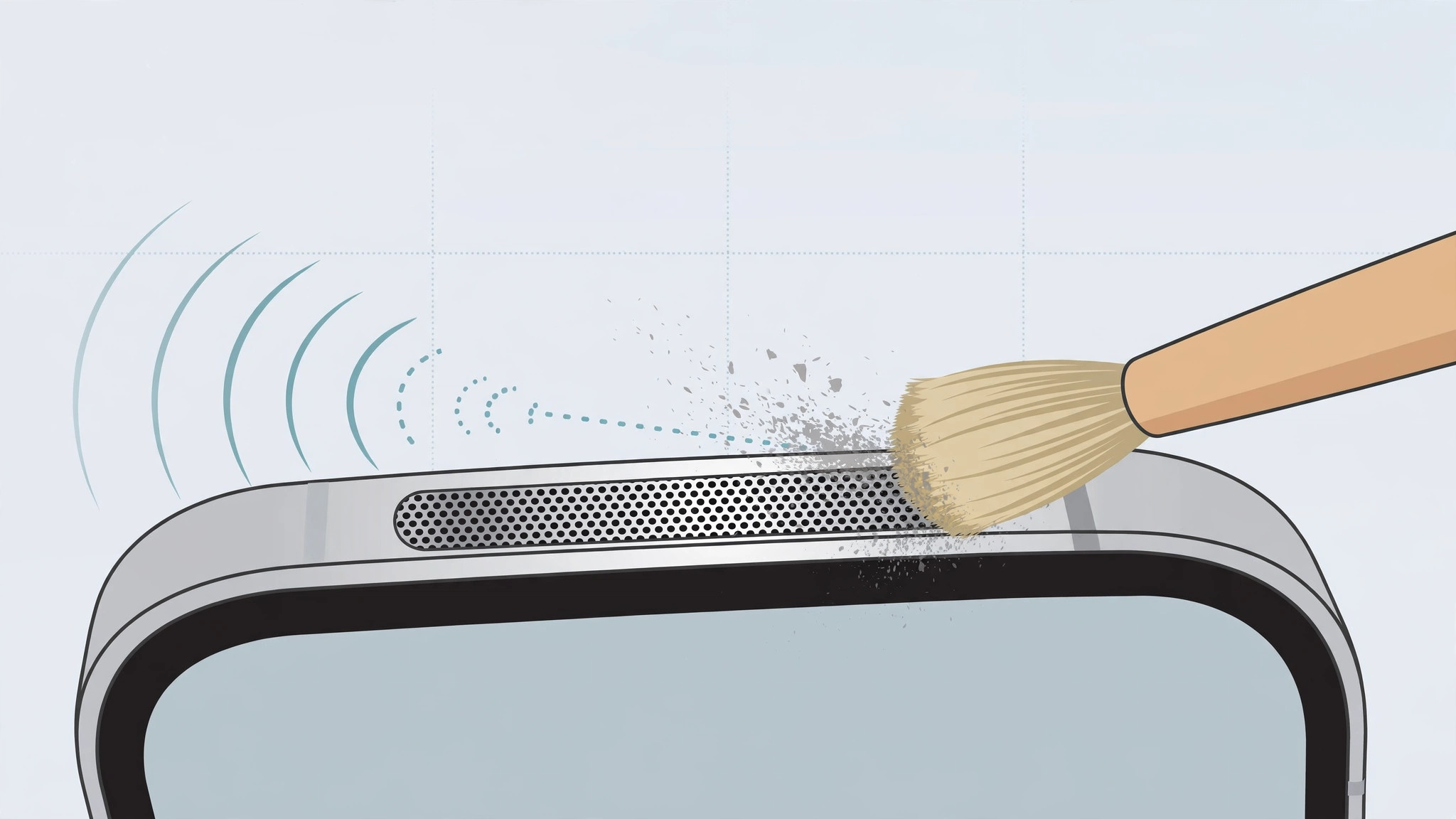
- Clean the earpiece mesh gently. Dust and lint compact into the tiny holes over months of pocket life. Use a clean, soft, dry brush — a soft toothbrush works — and sweep lightly across the grille. Never use liquids, compressed air at close range, or sharp objects; Apple’s speaker troubleshooting guide warns against the same.
- Make sure audio isn’t routed elsewhere. Turn Bluetooth off in case the call is going to forgotten earbuds, then check Settings → Accessibility → Touch → Call Audio Routing is set to Automatic.
- Toggle Phone Noise Cancellation. In Settings → Accessibility → Audio/Visual, switch Phone Noise Cancellation off and back on. On some iOS versions this unsticks odd call-audio behavior.
- Restart and update. Power the iPhone off and on, then check Settings → General → Software Update. Audio glitches are routinely fixed in iOS updates.
- Reset audio-related settings. Go to Settings → General → Transfer or Reset iPhone → Reset → Reset All Settings. This keeps your data and apps but returns every setting — including audio routing — to defaults. iDownloadBlog’s rundown of low call-volume fixes covers the same ground with screenshots.
If it still doesn’t work
If the earpiece stays quiet after all seven steps, the speaker itself is likely failing — no software trick will revive worn hardware. Contact Apple Support or an authorized service center for a diagnostic. And if your iPhone keeps sending call audio to the wrong place generally, see how to stop iPhone from auto-switching audio to headphones.
Frequently asked questions
Why does the earpiece get quieter over time?
Almost always, it’s physical: pocket lint, dust, and skin oils gradually pack into the speaker mesh and muffle the sound. That’s why a gentle brush cleaning fixes so many “dying speaker” complaints. Settings drift — Bluetooth routing, noise cancellation — accounts for most of the rest.
Will cleaning the speaker void my warranty?
No. A light dry brushing of the grille is normal maintenance, not disassembly. Just avoid liquids, sharp tools, and compressed air, which can push debris deeper or damage the mesh. For more iPhone sound customization, learn how to add and change the iPhone startup sound in iOS.
Conclusion
A quiet earpiece is rarely a dead earpiece. Clean the mesh, check your routing settings, and reset when in doubt — those three moves resolve the vast majority of cases without a trip to the repair shop.





