
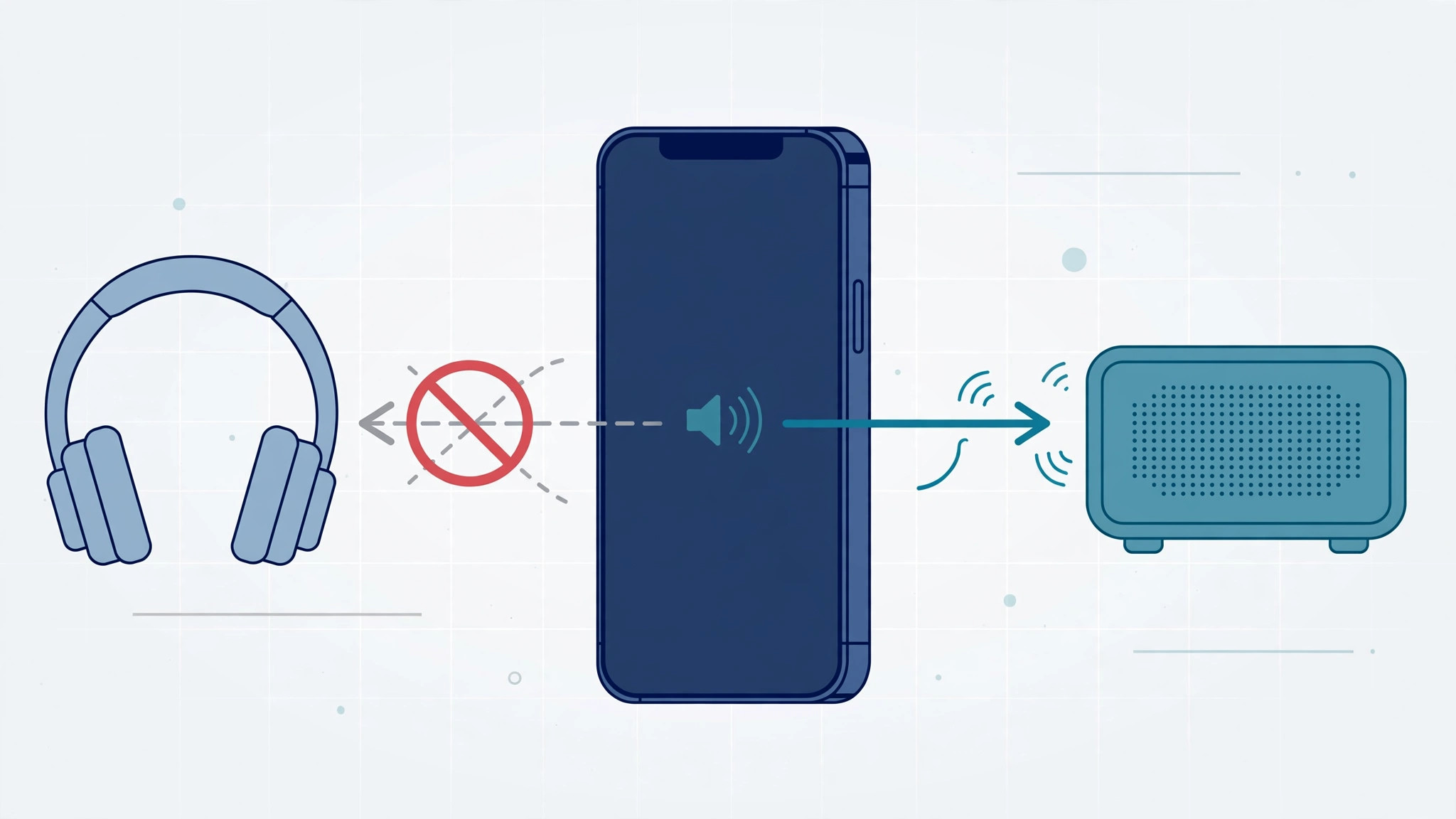
You’re listening to music on your AirPods, you walk past your living-room speaker — and suddenly the sound jumps out of your headphones and blasts across the room. Or you get in the car and your podcast abruptly moves to the car’s audio system. Apple’s automatic audio switching is meant to be helpful, but for many people it’s just annoying.
The good news is that iOS 26.1 finally gives you a proper off switch. A new setting lets you tell your iPhone to keep audio in your headphones no matter which speakers or car stereos appear nearby. Here’s what it does and how to turn it on.
Why your iPhone keeps stealing your audio
Your iPhone is constantly scanning for audio devices over Bluetooth and Wi-Fi. When it spots a speaker or car system you’ve used before, it assumes you want to hand playback over to it and switches automatically. Apple designed this as a convenience — walk into a room and your music “follows” you. In practice, it often fires at the worst moment: during a call, in the middle of a voice note, or when someone else is in the car. As AppleInsider has noted in its coverage of Apple’s audio features, these automations don’t always guess right.
The iOS 26.1 fix: keep audio in your headphones
With the iOS 26.1 update, Apple added a dedicated toggle that stops the automatic handoff. Once enabled, audio stays routed to your headphones even when speakers or car stereos come into range. Follow these steps:
- Update to iOS 26.1. The new toggle doesn’t exist on earlier versions. Go to Settings > General > Software Update and install iOS 26.1 or later. TechCrunch covered the update’s new features when it rolled out.
- Open the AirPlay settings. Go to Settings > General > AirPlay & Continuity. This is the hub for all of Apple’s automatic handoff behaviors.
- Turn on “Audio Always in Headphones”. Find the toggle labeled “Audio Always in Headphones” and switch it on. From now on, when a speaker or car audio system appears nearby, your iPhone will leave playback exactly where it is — in your headphones.
- Test it. Play something through your AirPods or other Bluetooth headphones, then walk within range of a speaker you normally connect to. The audio should stay put instead of jumping across.
If it still doesn’t work
If audio still jumps despite the toggle, check a few things. First, confirm you’re actually on iOS 26.1 — the setting simply isn’t there on 26.0. Second, restart your iPhone after enabling the toggle so the new routing rule takes full effect. Third, look at the specific speaker or car system: some car stereos grab the Bluetooth connection themselves the moment they power on, which happens outside the iPhone’s control — in that case, check the car’s own auto-connect settings. For stubborn cases, Apple’s iPhone support pages walk through Bluetooth troubleshooting, and there are step-by-step demos on YouTube showing the toggle in action.
Frequently asked questions
Can I still switch to a speaker manually?
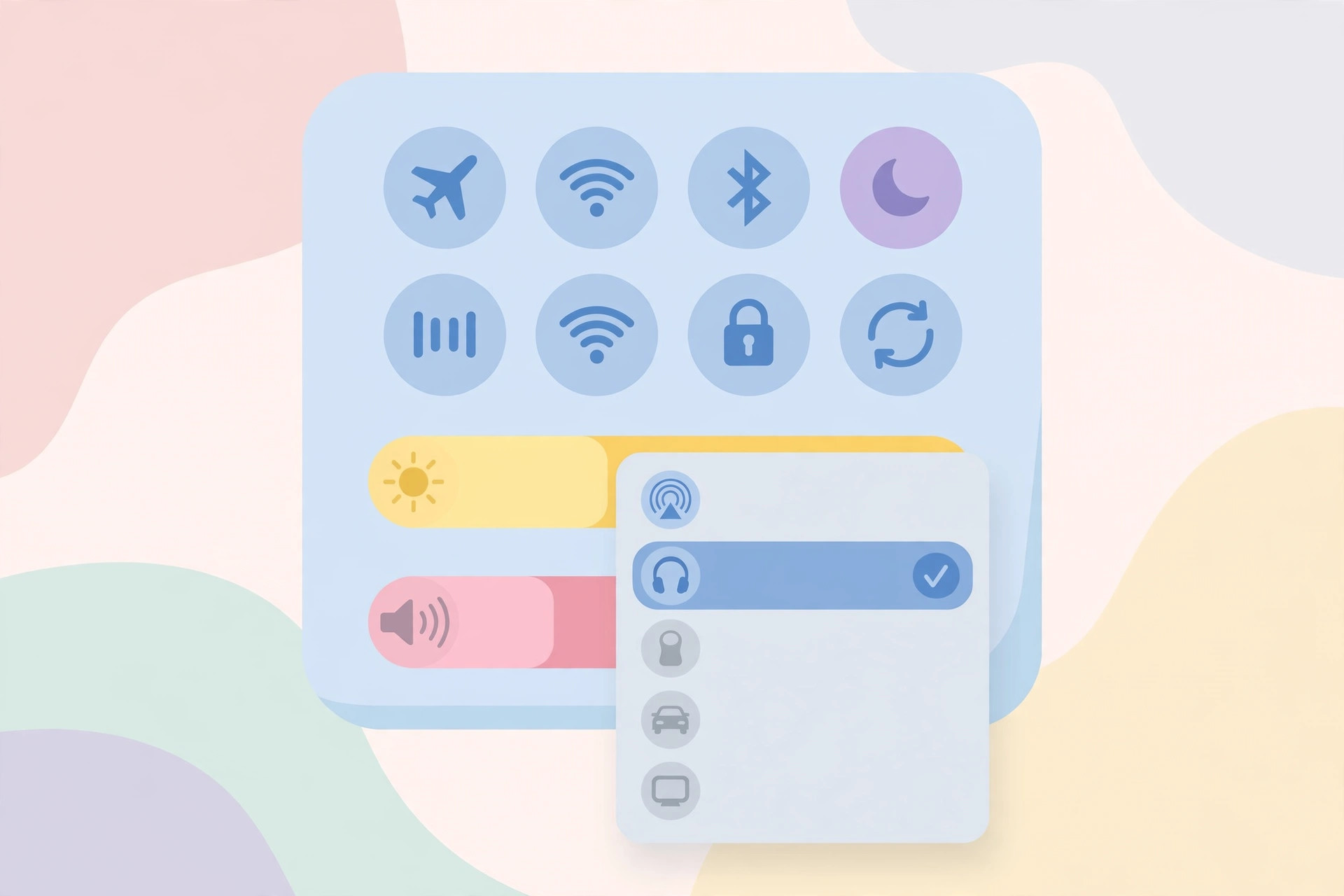
Absolutely. The toggle only blocks automatic switching. You can still tap the AirPlay icon in Control Center or in any app and send audio to a speaker or car stereo whenever you want — you’re just in charge of when it happens.
Does this affect phone calls too?
The setting targets media playback routing. Call audio follows its own rules, but in practice keeping the headphone route stable helps calls stay on your headset as well. If call routing misbehaves, check Settings > Accessibility > Touch > Call Audio Routing. Speaking of iPhone sounds, here’s how to add and change the iPhone startup sound in iOS.
Conclusion
Automatic audio switching is one of those features that sounds clever until it hijacks your music at the worst possible moment. With the “Audio Always in Headphones” toggle in iOS 26.1, you finally get to decide where your sound goes. It takes less than a minute to enable, and your headphones will thank you. For more ways to tame your iPhone’s audio habits, see how to turn off AirPods charging case sounds and how to automatically identify songs playing nearby on iPhone — and join the discussion on X to see how other users have set theirs up.






[…] if your iPhone keeps yanking audio between your headphones and speaker mid-message, our guide to stopping iPhone from switching audio between headphones and speakers will fix that annoyance […]
[…] headphone-related annoyances follow you to your phone too, see our guide on how to stop your iPhone from auto-switching audio to headphones, and how to turn off AirPods charging case sounds for a quieter life all […]
[…] network as your iPhone. If your audio keeps jumping to the wrong device on its own, learn how to stop your iPhone from auto-switching audio from headphones to a speaker. For the official details, see Apple Support’s guide to AirPlay on iPhone; MacRumors also […]
[…] Open the Music app and tap the Library tab. Your playlists, artists, and albums should be reappearing. One caveat: songs you had downloaded for offline listening may need to be downloaded again, because the local copies were tied to the previous sync state. Tap the download icon next to a playlist or album to save it for offline playback. And if your listening keeps getting interrupted by audio jumping between devices, here is how to stop iPhone auto-switching audio to your headphones. […]
[…] your iPhone, you may also enjoy turning off AirPods charging case sounds and learning how to stop your iPhone from auto-switching audio between headphones — two small tweaks that make daily iPhone use calmer. For background reading, Apple’s guide […]
[…] silently hijack your audio. If your iPhone keeps jumping between outputs on its own, our guide on stopping automatic audio switching shows how to tame […]
[…] settings sync hiccup can occasionally revert it. For related wireless annoyances, see our guide on stopping your iPhone from auto-switching audio to headphones — another case of the iPhone being a little too eager to […]
[…] Reset all settings or restore as a last resort. If nothing above helps, try Reset All Settings, or back up and restore iOS via a computer. If the freeze continues on current iOS with a clean install, contact Apple Support — it may be a hardware issue with the radio. And if your audio keeps jumping between outputs after calls, see how to stop iPhone from auto-switching audio to headphones. […]
[…] you at 80%. Related: if your audio keeps jumping between devices while you get ready, our guide on stopping the iPhone from auto-switching audio output fixes that distraction […]
[…] Audio follows the picture to the TV automatically. If your iPhone keeps sending sound to the wrong device instead, see our guide on stopping the iPhone from auto-switching audio output. […]
[…] If you actually like the feature but it answers too quickly, keep it on and set a longer delay: the default is 3 seconds, adjustable anywhere from 0 to 60 seconds. Note that the setting also applies to FaceTime audio and VoIP calls, and the audio follows your Call Audio Routing choice. For related audio-routing quirks, see stop iPhone auto-switching audio to headphones. […]
[…] The list shows every destination: iPhone (the built-in speaker), Bluetooth headphones, AirPods, and any AirPlay speakers on the same Wi-Fi network. Tap the one you want — a checkmark appears and the audio switches instantly, no unpairing needed. If the device you want isn’t listed, toggle Bluetooth off and on in Control Center. For persistent routing headaches, see how to stop your iPhone auto-switching audio to headphones. […]
[…] related audio annoyances, see our guide on stopping the iPhone from auto-switching audio away from headphones, or automatically identifying songs playing nearby instead of fighting the […]
[…] Yes. The free BlackHole virtual audio driver, combined with aggregate or multi-output devices created in Audio MIDI Setup, can split app audio between devices — but expect a steeper, more manual setup. If your iPhone also keeps stealing audio, see our guide on stopping the iPhone from auto-switching audio away from headphones. […]
[…] themselves. If your iPhone keeps hopping between audio outputs meanwhile, our guide on how to stop the iPhone from auto-switching audio between headphones can calm that behaviour […]