
Need to check your Mac’s chip, memory, or serial number? The System Information app shows every detail about your hardware, software, and network. But after upgrading to macOS Ventura, many users cannot find it — Apple redesigned System Settings and moved the System Report button. Here is exactly where it lives now. Knowing where to look saves you a support call — and it takes less than a minute once you know the path.
Where System Report was in older macOS versions
In macOS Monterey and earlier, you clicked the Apple menu > About This Mac, then the System Report button. You could also launch the System Information app directly via Spotlight or Launchpad. The old About This Mac window also showed a friendly overview with your macOS version front and center. Ventura replaced that with a cleaner About page that lists the chip, memory, and serial number up front, while pushing the detailed report to the very bottom — which is why so many people think it disappeared.
Where to find System Report in macOS Ventura
- Click the Apple menu > System Settings.
- Click General in the sidebar, then click About on the right.
- Scroll to the very bottom of the About page.
- Click the “System Report…” button.
The full System Information window opens with your Mac’s hardware, network, and software details. Alternatively, press Command+Space, type “System Information”, and hit Enter — the app still exists under its own name. If you enjoy digging into macOS utilities, our guide on how to change default apps for different file types on Mac covers another handy system tweak.
What you can see in System Report
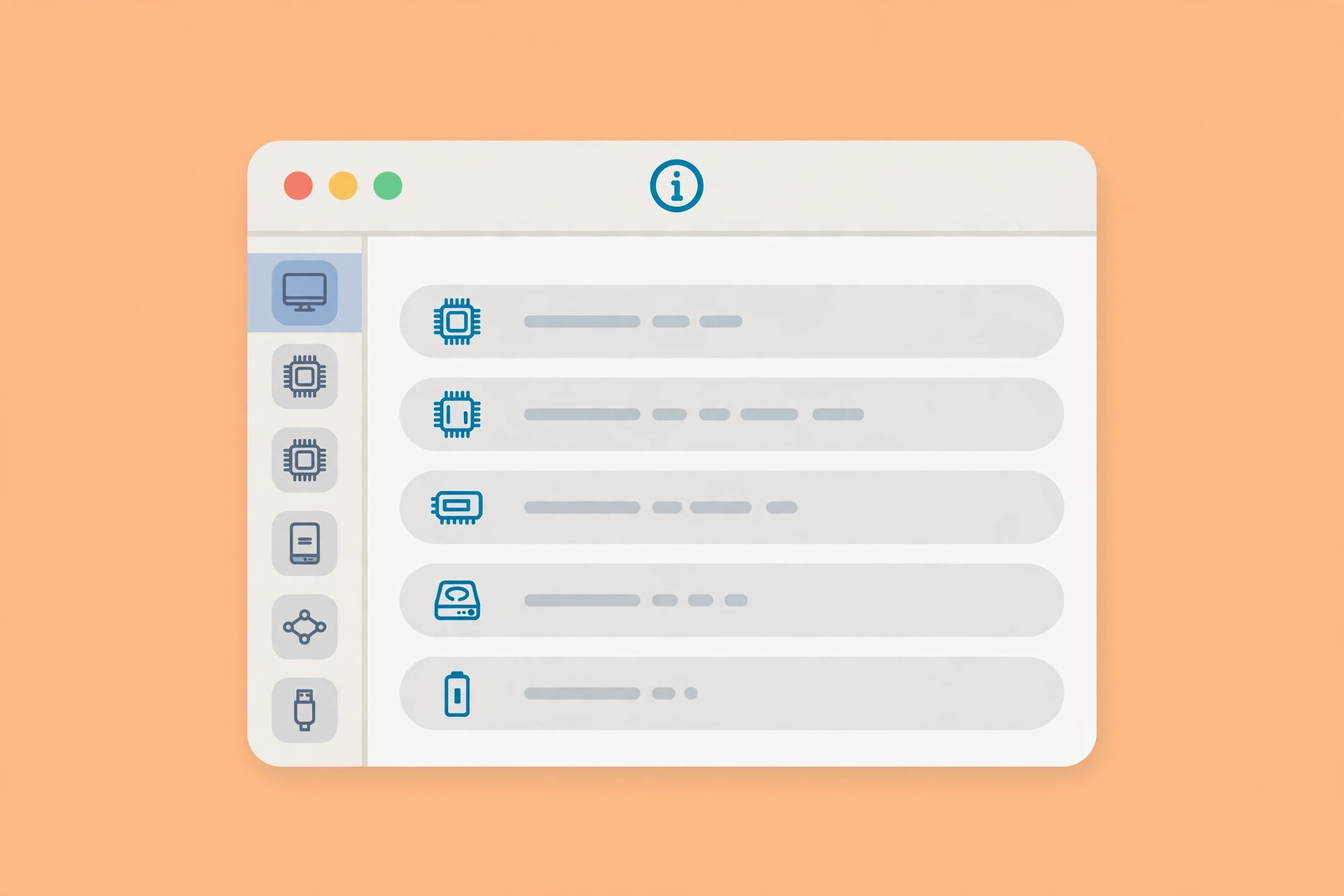
The report covers the hardware overview (chip, cores, memory, serial number), storage, memory configuration, network interfaces (Wi-Fi, Bluetooth), installed software, and macOS version. Under Hardware you will also find the model identifier, boot ROM version, and SMC version — details that matter when checking compatibility with software or replacement parts. The Network section reveals your Wi-Fi and Bluetooth hardware addresses, while the Software section lists your exact macOS build and installed applications. It is the first place Apple Support asks you to look when diagnosing a problem, and it is useful when selling your Mac or checking upgrade options.
If it still doesn’t work
If the button is missing, update macOS via System Settings > General > Software Update. You can always open System Information directly from Spotlight or from Launchpad > Other. For camera-related Mac trouble, see why iPhone won’t connect as a webcam to macOS Ventura. AppleInsider documented the Ventura settings redesign in detail, and walkthroughs on YouTube show the exact clicks.
Frequently asked questions
Is System Report the same as System Information?
Yes. The button opens the System Information app — “System Report” is just the button’s label in the About page.
Can I export the report?
Yes. In System Information, choose File > Save to export the full report — handy when sending details to support.
Conclusion
Apple did not remove System Report in macOS Ventura — it just buried the button at the bottom of Settings > General > About. Now you know exactly where to look, and your Mac’s full specs are four clicks away. Bookmark this path — you will need it whenever you sell your Mac, troubleshoot with support, or simply satisfy your curiosity about what is inside your machine.





