
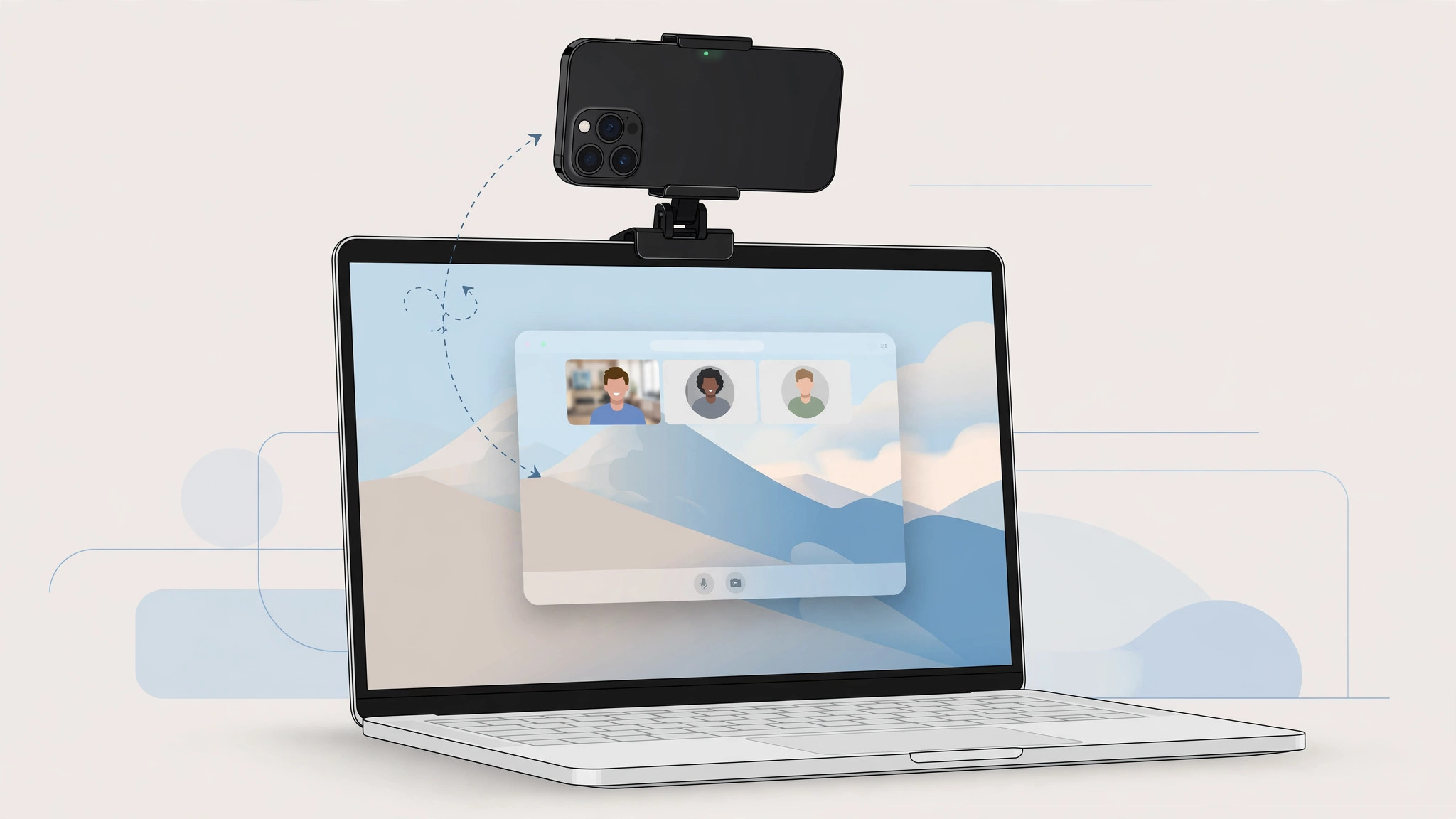
Continuity Camera is one of Apple’s neatest tricks: point your iPhone at yourself and it becomes your Mac’s webcam, complete with Center Stage tracking and studio-style lighting effects. But sometimes the Mac simply refuses to list the iPhone as a camera. The feature has a checklist of requirements — hardware, software, sign-in, and positioning — and missing any one of them breaks the connection silently. Walk through them in order and your iPhone will show up.
Check the requirements first
Continuity Camera needs an iPhone XR or newer running iOS 16 or later, and a Mac running macOS Ventura or later — older combinations cannot use the feature at all. Both devices must be signed in to the same Apple ID with two-factor authentication turned on, with Wi-Fi and Bluetooth enabled on both, and the devices need to be near each other. Apple lays out the full requirements in its Continuity Camera documentation, with setup walkthroughs also covered by MacRumors and 9to5Mac.
How to get Continuity Camera working
- Confirm the sign-in. Make sure the same Apple ID is signed in on both the iPhone and the Mac, with two-factor authentication enabled. Mismatched accounts are the most common silent blocker.
- Enable wireless on both. Turn on Wi-Fi and Bluetooth on the iPhone and the Mac, and keep the devices close together — discovery happens over the local wireless link.
- Switch on the Continuity Camera toggle. On the iPhone, go to Settings → General → AirPlay & Handoff and confirm the Continuity Camera toggle is switched on.
- Position the iPhone correctly. Keep the iPhone locked (but powered on) and place it in landscape orientation near the Mac — ideally mounted on top of the display. The iPhone must stay locked; unlocking it breaks the camera connection.
- Select it in the Mac app. In FaceTime, Zoom, or whichever app you are using, open the camera picker and select “iPhone Camera.” If it doesn’t appear, restart both devices and try again.
- Use the video effects. During a call, open Control Center on the Mac and use the Video Effects panel for Center Stage, Portrait mode, Studio Light, and Desk View (Desk View requires an iPhone 11 or newer).
Related Mac–iPhone tricks: for better on-camera lighting, see how to enable face lighting during video calls on Mac — and if your Mac struggles with iPhone connectivity in general, how to set up automatic hotspot connection from iPhone on Mac covers the wireless basics.
If it still doesn’t work
A VPN or firewall profile on the Mac can interrupt the discovery process — temporarily disable it and test again. Continuity Camera can also conflict when another nearby Mac claims the iPhone first; move other Macs out of range or turn off their Bluetooth while testing. Double-check that the iPhone stayed locked throughout — picking it up and unlocking it mid-call drops the connection, which is by design.
Frequently asked questions
Does the iPhone really need to stay locked?
Yes. Continuity Camera takes over the iPhone’s rear cameras while it stays locked and idle. Unlocking the iPhone hands the cameras back to iOS and breaks the Mac connection — you will need to re-select “iPhone Camera” in the Mac app afterward.
Why does Desk View require an iPhone 11 or newer?
Desk View stitches the ultra-wide camera feed into a top-down view of your desk in real time, which demands the newer neural engine and camera hardware in the iPhone 11 generation and later. Older supported iPhones still get Center Stage, Portrait mode, and Studio Light.
Conclusion
When Continuity Camera won’t connect, it is almost never broken — it is a missed prerequisite. Same Apple ID with two-factor, Wi-Fi and Bluetooth on, the toggle switched on, the iPhone locked and in landscape, and “iPhone Camera” chosen in the app. Run the checklist once and the feature becomes the reliable, great-looking webcam it was meant to be.





