
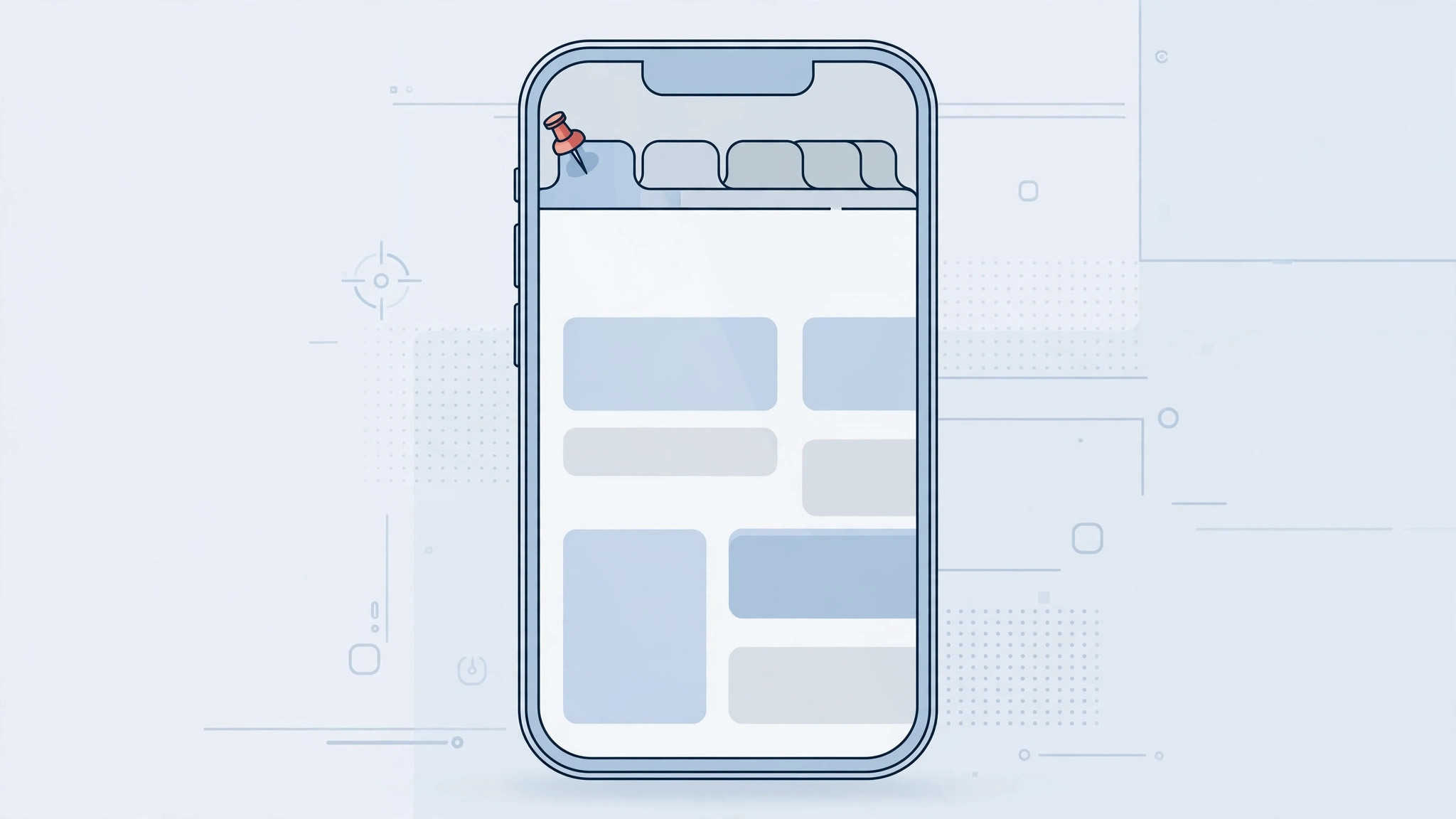
If you have a handful of websites you open every single day — your news homepage, a work dashboard, a webmail client — you do not want to dig through a pile of open tabs or your bookmarks to reach them. Since iOS 16, Safari on iPhone and iPad lets you pin tabs, keeping your most important pages docked at the top of the tabs screen where they are always one tap away. Here is how it works.
How to pin a Safari tab on iPhone
There are two ways to pin a tab, depending on whether you are looking at the page itself or at the tab overview grid.
Method 1: Pin from the open page
- Open Safari and navigate to the page you want to pin.
- Touch and hold the address bar at the bottom (or top) of the screen until a popover menu appears.
- Tap Pin Tab.
The tab is pinned instantly and moves to the top of your tabs screen.
Method 2: Pin from the tabs screen
- In Safari, tap the tabs icon (the two overlapping squares) to open the tab overview.
- Find the tab you want to pin in the grid.
- Touch and hold the tab preview, then tap Pin Tab in the menu that appears.

Pinning tabs inside a Tab Group
Pinned tabs are not limited to your main tab view — you can also pin tabs inside a Tab Group. Open the Tab Group first, then touch and hold the address bar and choose Pin Tab, exactly as described above. The pinned tab stays within that group, which is handy for keeping project-related pages together. Tab Groups pair nicely with other Safari customizations — for example, our guide on how to change Safari’s design on iPhone walks through moving the address bar and tweaking the start page.
How to unpin a tab
- Open the tabs screen (or the Tab Group containing the pinned tab).
- Touch and hold the pinned tab at the top.
- Tap Unpin Tab.
Note that a pinned tab must be unpinned before it can be closed — Safari will not let you swipe away a pinned tab, which is exactly what protects it from accidental closure.
What pinned tabs do (and don’t do)
Pinned tabs persist even after you quit and reopen Safari, so your favorites survive app restarts and device reboots. When you tap a link inside a pinned tab, Safari opens the destination in a new tab rather than navigating the pinned one away — your pinned page never changes out from under you. And do not confuse pinned tabs with bookmarks: bookmarks are a saved list you open on demand, while pinned tabs are live pages that stay put at the top of your tab switcher. Apple’s iPhone User Guide has more detail on organizing Safari tabs if you want to go deeper.
If pinning doesn’t work
If the Pin Tab option does not appear, first check that your iPhone or iPad is running iOS 16 or later — tab pinning arrived on Apple’s mobile devices with iOS 16 (it was previously a Mac-only feature). Go to Settings > General > Software Update to confirm. If you are on iOS 16 and the option is still missing, force-quit Safari and reopen it; restarting the device clears up most lingering glitches. Also make sure you are pressing and holding long enough for the menu to appear — a quick tap will not do it.
Frequently asked questions
Do pinned tabs stay after I close Safari?
Yes. Pinned tabs remain in place even after you quit and reopen Safari, so your most important pages are always waiting at the top of the tabs screen.
Can I close a pinned tab directly?
Not directly — you must unpin it first. Touch and hold the pinned tab, choose Unpin Tab, and then close it like any normal tab. If password prompts keep interrupting your browsing sessions, see our guide on how to stop Safari from suggesting passwords for websites on iPhone.
Conclusion
Pinning Safari tabs in iOS 16 is a small change that makes a big difference if you live in your browser. Two long-presses are all it takes to dock your most-used pages at the top of the tabs screen, where they survive restarts and resist accidental closure. Set it up once, and your daily sites are always exactly where you left them.





