
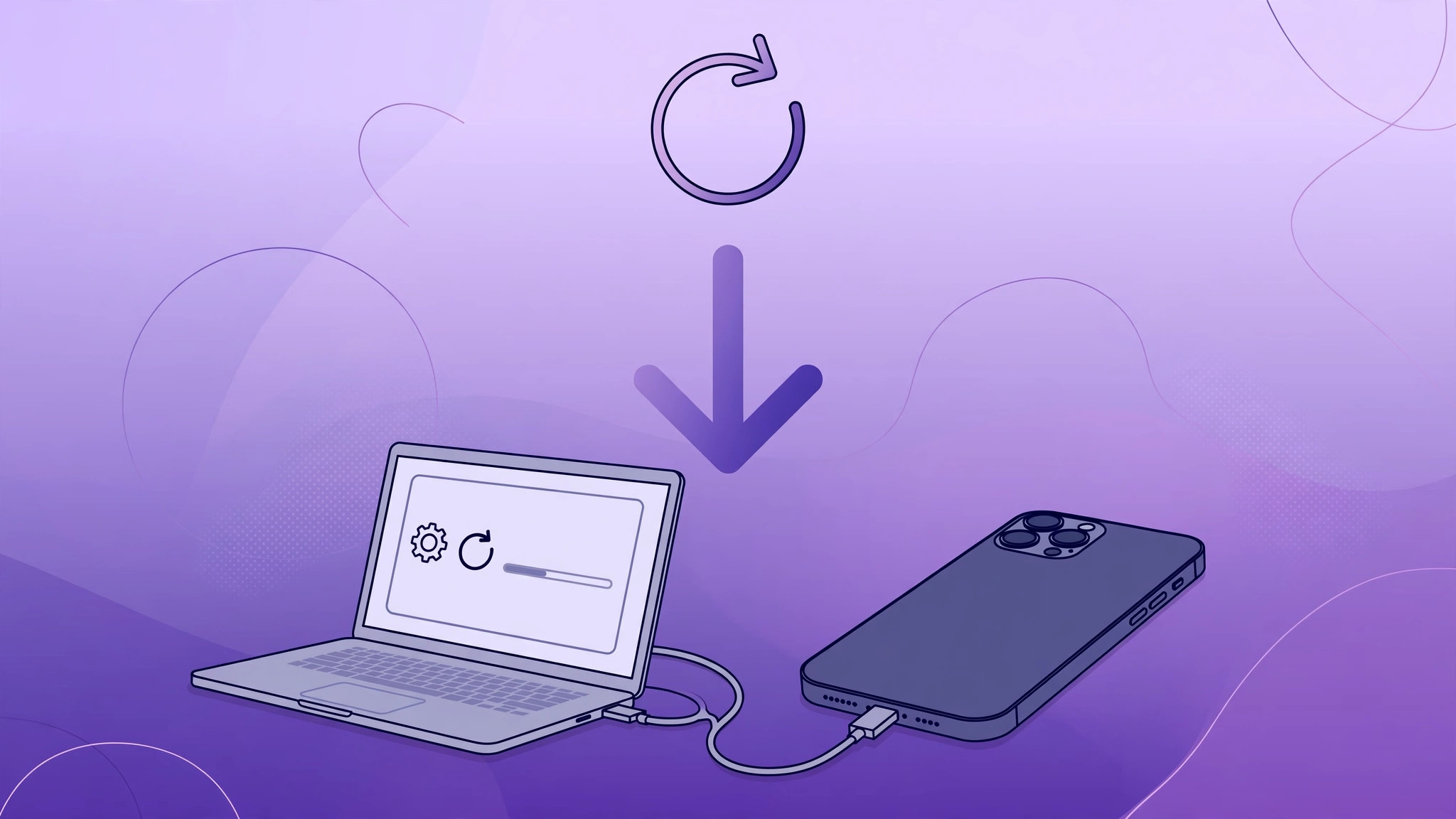
Beta software is exciting until it is not: the battery drains by lunch, apps crash, and features you rely on misbehave. If you installed the iOS 16 beta and regret it, you could roll your iPhone back to iOS 15 — using the procedure below. One critical note up front: this only ever worked while Apple was still signing iOS 15 firmware. Apple stopped signing iOS 15 long ago, so treat this as the historical procedure that worked during the beta window, not something you can do today.
Read this before you start
Downgrading is not like updating — it erases everything. Two warnings from Apple Support’s iPhone restore documentation apply here: a downgrade wipes all data on the phone, and a backup made on iOS 16 cannot be restored onto iOS 15. Only a backup created before you installed the beta — ideally a local backup on your computer — restores cleanly afterward.
What you need
- A Mac or Windows PC with a USB cable.
- The latest signed iOS 15 IPSW firmware file for your exact iPhone model, downloaded from a firmware archive site.
- A backup made before installing the beta.
Step-by-step: downgrade to iOS 15
- Download the iOS 15 IPSW file matching your exact iPhone model — the wrong file will be rejected.
- On the iPhone, go to Settings → Apple ID → Find My and switch Find My iPhone OFF.
- Connect the iPhone to the computer with a cable, unlock it, and approve the pairing prompt.
- Locate the iPhone in Finder (modern macOS) or iTunes (older macOS/Windows).
- Hold Option (Mac) or Shift (Windows) and click Restore.
- Select the iOS 15 firmware file you downloaded and confirm. This erases the phone and installs iOS 15.
- After the restore finishes, restore your data from the pre-beta backup.

If it still doesn’t work
If Finder or iTunes rejects the firmware file, double-check you downloaded the IPSW for your exact model — and confirm Find My iPhone is really off, since Activation Lock blocks restores. The most common failure, as 9to5Mac and MacRumors documented during the beta period, was Apple closing the signing window: once Apple stops signing a firmware version, the restore simply errors out and there is no workaround. If you see a signing error today, the downgrade path is closed for good.
FAQ
Can I downgrade from the iOS 16 beta to iOS 15 today?
No. Apple stopped signing iOS 15 firmware long ago, and a downgrade is only possible while the target firmware is still signed. This guide preserves the procedure exactly as it worked during the beta window.
Will I lose my data when downgrading?
Yes — the process erases the iPhone completely. Worse, a backup made on iOS 16 cannot be restored onto iOS 15, so only a backup created before installing the beta is usable afterward.
Conclusion
The iOS 16 beta downgrade was a lifesaver while the signing window stayed open: IPSW in hand, Find My off, Option-click Restore, done. These days the wiser move is prevention — if you would rather stay put on your current version, here is how to completely block iOS 26 updates on iPhone. And if you do embrace the new, check out the Liquid Glass effect on the iOS 26 lock screen clock.





