
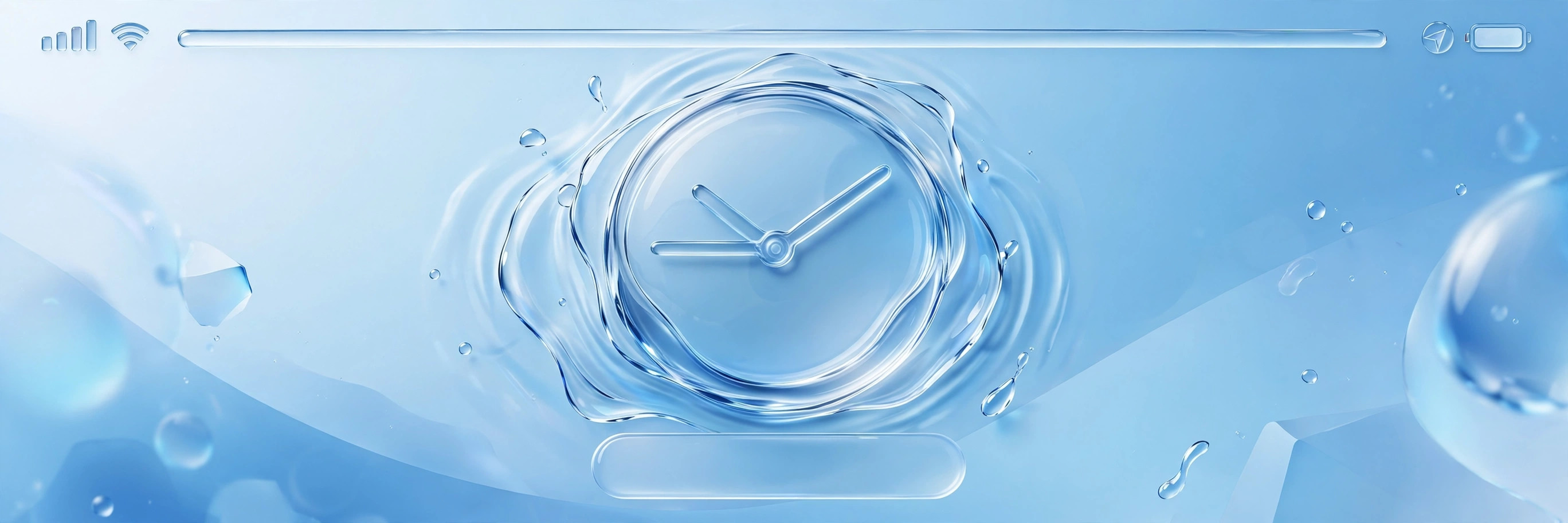
What is the Liquid Glass effect on the lock screen?
Liquid Glass is the headline visual change in iOS 26, and also the most debated one. Apple spread a frosted, translucent material across the entire system, from app icons and the Control Center to widgets. One of the most eye-catching places it shows up is the lock screen clock, which can be made almost completely transparent so your wallpaper shines right through the digits.
The effect looks stunning in screenshots, but the transparency control is easy to miss. It is not in the main Settings app. Instead, it lives inside the lock screen editor, next to the clock color picker. Here is how to find it and dial in the exact glassy look you want.
How to adjust the Liquid Glass transparency on the lock screen clock
You do everything right on the lock screen itself. The whole process takes about thirty seconds:
- Wake your iPhone so the lock screen is visible, then press and hold anywhere on the lock screen to enter editing mode. If nothing happens, unlock the phone with Face ID or your passcode first, then try again.
- Tap Customize at the bottom of the screen.
- Tap directly on the clock at the top of the screen.
- A font and color panel appears. Use the transparency slider at the bottom to make the clock more or less see-through. Drag it toward transparent for the full Liquid Glass look, or back the other way for solid digits.
- Tap Done to save your changes.
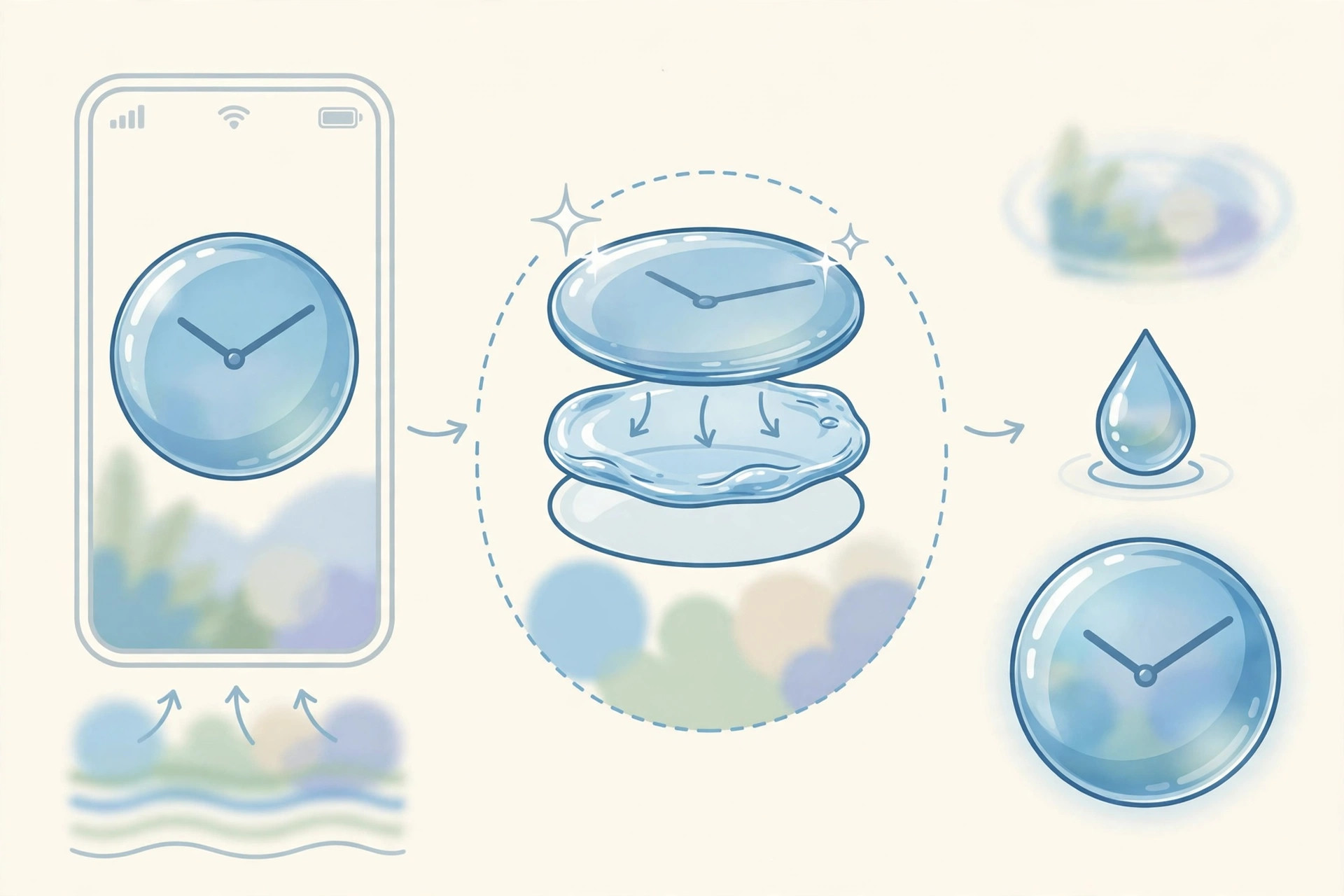
If it still doesn’t work
The transparency slider does not appear for every clock color. Some colors are fixed and stay opaque no matter what you do. If you do not see the slider, pick a different color first, then look for the slider again. Also confirm your iPhone is running iOS 26 or later by checking Settings, then General, then Software Update. The Liquid Glass lock screen options simply do not exist on older versions. If the lock screen editor refuses to open at all, make sure the phone is unlocked before you long-press.
Frequently asked questions
Can I make the lock screen clock fully transparent?
You can push the slider very far toward transparent, which makes the digits look like frosted glass floating over your wallpaper. Fully invisible is not possible, though. Apple keeps a minimum opacity so the time always stays readable at a glance.
Does the Liquid Glass clock use more battery?
There is no noticeable difference. The effect is drawn by the same system compositor that renders the rest of the lock screen, so adjusting the clock transparency has no meaningful impact on battery life.
Conclusion
The Liquid Glass clock is one of those small iOS 26 touches that makes your iPhone feel brand new. Long-press the lock screen, tap Customize, tap the clock, and play with the transparency slider until the digits melt into your wallpaper exactly the way you like. If a color does not offer the slider, just switch colors and try again.
Complete your iPhone setup with our 5 Best Smartwatches in 2026 picks and our BOSECXTING Ultra V11 ANC Noise Cancelling Earbuds Review for immersive sound on the go.
Sources: MacRumors’ iOS 26 roundup and Apple Support for iPhone






[…] shortcuts if you would rather remap than remove. While you are customizing the lock screen, our Liquid Glass lock screen clock guide shows another neat iOS 26 tweak — and if you are on a mission to tame the update’s […]
[…] our guide to changing Safari’s design in iOS 26 covers another setting worth knowing, and our Liquid Glass lock screen clock guide shows a fun way to personalize the screen you see dozens of times a […]
[…] The effect uses a small amount of extra processing, but the impact is negligible compared to the video call itself. On battery power you will save far more by lowering screen brightness, a tip we also cover in our guide to iOS 26’s new visual features. […]
[…] Five minutes of checks is usually all it takes. While exploring iOS 26’s visual side, see the Liquid Glass lock-screen clock effect and how to disable quick camera launch from the lock screen. For more user discoveries, the […]
[…] This works because the layout engine recalculates widget placement whenever the clock size changes. Once the panel has dropped, it stays where you put it. If you enjoy restyling the lock screen, take a look at our guide to the Liquid Glass clock effect in iOS 26. […]
[…] Keep customizing: learn how to move Lock Screen widgets down in iOS 26 or explore the Liquid Glass Lock Screen clock in iOS 26. […]
[…] concern. Still, if you customize your lock screen heavily — like our guide to the iOS 26 Liquid Glass lock screen clock — you will appreciate giving StandBy the same privacy […]
[…] launch from the lock screen, learn how to move lock-screen widgets down in iOS 26, or explore the iOS 26 liquid-glass lock-screen clock […]
[…] who enjoy customizing the top of the screen may also like our guides to the Liquid Glass lock screen clock in iOS 26 and moving lock screen widgets down in iOS […]
[…] this. And while you’re protecting your repaired phone, consider cosmetic tweaks like the iOS 26 Liquid Glass lock screen clock — and learn to take HDR screenshots on iPhone and iPad to document your phone’s […]
[…] are also worth revisiting if you have been exploring iOS 26’s new look — our guide to setting up the Liquid Glass lock screen clock walks through another screen setting that lives outside the usual […]
[…] For more screen-related topics, see our guide to disabling quick camera launch from the iPhone lock screen and our iOS 26 Liquid Glass lock screen clock guide. […]
[…] watchOS 3.0, the steps above still bring it to life. For other watch tricks, see our guides on the iOS 26 Liquid Glass lock screen clock and turning off call duplication between iPhone and […]