

macOS Monterey gave FaceTime on the Mac two clever microphone modes: Voice Isolation, which mutes background noise so callers hear only your voice, and Wide Spectrum, which does the opposite and captures every sound around you — useful for music lessons or group calls from a single room. Both live in Control Center, but only while a call is actively using the microphone — which is why many assume the feature is broken. If the Mic Mode button is missing, greyed out, or seems to change nothing, the cause is usually simple: outdated software, an incompatible microphone, or a call that didn’t start on the Mac. Here’s how to fix it.
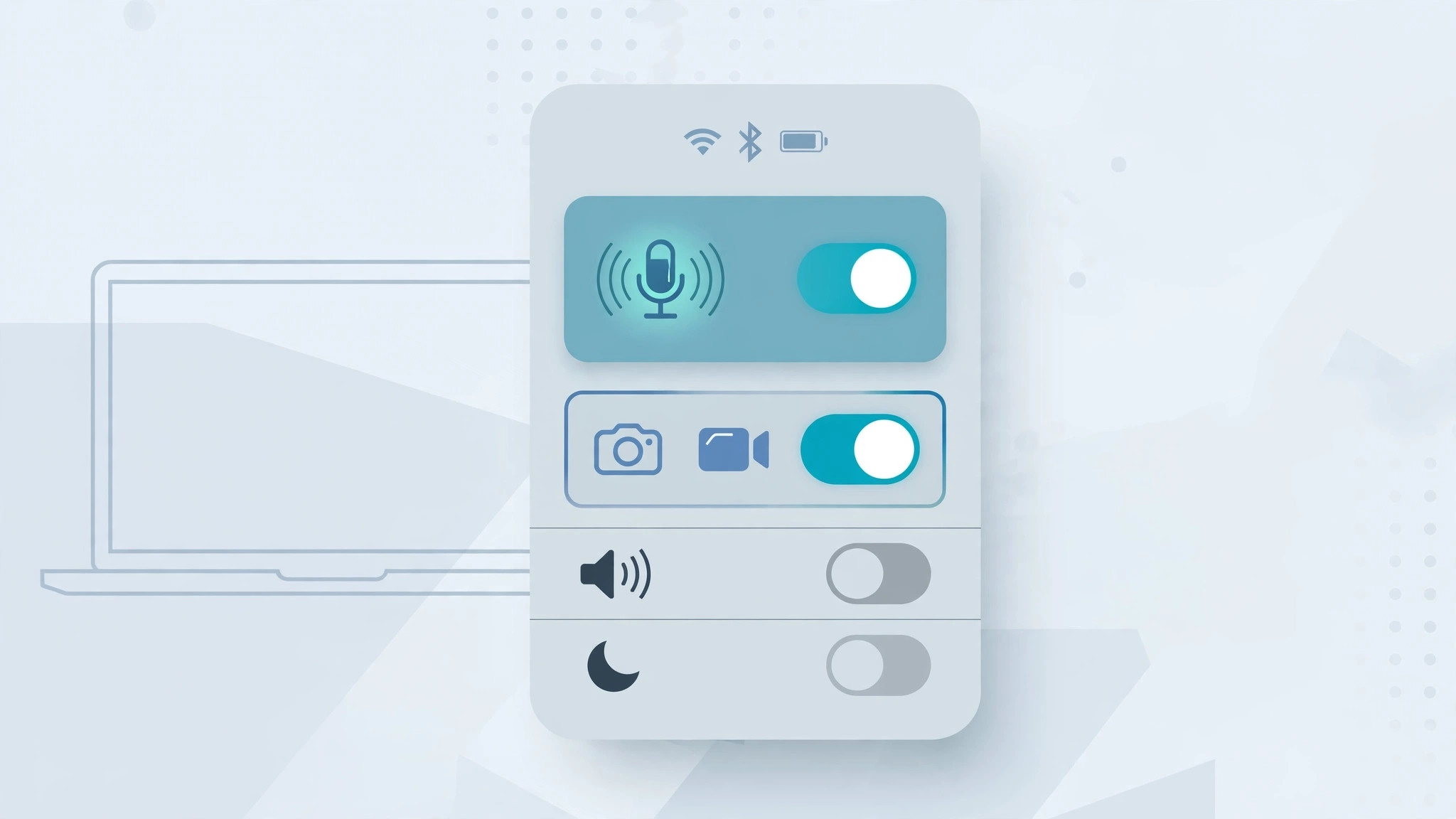
How to fix FaceTime audio effects on macOS Monterey
Start or answer a FaceTime call first — the Mic Mode menu only shows up while the microphone is live. Then work through these steps:
- Update macOS to the latest version. Voice Isolation and Wide Spectrum need macOS Monterey or later, and Apple fixed several audio bugs in later point releases. Open System Preferences, go to Software Update, and install anything pending (it’s called System Settings on newer macOS). Still on Big Sur? The feature doesn’t exist there — upgrading is the fix.
- Test with the Mac’s built-in microphone. Third-party USB mics, audio interfaces, and some conferencing headsets don’t support Apple’s mic modes, so the option silently vanishes. During an active call, open Control Center, click Mic Mode, and check that the input is the built-in microphone. If the options appear, your external gear was the blocker. MacRumors has a walkthrough of blocking background noise in FaceTime on Mac.
- Try Apple or Beats headphones. Apple validates mic processing against its own audio hardware. If your earbuds are third-party, connect a pair of AirPods or Beats and check Mic Mode again mid-call. Wireless headsets also have a habit of jumping between devices — if yours does, see how to stop your iPhone from auto-switching audio.
- Place or answer the call on the Mac itself. Mic modes sometimes fail to engage when a call is handed off from iPhone to Mac mid-conversation. Hang up and start the call again from the FaceTime app on your Mac, then open Control Center and tap Mic Mode while it’s live.
- Check your connection is stable. Voice Isolation runs on-device, but a stuttering connection can still make audio sound broken. Move closer to your router or plug in via Ethernet, and run a throughput check with our guide to monitoring network speed and data usage on Mac.
- Test from a quiet room. Voice Isolation needs a clean voice signal to separate from noise; in very loud spaces the difference is subtle and can look like the feature does nothing. Confirm it works somewhere quiet first.
If it still doesn’t work
Restart your Mac to clear temporary audio glitches. Then verify the microphone permission: open System Settings, go to Privacy & Security, select Microphone, and confirm FaceTime is allowed. Also rule out FaceTime itself — record a Voice Memos clip; if the mic sounds bad everywhere, it’s a system or hardware issue. Apple’s FaceTime User Guide for Mac documents the mic modes and their requirements officially. If nothing helps, contact Apple Support about a possible hardware fault.
FAQ
Where is the Voice Isolation setting on Mac?
During an active FaceTime call, click the Control Center icon in the menu bar, then click Mic Mode. You’ll see Standard, Voice Isolation, and Wide Spectrum. It only appears while an app is actively using the microphone.
Do FaceTime audio effects work with AirPods?
Yes — the effects work with the built-in microphone and with Apple’s own headsets, including AirPods and Beats. Many third-party USB and Bluetooth microphones don’t support mic modes, so if the option is missing entirely, your microphone is the prime suspect.
The bottom line
Missing FaceTime audio effects on Monterey almost always come down to three things: outdated software, an incompatible mic, or looking for the setting with no active call. Update macOS, test with the built-in mic during a live call, and the Mic Mode menu should appear. And once your audio is clean, polish the video side too — here’s how to enable face lighting during video calls on Mac.





