
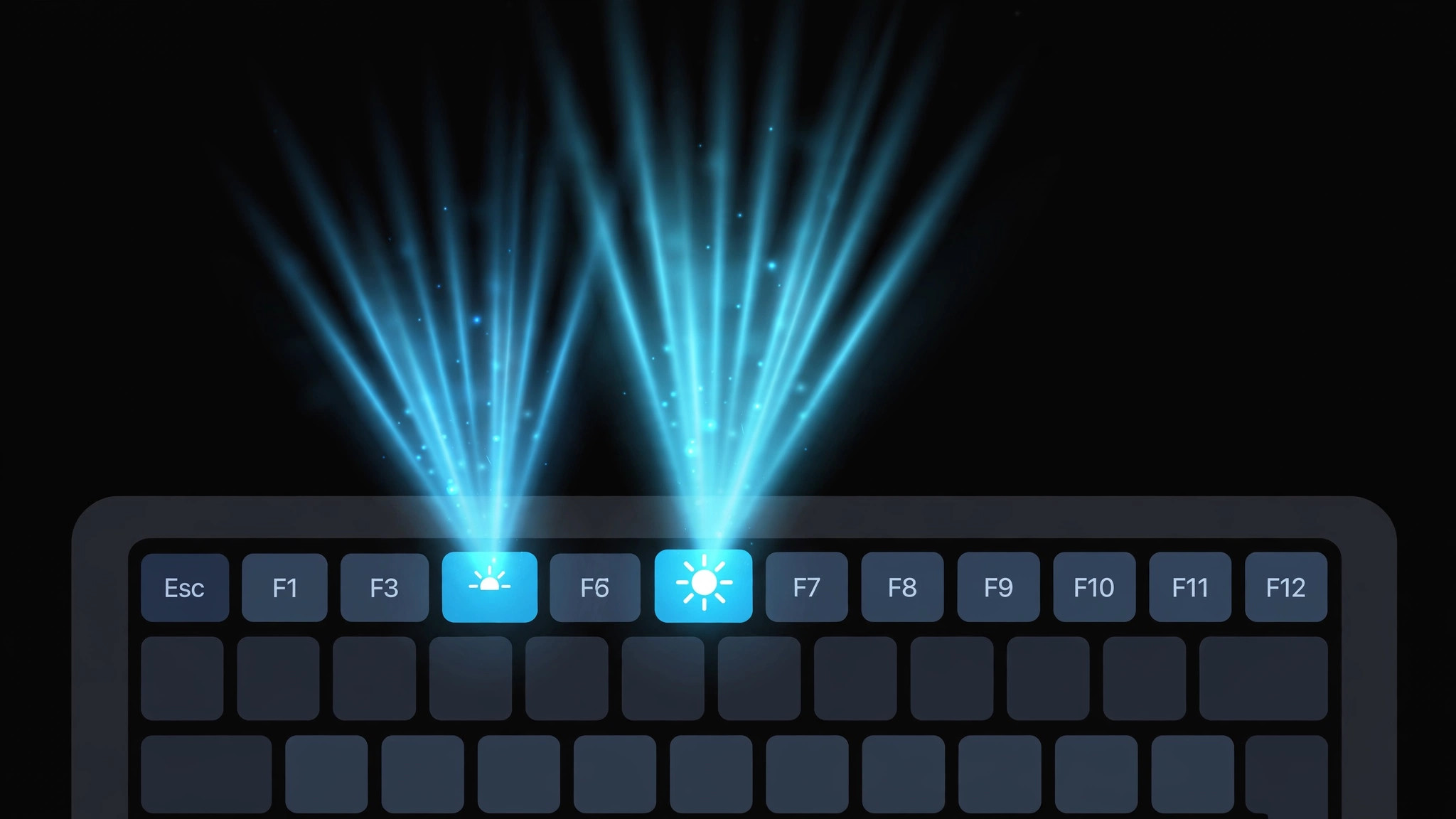
If you upgraded to an M1 MacBook Air and reached for the keyboard backlight keys out of habit, you got a surprise: F5 and F6 now trigger Dictation and Do Not Disturb. Apple removed the dedicated backlight keys on the M1 Air (the Pro kept its Touch Bar a little longer). The brightness control still exists — it just moved — and with a free utility you can even bring the old keys back. Here’s how to get the backlight under control again.
How to control keyboard backlight without the F5/F6 keys
Three approaches, from quickest to most faithful:
- Use Control Center. Click the Control Center icon in the menu bar, then drag the Keyboard Brightness slider. It’s the fastest built-in method and needs no setup — if you don’t see the slider, add it with the next step.
- Pin it to the menu bar. Open System Settings, go to Control Center, find Keyboard Brightness, and choose "Show in Menu Bar." The slider is now one click away at all times. While you’re customizing, if you ever lose track of installed apps, here’s how to quickly open the installed apps list in macOS 26.
- Bring back F5/F6 with Karabiner Elements. Install the free Karabiner Elements from its official site. On first launch, approve its system extension in System Settings, then Privacy & Security if prompted — allow both karabiner_observer and karabiner_grabber — then relaunch the app. Open the Function Keys tab and remap F5 and F6 to the keyboard illumination actions. Your old muscle memory works again.
- Tame the automatic brightness (optional). If the backlight seems to have a mind of its own, open System Settings, go to Keyboard, and turn off "Adjust keyboard brightness in low light." From here on, it’s manual control only.
If it still doesn’t work
If the slider does nothing, check your surroundings — with auto-adjust enabled, the backlight may already sit at minimum in a bright room, which looks like a broken control. If the Karabiner remap doesn’t take, revisit System Settings, then Privacy & Security, confirm both extensions are allowed, then quit and relaunch Karabiner Elements. Apple’s Mac User Guide documents the official keyboard backlight controls if you want the sanctioned path.
FAQ
Why did Apple remove the backlight keys?
On the M1 MacBook Air, Apple repurposed F5 and F6 for Dictation and Do Not Disturb (now Focus) — features it judged more useful day to day. The backlight control moved into software rather than disappearing entirely.
Does this work on M2 and M3 MacBooks too?
Yes — the Control Center and menu bar methods work on all recent MacBooks. Karabiner Elements supports Apple Silicon Macs generally, so the F5/F6 remap works there as well.
The bottom line
Losing the F5/F6 keys is annoying for a week, then you adapt — the menu bar slider is arguably faster anyway. But if your fingers refuse to relearn, Karabiner Elements restores the old behavior exactly, which is a small quality-of-life win that makes late-night typing far more comfortable. And for your next video call in a dim room, you might also like how to enable face lighting during video calls on Mac.





