
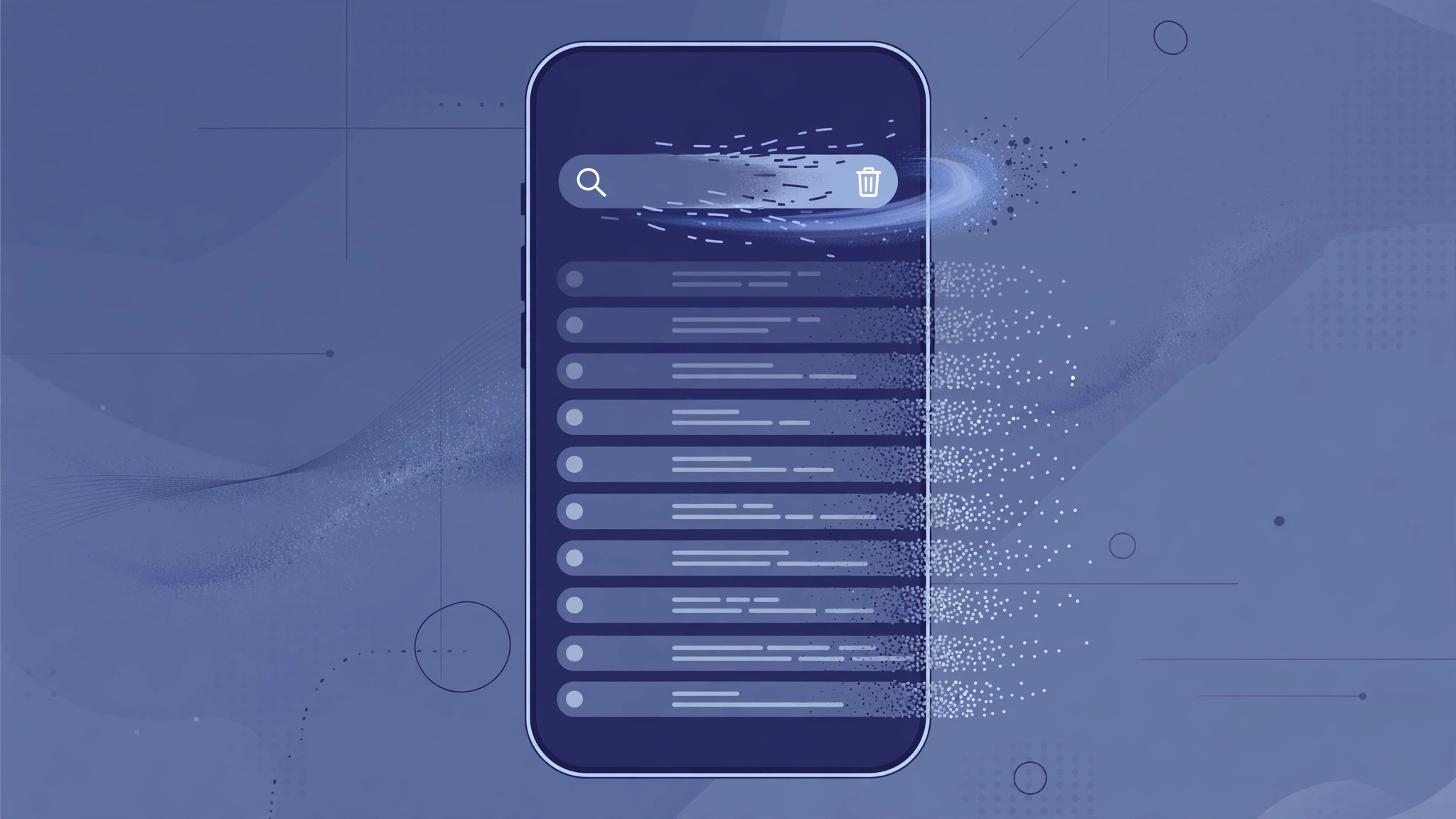
Your Google searches on iPhone live in two places: on Google’s servers (tied to your account) and on the device itself (inside the Google app). Deleting one doesn’t delete the other — so a proper cleanup covers both. Here’s how to wipe your Google search history on iPhone, plus how to switch on auto-delete so it never piles up again.
How to delete Google search history on iPhone
Pick the method that fits your situation:
- Delete from the Google app. Open the Google app, tap your profile picture, then tap Search history. Tap Delete and choose a range: last hour, last day, custom range, or all time. You can also remove individual entries by tapping the X next to each one.
- Delete from My Activity on the web. Visit myactivity.google.com in Safari or Chrome, tap "Delete activity by," and pick a date range or a specific product like Search. This covers the same server-side history and is handy if you also use Chrome — signed-in Chrome activity flows into the same account.
- Turn on auto-delete. In the Google app, tap your profile picture, go to Search history, open Controls, then Auto-delete, and choose 3, 18, or 36 months. Google’s support doc on deleting your activity explains the options officially. Set it once and old searches expire on their own.
- Clear the on-device history too. Server-side deletion doesn’t remove what’s cached in the app itself. In the Google app, tap your profile picture, go to Settings, then Privacy and navigation, and clear the on-device search history there.
- Understand the two layers. Server-side history (your Google Account) follows you across every device; on-device history lives only in the app on this iPhone. If you use Chrome while signed in, myactivity.google.com covers those searches as well.
If it still doesn’t work
If deleted items seem to reappear, you’re probably signed into a different Google account than the one you cleaned — check the profile picture in the app and repeat the deletion there. If auto-delete won’t stay on, make sure you’re changing it for the right account, since each account has its own setting. And if the Google app itself misbehaves after the cleanup, reinstall it: your server-side history is safe on Google’s servers regardless of what happens to the app.
FAQ
Does deleting Google search history also delete Chrome history?
Only the searches tied to your Google Account. Chrome’s local browsing history — the pages you visited — is separate; clear that inside Chrome via the three-dot menu, then History.
Will auto-delete affect my recommendations?
Slightly — Google uses past activity to personalize results and Discover, so with a 3-month window it simply works from fresher data. On a related note, if Safari’s own suggestions annoy you, here’s how to stop Safari from suggesting passwords — a different feature, but the same spirit of taking control.
The bottom line
Two cleanups — the Google app (or myactivity.google.com) for the server side, and the app’s Privacy settings for on-device — plus auto-delete switched on, and your search history stays exactly as long as you want it to. For more iPhone privacy hygiene, see how to turn off all SharePlay features if you share your screen often.





