

Every photo on your iPhone carries a hidden story: the exact date, time, and place it was taken. Sometimes that story is wrong. Maybe you traveled across time zones and the timestamps shifted, maybe you scanned old prints, or maybe you simply want to fix the location on a batch of vacation shots. In iOS 15, Apple finally made it possible to correct this metadata for several photos at once — no third-party apps needed. Here’s how to do it.
Step-by-step: batch-edit photo date, time, and location
- Open the Photos app and navigate to the album or the Library view that contains the photos you want to fix.
- Tap “Select” in the top-right corner of the screen.
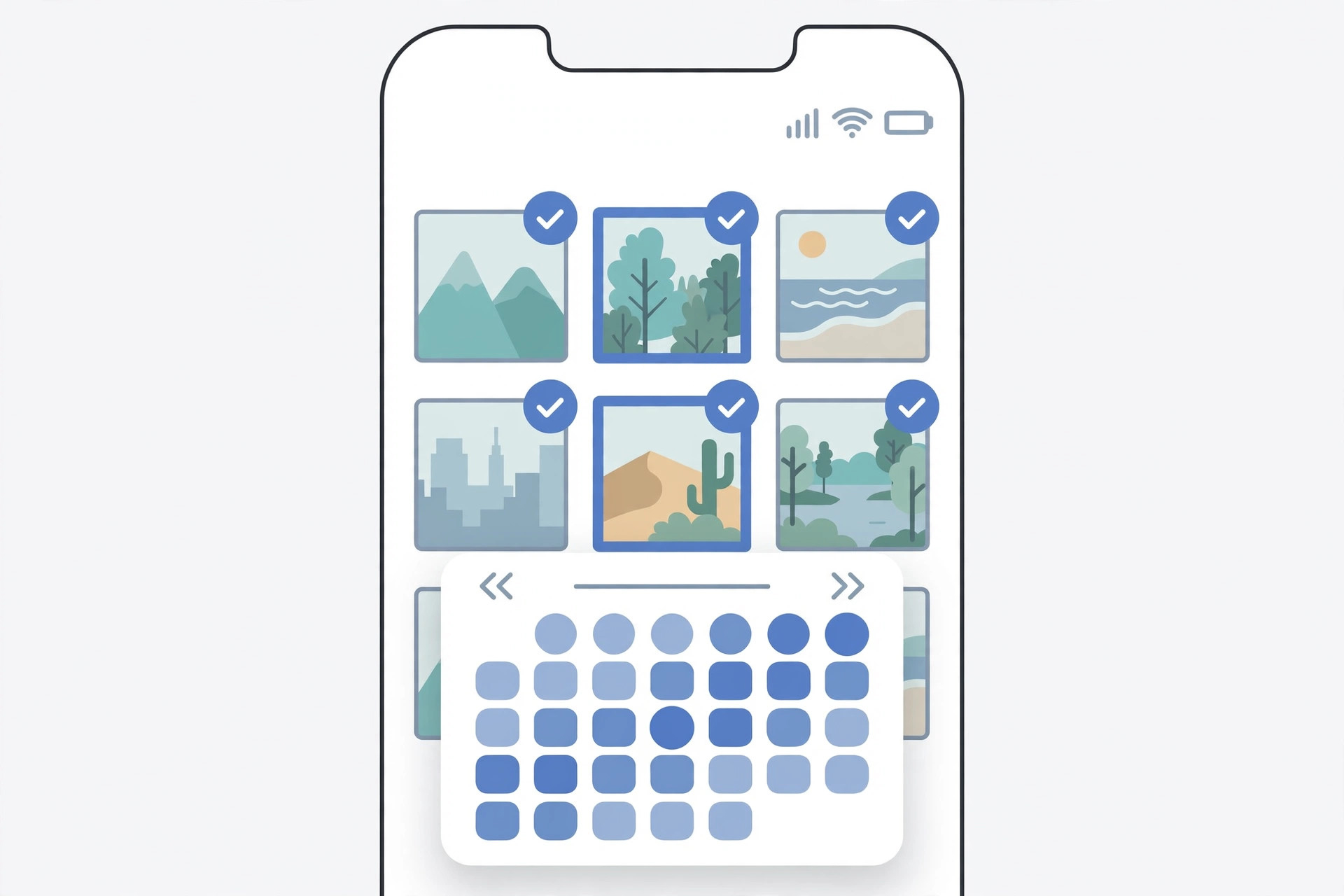
- Select the photos you want to edit. Tap each thumbnail, or drag your finger across a row of thumbnails to select a whole group quickly.
- Tap the Share button (the square with the upward arrow) in the bottom-left corner. A share sheet will slide up.
- Choose “Adjust Date & Time” to change when the photos were taken, or “Adjust Location” to change where they were taken. Both options sit in the actions row of the share sheet.
- Set the new values. For date and time, spin the date picker wheels to the correct moment; for location, type a place name or address into the search field and pick the right result.
- Tap “Adjust” to confirm. iOS applies the new metadata to every selected photo at once, and the photos will reorder in your library according to their corrected dates.
Why this is useful
Batch metadata editing is a lifesaver after a trip. Cameras on older devices or shots imported from a DSLR often land in your library with the wrong timestamp, which scrambles the chronological order of your Memories. Fixing a whole day’s worth of photos in one go keeps your photo metadata consistent when you transfer or edit them later. It’s also handy for scanned family photos, which otherwise all show the scan date instead of the day they were actually taken.
Location data matters too. If your iPhone’s GPS was off during a hike, you can tag the whole set with the trailhead afterwards. And if you’d rather strip location data for privacy, you can remove or change a photo’s location just as easily. MacRumors has covered how Apple keeps expanding these Photos editing powers with every iOS release.
If it still doesn’t work
If the “Adjust Date & Time” or “Adjust Location” options don’t appear in the share sheet, make sure your iPhone is running iOS 15 or later (check under Settings > General > Software Update). The options also won’t show up for photos stored only in iCloud that haven’t downloaded yet — connect to Wi-Fi and let them finish downloading first. As Apple’s support pages note, batch edits sync across your devices through iCloud Photos, so give it a minute to propagate.
FAQ
Will batch editing overwrite the original metadata permanently?
It replaces the date, time, or location stored with the photos in your library, and the change syncs via iCloud. There’s no built-in “undo” for metadata edits, so double-check the values before tapping Adjust. If you need the originals untouched, convert copies to JPG first and edit those instead.
Can I adjust the time zone instead of the exact time?
The date picker edits the absolute timestamp. If your photos are off by a fixed number of hours because of a time-zone change, just shift the time by that offset for the whole batch — one edit fixes every selected photo. YouTube creators have handy walkthroughs if you want to see the picker in action.
Conclusion
Editing date, time, and location for multiple photos at once is one of those small iOS 15 features that saves a surprising amount of fiddling. Select, share, adjust — three taps and your library tells the right story again.





