
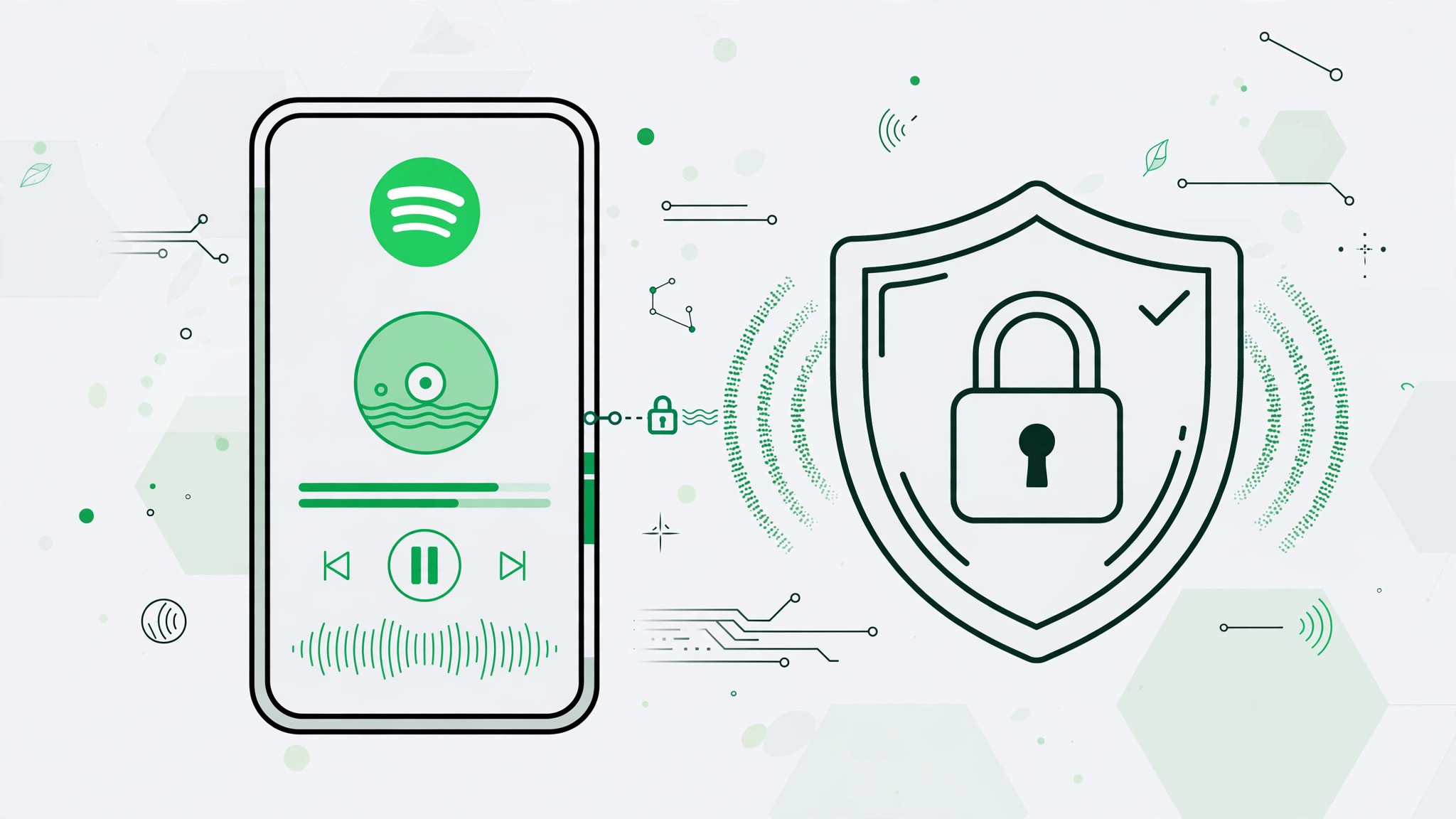
We’ve all been there: you want to play something on Spotify — a cheesy throwback playlist, a podcast you’re just sampling, or a friend’s questionable taste in music — without it showing up in your Friend Activity or warping the recommendations Spotify has spent months learning about you. The good news is that Spotify built a feature exactly for this moment: Private Session. When it’s switched on, everything you play stays between you and your headphones. It won’t appear in your friends’ feeds, and it won’t feed the algorithm behind your Discover Weekly and Daily Mixes. Best of all, turning it on takes about ten seconds in the iPhone app. Here’s how to do it.
How to turn on Private Session in Spotify on iPhone
The switch lives in Spotify’s privacy settings. Follow these steps:
- Open Spotify’s settings. Launch the Spotify app on your iPhone, then tap the gear icon in the top-right corner of the Home tab.
- Go to the Privacy section. Scroll down the Settings menu until you see Privacy, then tap it.
- Turn on Private Session. Find Private Session in the list and tap its toggle to switch it on.
That’s all there is to it. While the session is active, Spotify keeps your listening to yourself — nothing you play will be shared with followers or used to shape your taste profile. If you ever want to double-check the finer points, Spotify’s support pages document how the feature behaves across devices.
What Private Session changes
With a private session running, your plays stay out of the Friend Activity feed, and Spotify keeps the session separate from the listening history that powers your recommendations. Think of it as the streaming equivalent of a private browser window. It’s useful for more than guilty pleasures: use it when someone borrows your phone, when you’re previewing tracks for a party, or when you’re sampling a genre you don’t want following you around for weeks. Music lovers who identify songs playing nearby on their iPhone can also automatically add Shazam discoveries to Spotify, and those private-session finds will land in your library without ever touching your public profile.
If it still doesn’t work
If the toggle won’t stay on, or friends can still see your activity, try these fixes. First, update Spotify to the latest version from the App Store — older builds occasionally mishandle the setting. Next, turn Private Session off and back on, then force-close and reopen the app. If the problem persists, sign out of Spotify and sign back in; that refreshes your session state on Spotify’s servers. As 9to5Mac often notes in its app coverage, a clean reinstall fixes most stubborn settings glitches, so deleting and reinstalling Spotify is a solid last resort (your playlists and library are safe in your account).
Frequently asked questions
Does Private Session hide my listening from Spotify itself?
No. Private Session hides your activity from friends and followers and keeps it out of your recommendations and public listening stats, but Spotify still streams the music to you normally. It simply treats the session as off-the-record for social and recommendation purposes.
How do I turn Private Session off again?
Head back to Settings > Privacy in the Spotify app and tap the Private Session toggle to switch it off. Your normal listening — the kind that shapes your Daily Mixes — resumes immediately. If you want even more control over what appears on your phone, you can also remove the music player from your iPhone lock screen.
Conclusion
Private Session is one of Spotify’s simplest privacy tools: three taps and your listening is your own business again. Whether you’re hiding a guilty pleasure or just keeping your recommendations clean, it’s worth knowing where the switch lives. Plenty of creators on YouTube walk through Spotify’s lesser-known settings too, if you’re in the mood to explore more. Now go enjoy that playlist — no judgment, no algorithmic consequences.





