
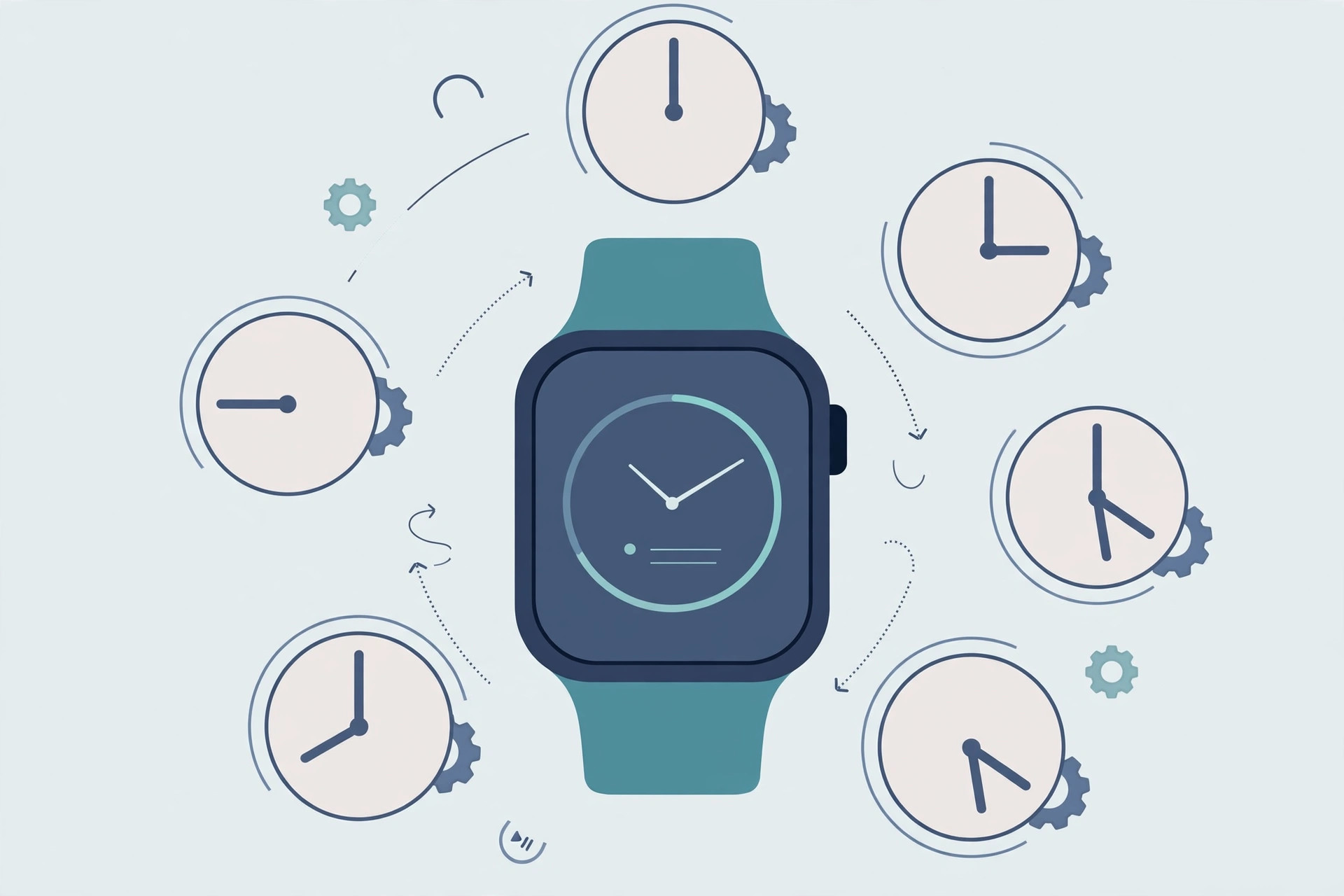
Your Apple Watch face is the first thing you see every time you raise your wrist, so why should it look the same at 7 in the morning and 11 at night? A complications-packed face is ideal for the workday, while a calm, minimal one is kinder on the eyes after dark. watchOS has no built-in scheduler for switching faces, but the Shortcuts app on your iPhone can do it for you with time-based automations. Set it up once, and your watch will redress itself on schedule.
What you need
- An iPhone with the Shortcuts app (it comes preinstalled and is free).
- An Apple Watch paired with that iPhone, running watchOS 9 or later.
- At least two watch faces already on your watch. Open the Watch app on iPhone, tap Face Gallery, and add the faces you want to rotate between.
Create a time-based automation
The Shortcuts app can push a new face to your watch at any hour you choose. Build one automation per time slot:
- On your iPhone, open Shortcuts and tap Automation at the bottom of the screen.
- Tap New Automation (or the + button), then choose Time of Day.
- Set the time, for example 8:00 AM, and pick Daily or Weekly. Tap Next.
- Choose New Blank Automation, tap Add Action, search for “Set Watch Face”, and select it.
- Tap the Face placeholder inside the action and pick the watch face you want at that hour.
- Switch off Ask Before Running (choose Don’t Ask) so the change happens silently. You can also turn off Notify When Run to skip the banner.
- Tap Done.
Repeat these steps for every switch you want: a data-rich face for the morning, a simple face for the evening, a sporty one for your workout hour. Apple’s Shortcuts User Guide documents every automation trigger if you want to build more elaborate routines.
Alternative: scheduled Focus modes
If you already live by Focus modes, there is an even simpler route. Each Focus, such as Sleep, Work, or Fitness, can run on a time schedule and carry its own Apple Watch face. On your iPhone, go to Settings, then Focus, pick a Focus, add a schedule, then under Customize Screens link an Apple Watch face. When the Focus activates, your face changes with it. It is the same set-and-forget idea behind silencing the auto-launching music player on Apple Watch.
If it still doesn’t work
- The face never changes: reopen the automation and confirm Ask Before Running is off. With it on, iOS waits for your tap before doing anything.
- The wrong face appears: the face must still exist on your watch. If you deleted it, re-add it from the Watch app’s Face Gallery, as described in Apple’s Apple Watch User Guide.
- The change happens late or never: keep Bluetooth on and the watch nearby, since the iPhone pushes the new face to the watch. If the watch itself is misbehaving, try restarting your Apple Watch before rebuilding the automation.
Frequently asked questions
Does my iPhone need to be nearby for the face to change?
Yes. Time-based automations run on the iPhone, which sends the new face to the watch over Bluetooth. If the phone is off or out of range at the scheduled time, that switch is skipped, and the next scheduled run applies as normal.
Can I shuffle to a random face instead of a fixed schedule?
Not with the Set Watch Face action. It always applies the face you picked. For variety, create several time slots with different faces, or tie faces to Focus modes that already follow your daily routine.
Conclusion
A watch face that matches the moment is a small delight you will notice a dozen times a day. Spend five minutes setting up two or three time-based automations, and your Apple Watch will dress itself for morning, work, and night without another tap. And while you are tuning the watch, Low Power Mode in watchOS 9 is another set-and-forget setting worth knowing.





