
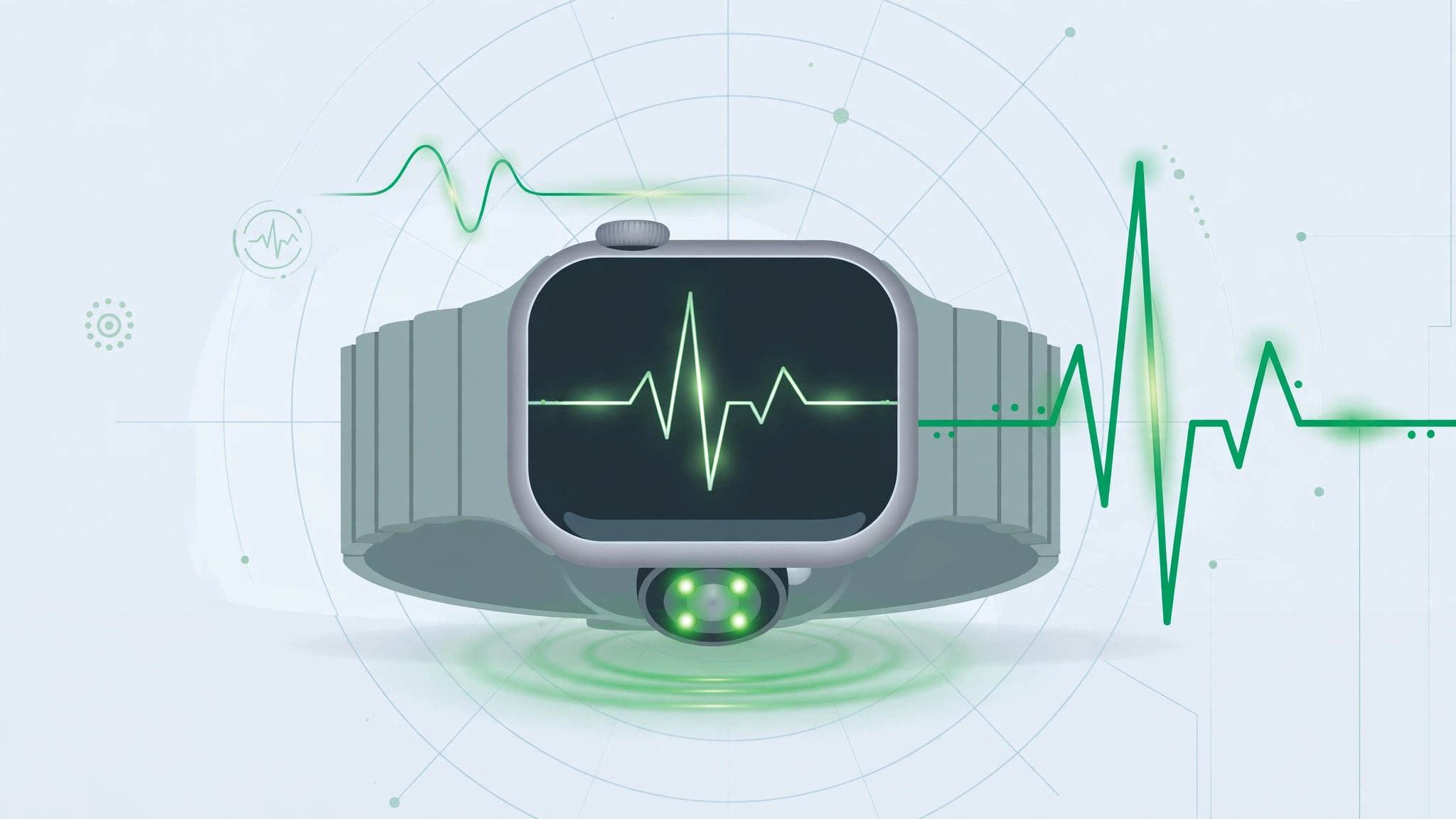
Your Apple Watch is one of the most convenient heart-rate monitors ever made — it sits on your wrist all day, quietly logging every beat. But sometimes the numbers it reports just don’t add up: a resting rate that looks like you sprinted up a flight of stairs, a workout average far below what you felt, or mysterious gaps in the Health app’s heart-rate graph.
Before you blame the hardware, know this: the vast majority of inaccurate readings come down to settings, fit, and conditions — all things you can fix in a few minutes. Here’s what’s really going on, and how to get trustworthy numbers again.
Why your Apple Watch gets it wrong
Your watch measures your pulse with an optical heart sensor — green LEDs and light-sensitive photodiodes that track blood flow through your skin. Apple details the technology in its guide to monitoring heart rate with Apple Watch. It’s clever, but picky: bad Health Profile data, Wrist Detection switched off, a loose fit, and sensor enemies like cold, tattoos, or hairy wrists all corrupt the signal.
The most common culprit is fit. A watch that slides around lets ambient light leak under the sensor, which is why readings go wild mid-workout but look fine at your desk. Outdated age, height, or weight in your Health Profile skews the calculations built on top of the raw data, while dark tattoo ink absorbs the green LED light the sensor depends on.
How to fix inaccurate heart rate readings
Work through these steps in order — most people see a clear improvement by step three.
- Correct your Health Profile. On your iPhone, open the Watch app, tap My Watch, then go to Health > Health Profile > Edit. Enter your current date of birth, sex, height, and weight, then tap Done.
- Turn on Wrist Detection. In the Watch app, go to My Watch > Passcode and switch Wrist Detection on. Without it, the watch can’t confirm it’s on your wrist, so background heart-rate sampling stops.
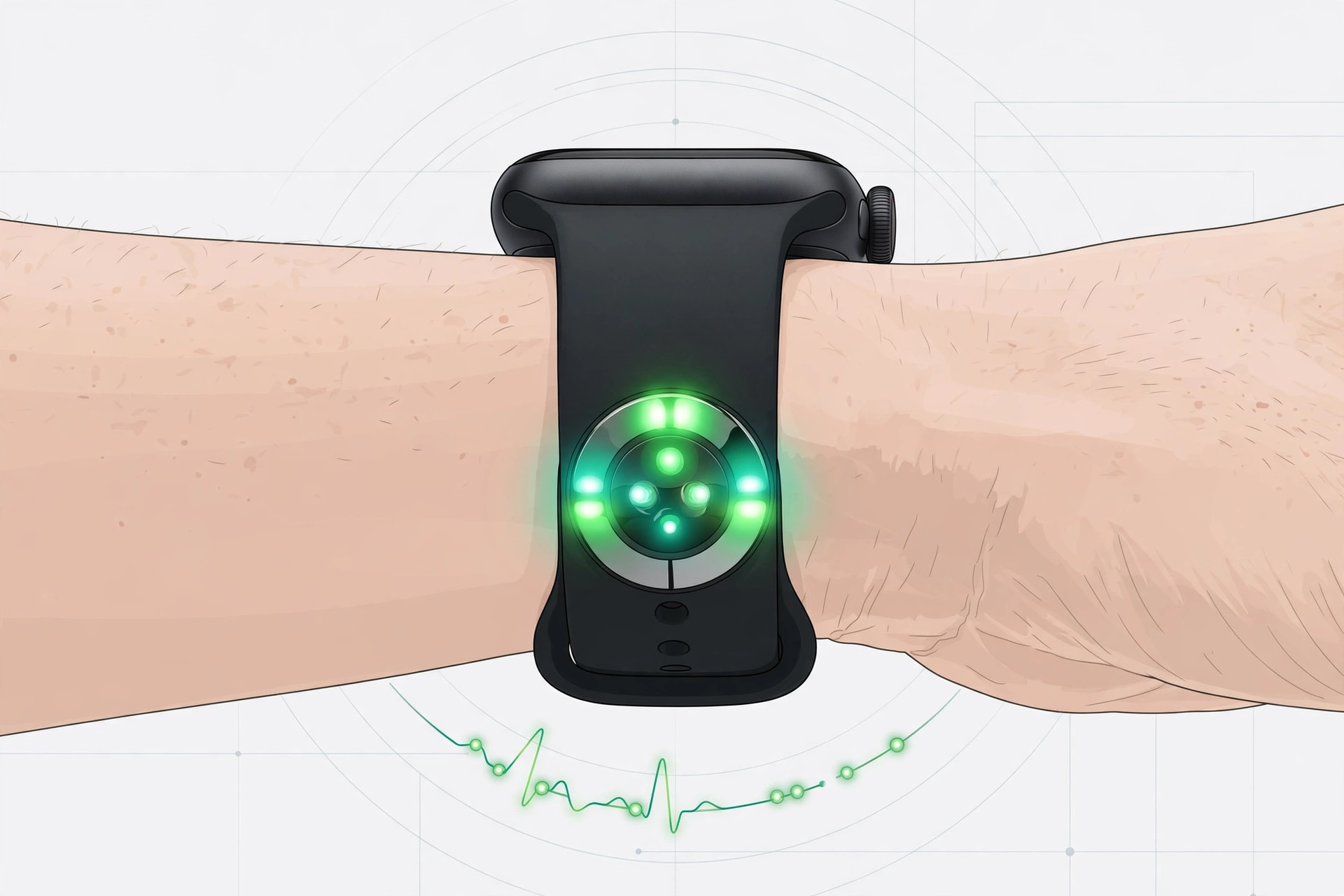
- Fix the fit. Wear the band snug enough that the watch stays put. For workouts, tighten it one notch — the extra contact dramatically improves the optical signal — then loosen it again afterwards.
- Recalibrate the sensors. In the Watch app, go to My Watch > Privacy and tap Reset Fitness Calibration Data. Then take your iPhone on a 20-minute outdoor walk or run, recording it with the Workout app, so the watch can relearn your stride using the phone’s GPS.
- Work around what you can’t change. Warm up cold hands before comparing readings. If your wrist is tattooed or very hairy, try the other wrist — ink and hair scatter the sensor’s green light. And expect noisier data from stop-start sports like tennis than from a steady run.
If it still doesn’t work
Restart the watch and iPhone, and update watchOS — Apple refines its sensor algorithms in software updates. If one workout type always misreads, test with a simple outdoor walk to isolate the cause. Persistent failure across both wrists can indicate a hardware fault worth having Apple check; MacRumors‘ Apple Watch coverage is a good place to see whether others report the same behavior.
Frequently asked questions
Why is my heart rate only wrong during workouts?
Because that’s when fit and motion matter most. A band that’s fine at your desk bounces during a run, and irregular arm swings confuse the optical sensor. Tighten the band one notch for exercise.
Can a tattoo really break heart-rate readings?
It can degrade them badly. Tattoo ink absorbs the green light the sensor relies on, so readings through heavily tattooed skin are often patchy. Wearing the watch on your untattooed wrist is the practical fix.
Conclusion
Believable heart-rate data isn’t luck — it’s setup. Correct your Health Profile, enable Wrist Detection, wear the band snugly, and recalibrate when readings drift. Make peace with the sensor’s weaknesses — cold, tattoos, wild motion — and the numbers settle down. Next, try changing Apple Watch faces automatically by time of day — just note that Low Power Mode can pause background heart-rate sampling.





