
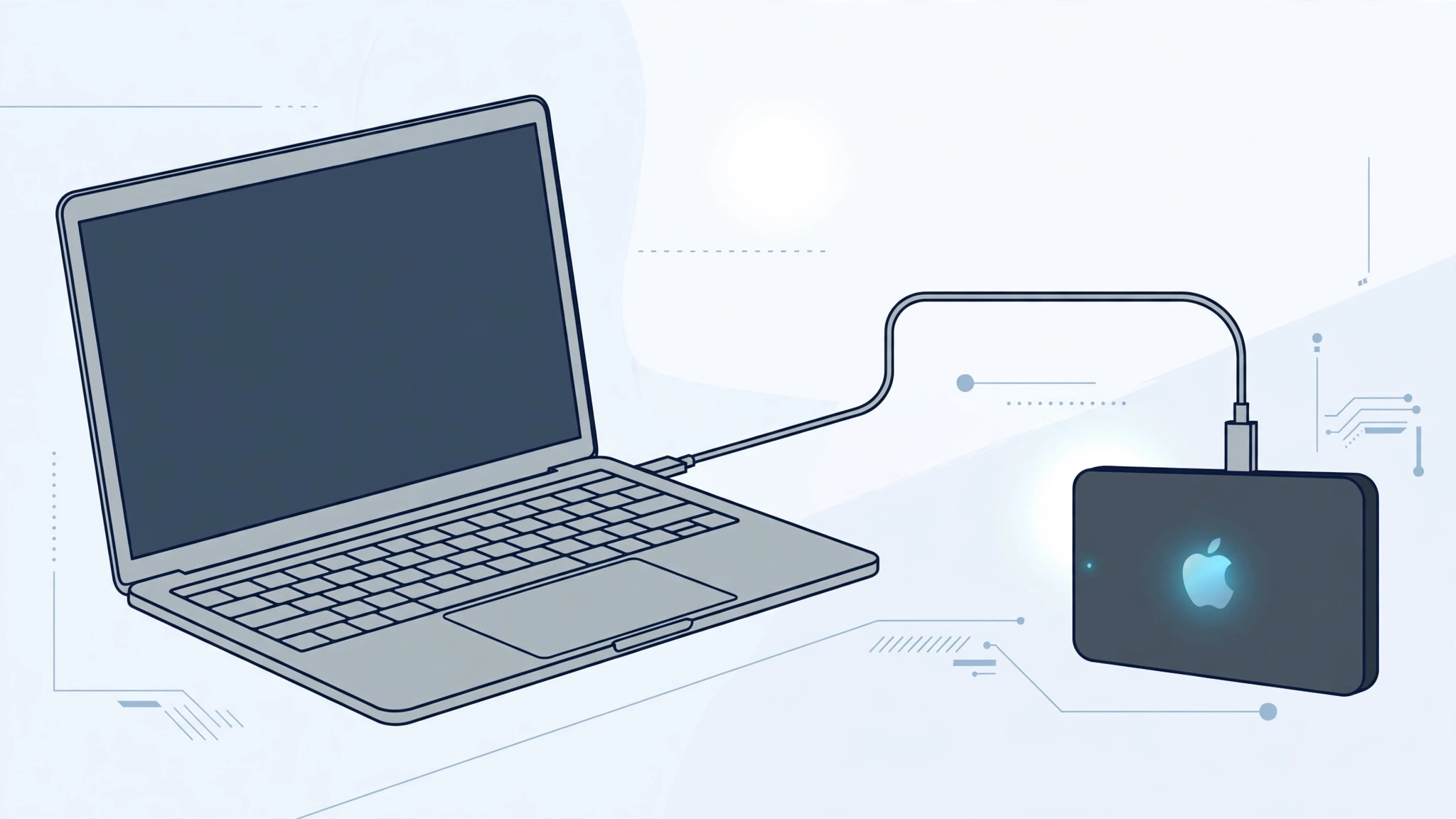
Nothing kills a weekend project faster than a macOS installer that refuses to touch your external drive. You have the SSD plugged in, the installer downloaded, and all you get is a grayed-out disk or a blunt error message. Fortunately, the causes are almost always the same handful of issues — and each one has a straightforward fix.
Why macOS refuses to install on an external drive
Apple treats the startup disk as the most security-sensitive part of your Mac. On Apple Silicon Macs especially, installing macOS on an external drive is blocked by default: the system requires the drive to use Apple’s APFS format, the partition scheme to be GUID, and — critically — the Mac’s startup security policy must explicitly allow booting from external media. Miss any one of these, and the installer will reject the drive without much explanation. Older Intel Macs are more lenient, but formatting and connection speed still matter there.
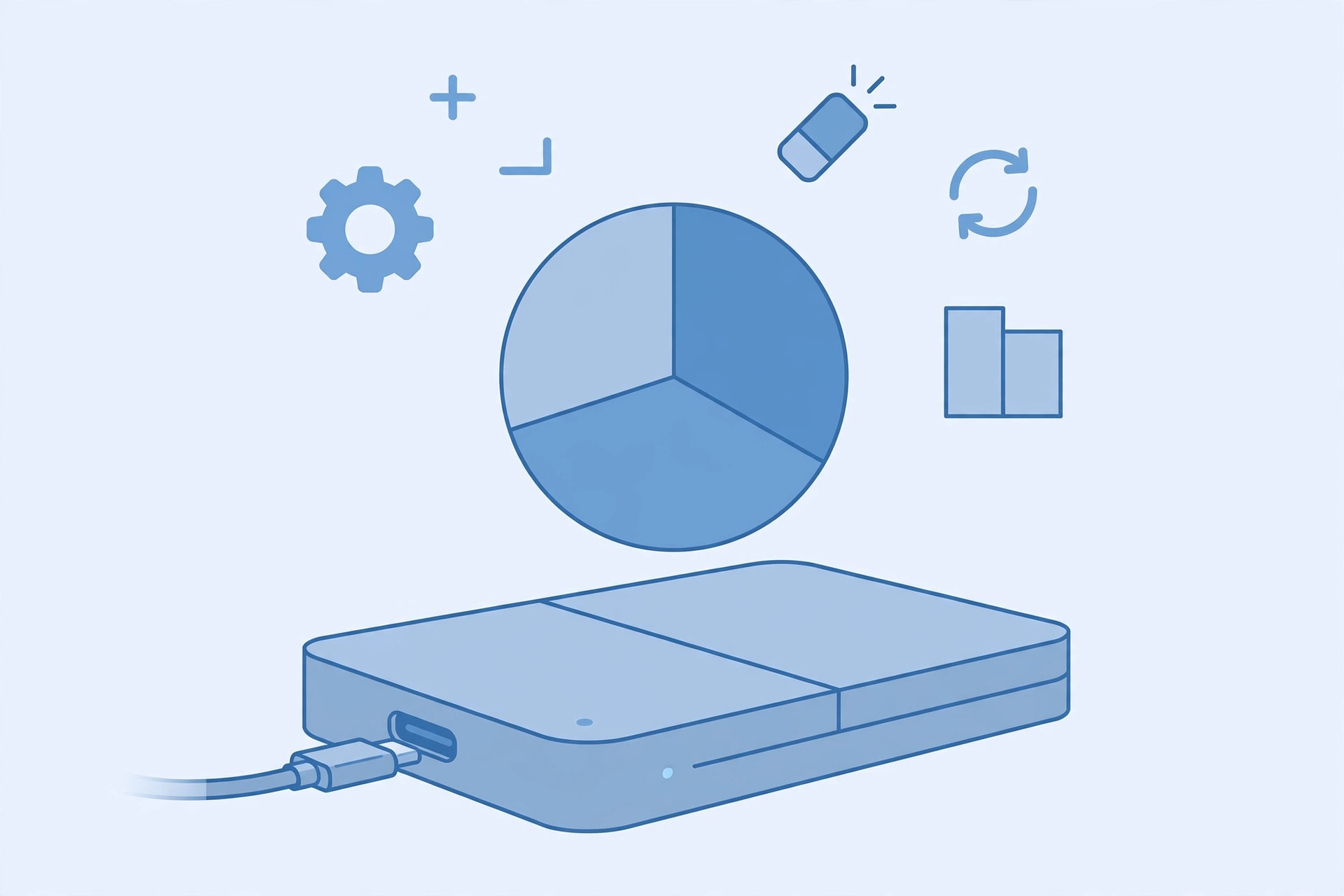
Step 1: Format the drive as APFS with a GUID partition map
- Connect the external drive and open Disk Utility (in Applications > Utilities).
- Select the drive itself — not a volume under it — and click Erase.
- Choose APFS as the format and GUID Partition Map as the scheme, then click Erase.
- If the drive previously used ExFAT or NTFS, this step alone fixes most installation failures.
Step 2: Allow external boot on Apple Silicon Macs
- Shut down your Mac, then press and hold the power button until you see “Loading startup options.”
- Click Options, choose your administrator user, and enter your password.
- In the menu bar, choose Utilities > Startup Security Utility.
- Select your startup disk, click Security Policy, choose Reduced Security, and tick “Allow booting from external or removable media.” Apple’s Startup Security Utility guide walks through the same screen.
- Restart your Mac and try the installer again.
Step 3: Connect the drive directly over USB-C or Thunderbolt
- Plug the drive straight into your Mac — avoid USB hubs and adapters where possible.
- Use an SSD rather than a spinning hard drive; macOS installers routinely fail or crawl on slow media.
- If you keep your Mac backed up while experimenting, our guide to moving files between two Macs without Wi-Fi is a handy companion read.
Step 4: Get the full macOS installer
- Download macOS from the App Store or use Apple’s official macOS reinstall guide to get the full installer app — partial or delta updates won’t work for external installs.
- Run the installer and, when asked where to install, click Show All Disks and select your external drive.
- Let the installer finish without unplugging the drive; the Mac will restart several times.
If it still doesn’t work
- Try a different cable and port — flaky USB-C cables cause more failed installs than anything else.
- Make sure the drive has at least 35–40 GB free; the installer needs breathing room beyond its own size.
- On Intel Macs, reset the NVRAM (restart holding Option-Command-P-R for 20 seconds) and try again.
- Some third-party enclosures block boot volumes entirely — test with another enclosure if you suspect yours. MacRumors forums are full of enclosure compatibility reports worth checking.
While you troubleshoot, keep your Mac tidy: you can empty the trash automatically every 30 days to free space, and iPhone owners can expand storage with a memory card instead of juggling drives.
FAQ
Can I install macOS on a cheap USB flash drive?
Technically yes if it meets the format and speed requirements, but in practice flash drives are too slow and unreliable — installers often fail halfway through. 9to5Mac consistently recommends a proper external SSD, and several YouTube walkthroughs show just how painful a flash-drive install can be.
Will installing macOS on an external drive erase my Mac’s internal drive?
No — the installer only touches the disk you select. Just double-check you picked the external drive at the disk-selection screen before clicking Install.
Conclusion
macOS install failures on external drives almost always come down to three things: the wrong format, a locked-down startup security policy, or a slow connection. Fix those and the installer sails through. Once it’s done, hold Option at startup to pick your new external system anytime.





