
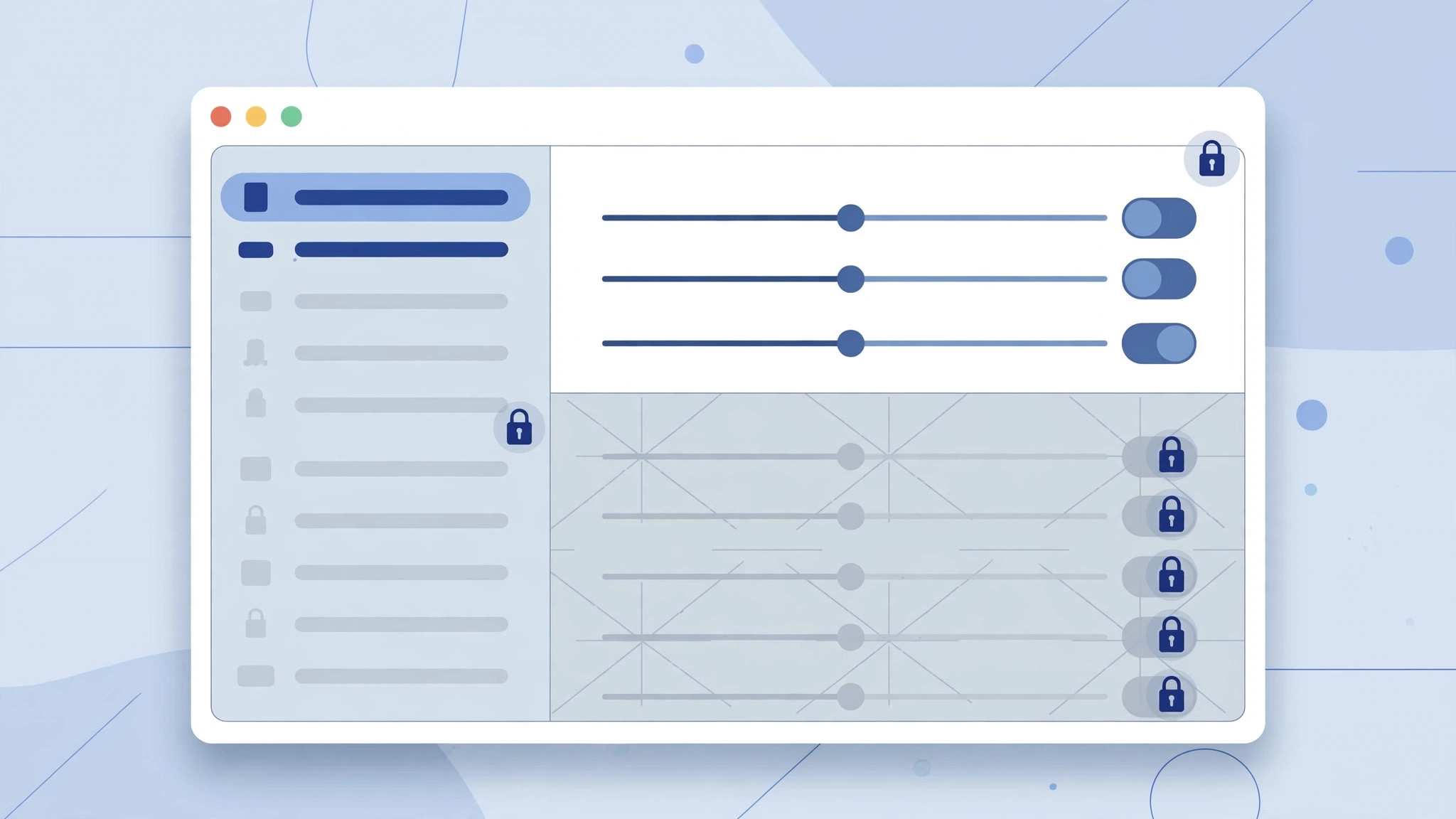
If other people use your Mac — kids, guests, curious coworkers — you’ve probably worried about them wandering into System Settings and changing something important. Maybe they toggle off Wi-Fi, rearrange the display, or poke around your Apple Account. macOS has a built-in answer: you can hide any settings pane so it simply doesn’t appear in the sidebar. The whole thing takes seconds, and you don’t need any extra software.
The trick is the View → Customize menu in System Settings. Uncheck a pane and it vanishes — no Terminal commands, no third-party apps. One important caveat up front: hiding a pane is not the same as locking it. Anyone who knows the trick can unhide it just as easily. For real enforcement you need a Screen Time passcode or a configuration profile — more on that below. Apple’s macOS User Guide documents System Settings in depth.
Step 1: Open System Settings
Click the Apple menu → System Settings. (Can’t find it? Browse your full installed-apps list — it’s always there.)
Step 2: Open the Customize list
- In the menu bar at the top of the screen, click View → Customize.
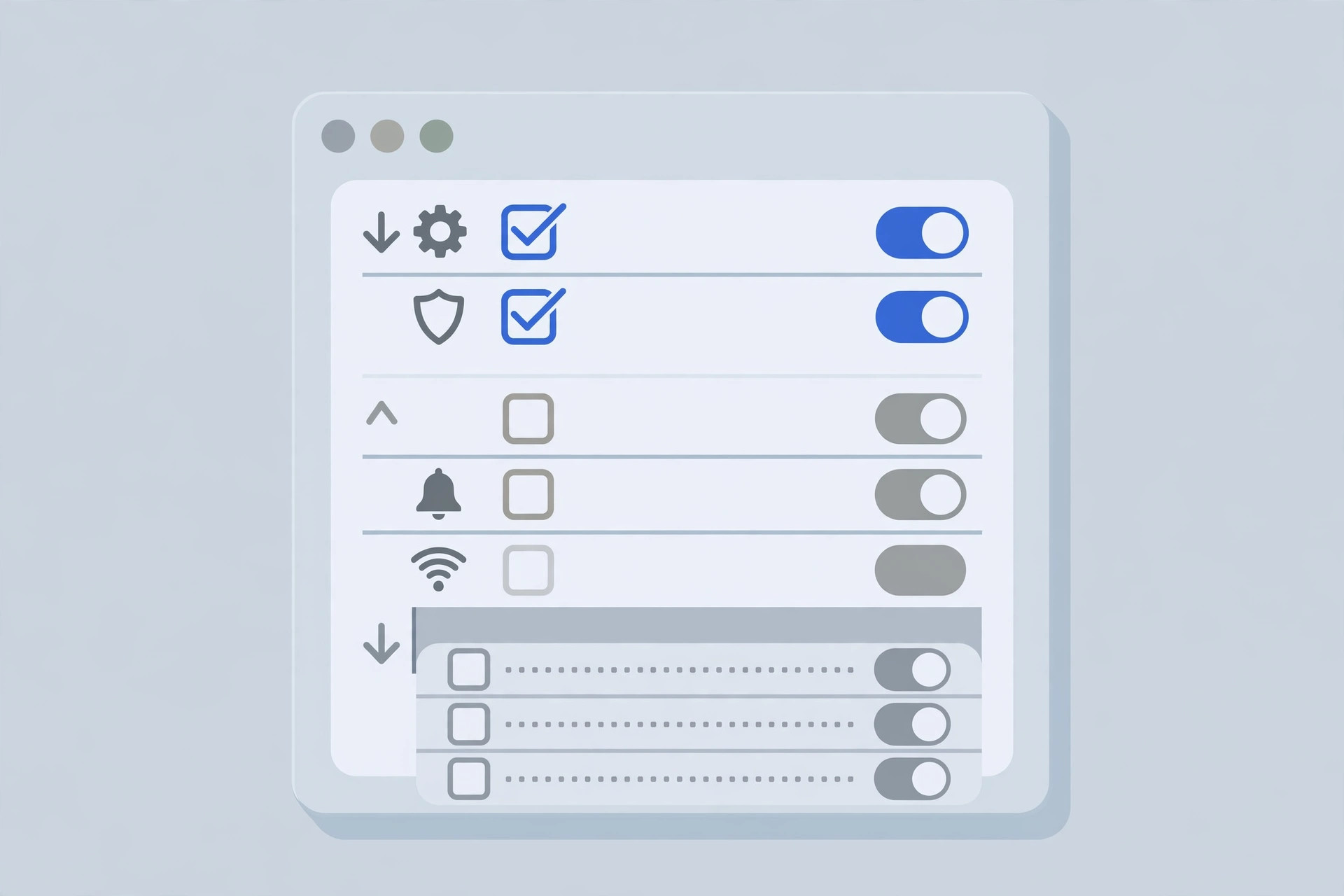
- A list of every settings pane appears, each with a checkbox.
Step 3: Hide the panes you don’t want touched
- Uncheck every pane you want to hide — Network, Bluetooth, Displays, whatever you like.
- Click Done. The panes disappear from the sidebar immediately.
- To bring a pane back later, repeat the process and re-check it.
Hiding is not locking — add real protection
If all you’re worried about is casual snooping, hiding panes is enough. But anyone who knows about View → Customize can undo it in seconds, and hidden settings can still be changed through other means. For actual enforcement, set a Screen Time passcode under System Settings → Screen Time so settings changes require the code — Apple’s Screen Time guide walks through it — or, on a school or work Mac, ask your administrator about a configuration profile, which can lock panes for real.
If it still doesn’t work
Is Customize grayed out? You’re not signed in as an administrator — log in with an admin account and try again. Does a hidden pane keep reappearing? A configuration profile or MDM enrollment may be managing your Mac — check System Settings → General → Device Management. Note this trick works in System Settings on macOS Ventura and later; older versions use a different layout.
Frequently asked questions
Will hiding a pane turn off the setting?
No. Hiding only removes the pane from the sidebar — the setting keeps working with its current value. Hide the Wi-Fi pane and Wi-Fi stays exactly as it was.
Can someone still change a hidden setting?
Yes. Hiding is cosmetic, not security — re-checking the pane in View → Customize brings it right back. Use a Screen Time passcode if you need actual enforcement.
Conclusion
That’s it — a few clicks, no extra apps, and your settings sidebar shows only what you want it to. Pair it with a Screen Time passcode and your Mac is genuinely kid-proof. Want to personalize your Mac further? Learn how to change folder colors and add emoji to them.





