
One accidental tap in a game can turn into a surprise charge on your card — especially when kids play on your iPhone. The good news is that iOS lets you block in-app purchases completely with Screen Time restrictions. In this guide, I will show you how to block in-app purchases on iPhone, step by step.
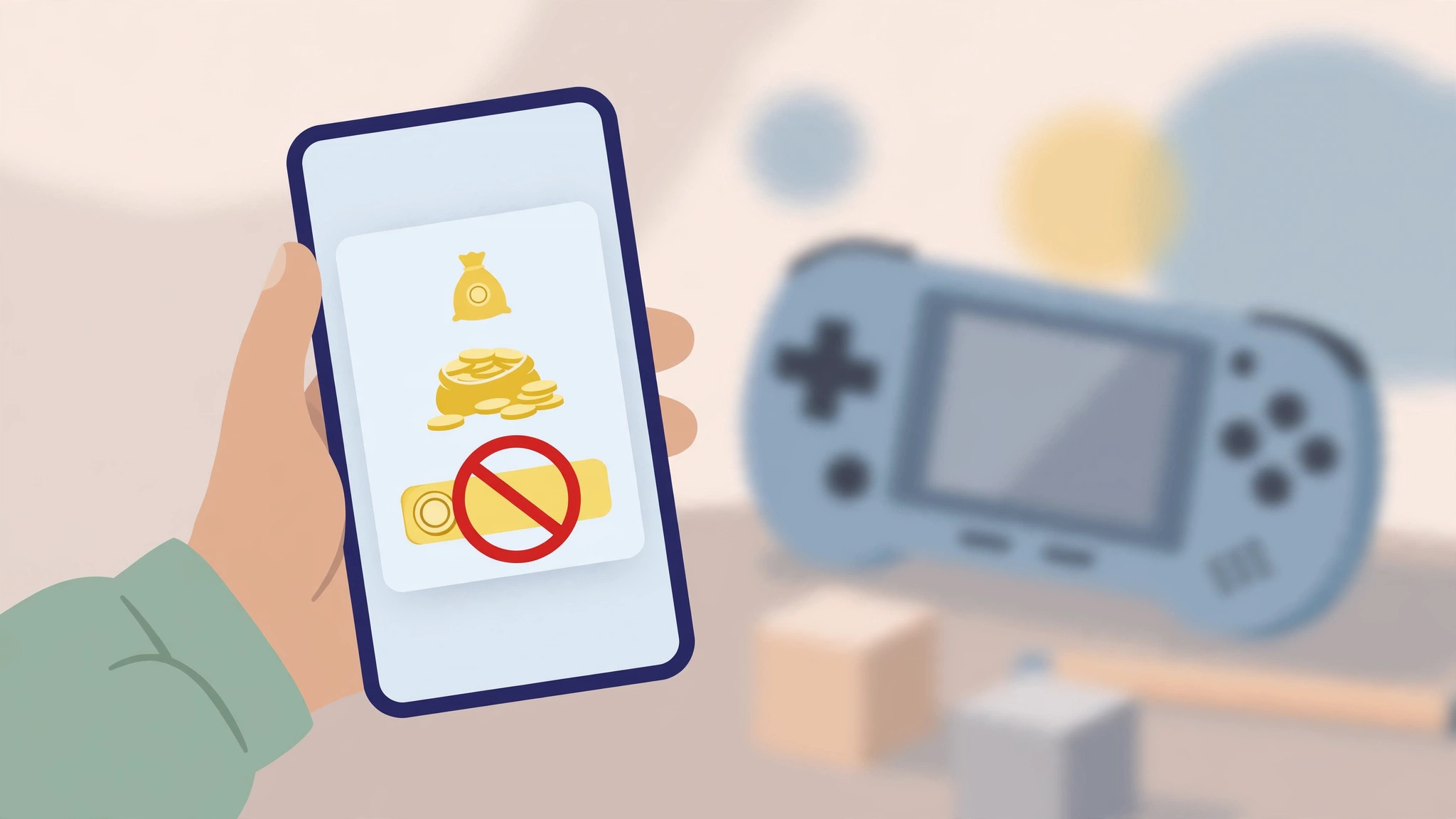
How to block in-app purchases on iPhone
- Open Settings and tap Screen Time. If you have never used Screen Time, tap “Turn On Screen Time” and follow the setup. This is the same area parents use to block the browser on a child’s iPhone or iPad.
- Tap Content & Privacy Restrictions. Turn the toggle on at the top if it is not already enabled. You may be asked to create a Screen Time passcode — pick one you will remember, since it protects these settings.
- Tap iTunes & App Store Purchases. This section controls everything related to buying apps, media, and in-app content.
- Tap In-app Purchases and choose “Don’t Allow.” From this moment, no app on this iPhone can initiate an in-app purchase. The buy buttons inside games and apps simply will not work. Apple documents these controls in the iPhone User Guide.
- Optional: require a password for every purchase. In the same screen, set “Require Password” to “Always Require” for extra safety on shared devices. MacRumors has covered how these restrictions evolve with each iOS release.
- Lock it with the Screen Time passcode. Without the passcode, nobody can reverse the restriction — not even by reinstalling the app. For more family-safety ideas, see how to track a child’s location on iPhone.
If it still does not work
If purchases still go through, check that Content & Privacy Restrictions are actually turned on, and that you are not using a different Apple ID with its own settings. Also review how to hide apps from purchase history on iPhone to keep past downloads tidy. Video demos on YouTube walk through the same screens on different iOS versions.
Frequently asked questions
Will blocking in-app purchases affect apps I already paid for?
No. Blocking only stops new in-app purchases. Apps you bought, subscriptions already active, and content you own keep working normally.
Can I block purchases for just one child’s device?
Yes. Set up the restriction on that device with its own Screen Time passcode, or manage it remotely through Family Sharing if the child is in your family group.
Conclusion
Blocking in-app purchases takes less than two minutes in Screen Time and removes the risk of accidental or unauthorized charges. Set it once, lock it with a passcode, and hand the iPhone to the kids with confidence.





