
Handing a child an iPhone or iPad means handing them the entire internet — unless you take control first. Safari is the gateway, and Apple’s Screen Time restrictions let you remove it from a child’s device entirely, or filter what it can show. Here is how to lock down the browser properly.
There are two levels: the nuclear option (remove Safari completely) and the filtered option (keep Safari but limit adult websites or whitelist approved sites). We will cover both — starting with the complete removal, since it is the most reliable.
Step 1 — Open Screen Time and lock it with a passcode
- On the child’s device, open Settings > Screen Time. (Or on your own device: Settings > Screen Time > your child’s name, if you use Family Sharing.)
- Tap Content & Privacy Restrictions and turn it on.
- Set a Screen Time passcode — a four-digit code different from the device passcode. This is critical: without it, your child can simply undo every restriction you set.
Apple explains Screen Time management for children in its Screen Time guide.
Step 2 — Remove Safari completely
- In Content & Privacy Restrictions, tap Allowed Apps.
- Turn off Safari.
Safari vanishes from the Home screen entirely — no icon, no search results, no way to open it. This is the most complete way to lock the browser on a kid’s device. Note that disabling Safari also blocks web views inside other apps (in-app browsers), which is usually what you want. If you are curious what else can be removed, see which built-in iPhone apps you can delete.
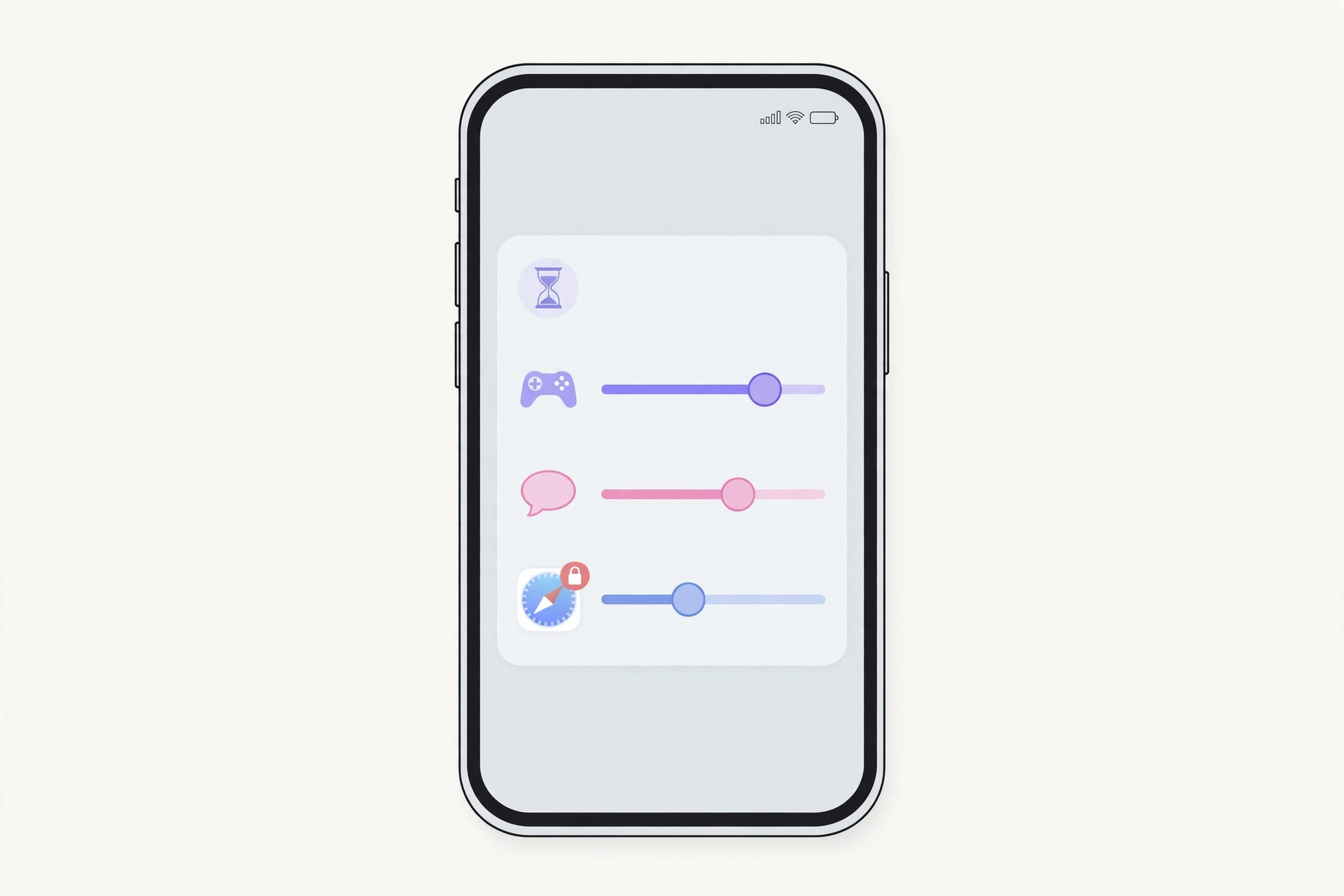
Alternative — Filter instead of removing
If removing Safari feels too strict (homework needs a browser, after all):
- Go to Content & Privacy Restrictions > Content Restrictions > Web Content.
- Choose "Limit Adult Websites" to automatically filter adult content, or "Allowed Websites Only" to whitelist specific sites.
This keeps Safari usable but fenced in. Apple’s parental controls guide covers these options in detail.
If it still doesn’t work
If Safari reappears, the Screen Time passcode was not set — or the child figured it out. Change it (Settings > Screen Time > Change Screen Time Passcode) and do not reuse the device passcode. If restrictions do not seem to apply, make sure Content & Privacy Restrictions is actually toggled on at the top — it is easy to set everything up and forget the master switch.
Frequently asked questions
Will this block Chrome or other browsers too?
You can disable other browsers the same way in Allowed Apps, or prevent new app installs entirely (Content & Privacy Restrictions > iTunes & App Store Purchases > Installing Apps > Don’t Allow).
Can my child bypass this with Siri or Spotlight?
With Safari disabled via Allowed Apps, Siri and Spotlight cannot open it either. For filtered (not removed) Safari, also consider disabling explicit content in other areas.
Conclusion
Two minutes in Screen Time — Content & Privacy Restrictions on, passcode set, Safari off in Allowed Apps — and the browser is gone from your child’s device. For older kids, the Web Content filter is a good middle ground. And if you keep Safari on your own iPhone, you might enjoy how to change Safari’s design on iPhone.





