

You pick up your iPhone and something looks wrong. The icons are dull, photos look like old newspaper prints, and everything on the screen has lost its color. Before you worry about a broken display, take a breath: in almost every case, a black-and-white iPhone screen is not a hardware failure. It is a setting — usually buried in Accessibility — that got switched on by accident.
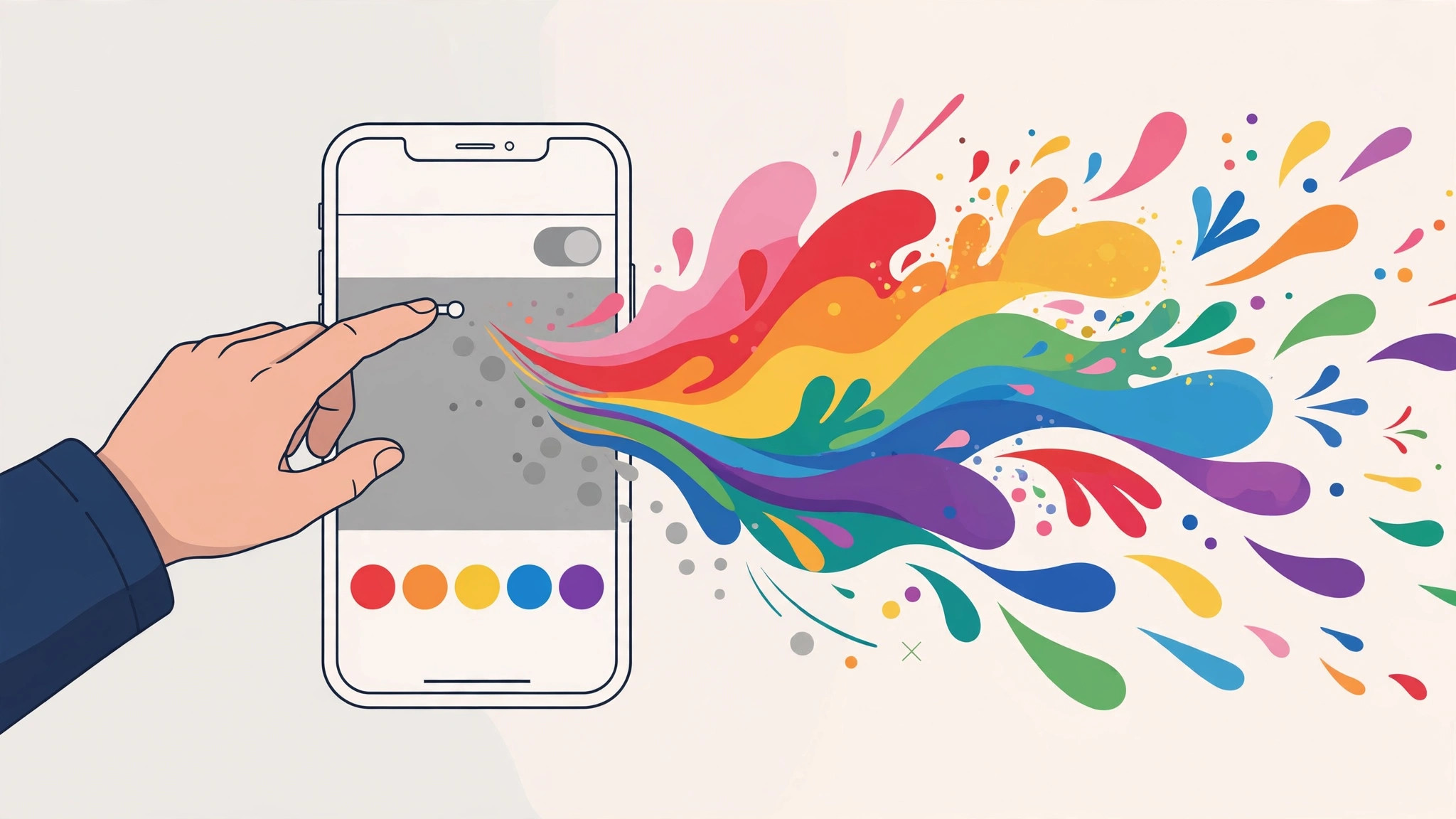
What makes an iPhone screen go grayscale
iOS includes a feature called Color Filters, built for people with color blindness or other vision needs. One of its modes, Grayscale, strips all color from the display. There are two common ways it gets turned on: somebody enabled it in Settings, or it was assigned to the Accessibility Shortcut — triple-clicking the side button — and triggered by mistake. True black-and-white is almost always Color Filters at work. If your Lock Screen is acting strange too, check our guide on getting a dark Lock Screen on iPhone without Always On.
How to bring the color back
- Open Settings, then Accessibility. Tap Settings, then Accessibility, then Display & Text Size. This is where iOS keeps its screen-adjustment features.
- Open Color Filters. Scroll down and tap Color Filters. If the switch at the top is green, you found the culprit — this is what drained the color from your screen.
- Turn Color Filters off. Tap the toggle to switch it off. Your wallpaper and icons should burst back into color instantly. If Grayscale was selected as the filter type, that explains the monochrome look.
- Check the Accessibility Shortcut. Go back to Accessibility, scroll to the bottom, and tap Accessibility Shortcut. If Color Filters is checked there, triple-clicking the side button toggles grayscale on and off — which is probably how it happened. Uncheck it to stop it recurring, as MacRumors explains in its accessibility guides.
- Rule out the Zoom grayscale filter. In Accessibility, tap Zoom, then Zoom Filter. If it is set to Grayscale instead of None, switch it back — this is a sneaky second place where monochrome can hide.
- Restart your iPhone. If the color still looks washed out, hold the side button with a volume button, slide to power off, and turn the phone back on. A restart clears any stuck display state, and Apple documents the restart steps for every model.
If it still doesn’t work
If the screen stays black and white after these steps, check for a Screen Time restriction or a configuration profile — common on work phones — that forces the filter on. As a last resort, back up your iPhone and reset all settings under Settings > General > Transfer or Reset iPhone > Reset > Reset All Settings, which keeps your data but restores defaults. YouTube walkthroughs also show the exact taps if you prefer a visual guide.
Frequently asked questions
Can a black-and-white screen mean my iPhone display is broken?
Very rarely. A failing display usually shows lines, flickering, or dead spots — not a clean, uniform grayscale. Try this test: take a screenshot and view it on another device. If the screenshot is also gray, it is software. If the screenshot looks normal but the screen is gray, it could be hardware and is worth an Apple Store visit.
Why did this happen overnight without me changing anything?
The usual suspect is the Accessibility Shortcut: triple-clicking the side button in a pocket or bag can toggle Color Filters silently. iOS updates can also migrate old accessibility preferences — if you transferred accessibility settings to a new iPhone, the filter may have come along with them. Double-check the shortcut so it does not happen again.
Conclusion
A sudden black-and-white iPhone screen feels alarming, but the fix takes under a minute: switch off Color Filters in Accessibility and remove it from the triple-click shortcut. Once color is back, review your other display settings — like scheduling Always On Display — so your screen looks exactly the way you want. And if you ever want the monochrome look on purpose, at least now you know where to find it.





