
There is a special kind of frustration reserved for the moment your Mac pops up a “Your disk is almost full” warning right when you are in the middle of something important. You delete a few files, the warning goes away for a week, and then it comes right back. The good news is that macOS gives you the tools to find exactly what is eating your storage — and most of the culprits are files you will never miss.
Why your Mac keeps running out of space
Modern Macs ship with fast but modest SSDs, and macOS quietly accumulates data in the background: app caches, old system logs, local Time Machine snapshots, iPhone backups, and installers you downloaded months ago. A single category — often labeled “System Data” or “Other” — can balloon to tens of gigabytes without you ever opening a folder. If you use an external drive, a related annoyance is that deleted files may not actually free space until you empty the Trash, so the meter barely moves after a cleanup.
How to find and remove what is eating your disk
- Open the Storage overview. Click the Apple menu, then go to System Settings > General > Storage (on older macOS, About This Mac > Storage). Wait a minute for the colored bar to calculate each category — this tells you whether apps, documents, system data, or something else is the hog. Apple documents every toggle on this screen in the Mac User Guide.
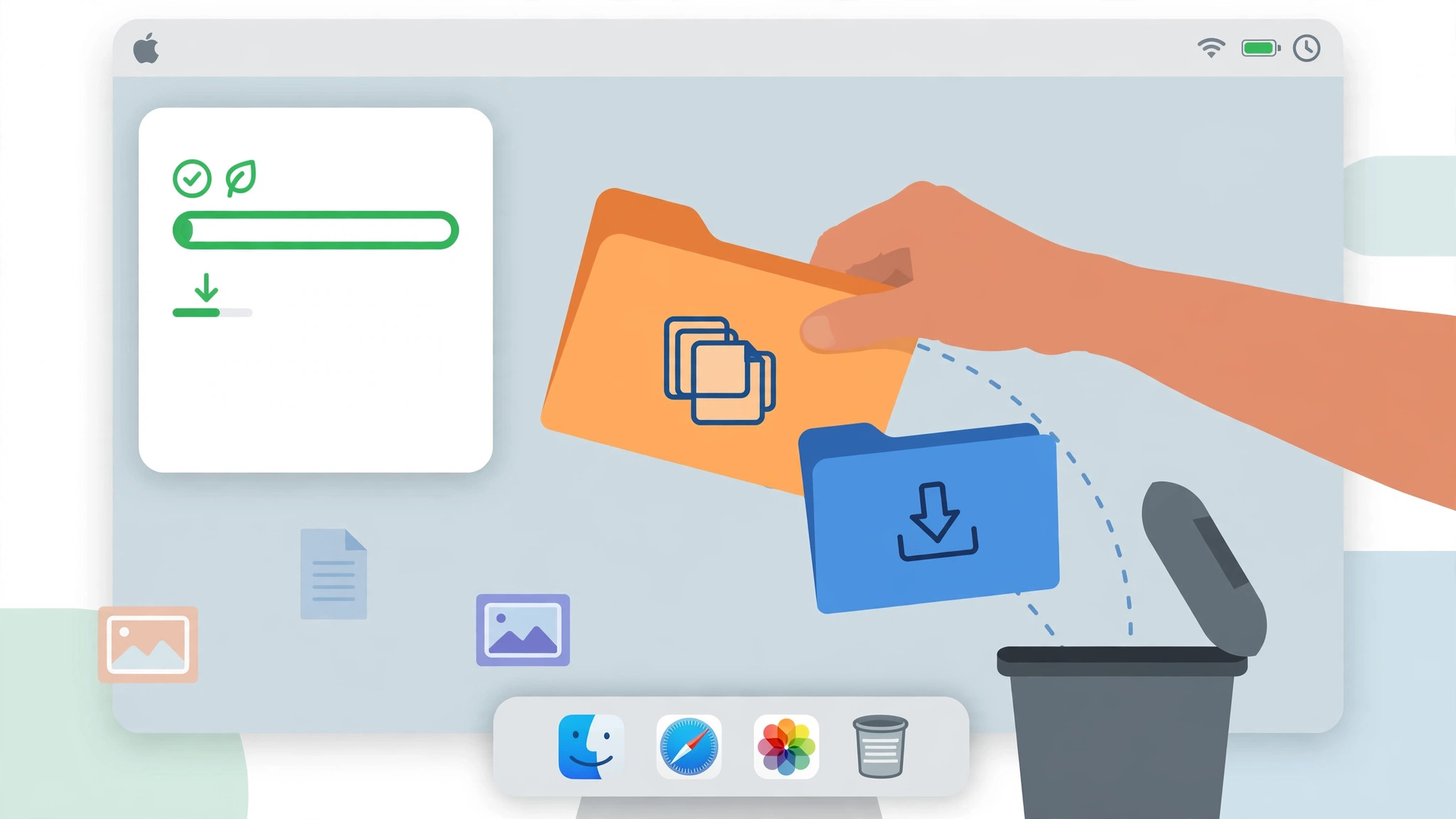
- Empty the Trash — properly. Files in the Trash still occupy disk space. Right-click the Trash in the Dock and choose Empty Trash. To stop it piling up again, turn on the option to automatically delete Trash contents after 30 days.
- Clear bloated caches. In Finder, choose Go > Go to Folder, type ~/Library/Caches, and sort by size. App caches rebuild themselves, so deleting the largest folders here is safe — just do not touch anything while the app is running. Tech sites like MacRumors regularly report how much these folders can grow after major updates.
- Delete old iPhone and iPad backups. A single device backup can exceed 50 GB. Open Finder, select your iPhone under Locations, click Manage Backups, and remove backups for devices you no longer own.
- Remove installers and large downloads. Check your Downloads folder for macOS installers and disk images (.dmg files) you already used. Sort the folder by size to spot the giants quickly.
- Turn on Optimize Storage. Back in System Settings > General > Storage, enable “Optimize Storage” to remove watched Apple TV content you have already seen, and “Store in iCloud” to move Desktop and Documents files to the cloud. If you want finer control, read our guide to monitoring cloud storage usage on Mac first.
- Purge local Time Machine snapshots. If you use Time Machine with an external drive that is often disconnected, macOS keeps local snapshots that can swallow gigabytes. Connect your backup drive and run a backup — macOS deletes the local snapshots automatically afterward. This is a different problem from a Mac not recognizing an external drive at all, which has its own fixes.
If it still does not work
If the Storage bar shows a huge “System Data” chunk that will not shrink, restart your Mac and check again — pending updates and stuck temporary files often clear on reboot. YouTube walkthroughs demonstrate deeper tools like OmniDiskSweeper and GrandPerspective, which draw a visual map of your drive so you can spot hidden space hogs file by file.
Frequently asked questions
Why does macOS say the disk is full right after I deleted files?
Deleted files sit in the Trash until you empty it, and some apps keep their own internal trash or versions. Empty the Trash, then give the Storage overview a minute to recalculate before judging the result.
Is it safe to delete everything in ~/Library/Caches?
Yes, with one rule: quit the app first. Caches are disposable copies that apps recreate as needed. Never delete the Caches folder itself — only its contents — and leave the rest of the Library folder alone.
Conclusion
A Mac that constantly complains about space is almost never a sign you need a new computer — it is a sign that invisible clutter has piled up. Work through the Storage overview once, turn on the automatic cleanups, and that warning should stay gone for good.





