
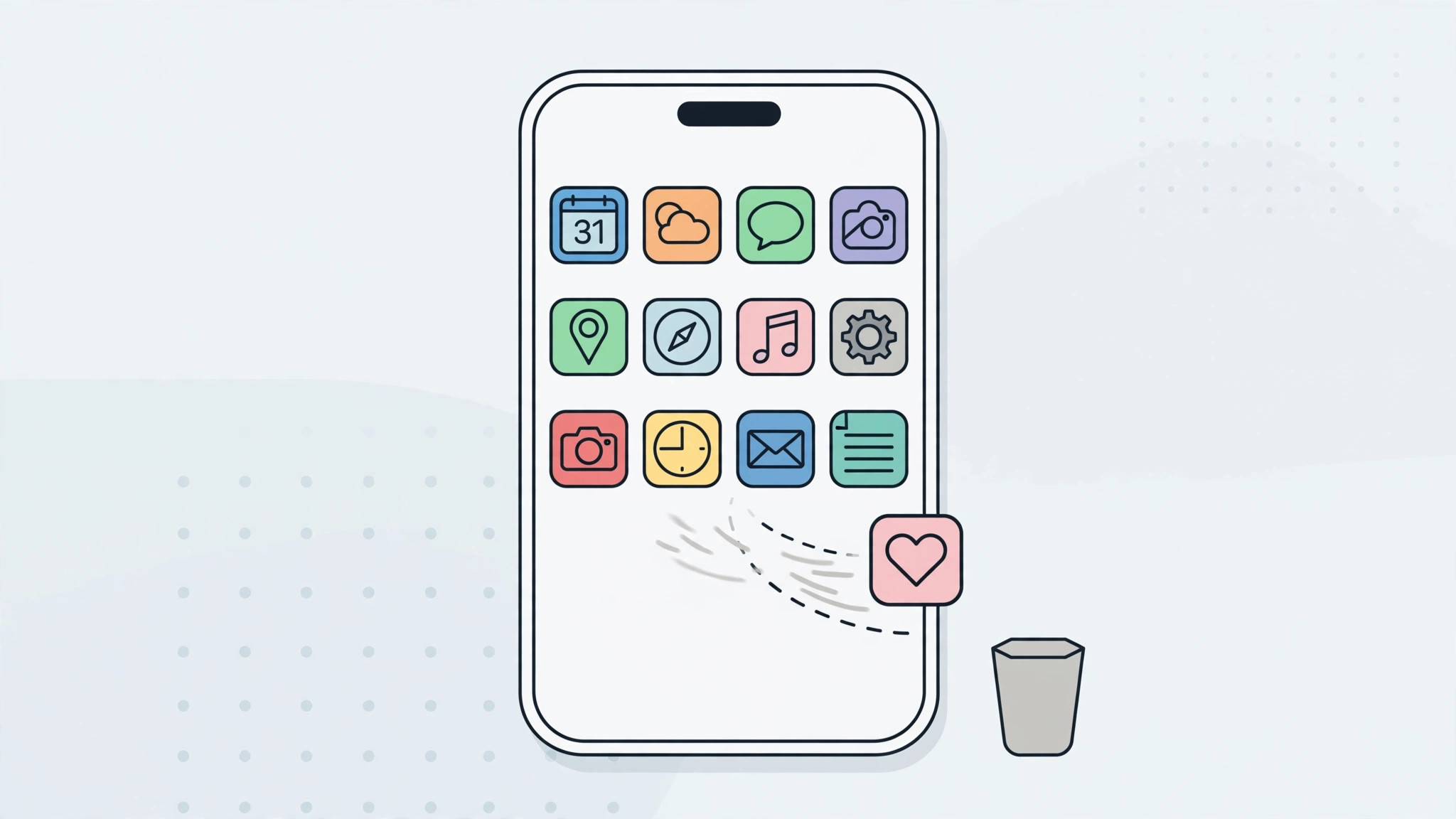
You long-press an app icon, the little menu pops up — and there is no “Delete App” option. Or you tap it and nothing happens. Before you assume your iPhone is broken, know this: in the vast majority of cases, a single Screen Time setting is quietly blocking app deletion. Here is how to find it and fix it, plus the other reasons an app might refuse to go.
This is one of the most common iPhone management headaches, right up there with deciding which built-in iPhone apps you can delete in the first place. Start with the Screen Time fix below — it solves the problem nine times out of ten.
How to fix apps that won’t delete
- Open the Screen Time restrictions. Go to Settings → Screen Time → Content & Privacy Restrictions. If Content & Privacy Restrictions is off, that is not your problem — skip to the other causes below.
- Find the app-deletion setting. Tap iTunes & App Store Purchases — on newer iOS versions this section is called Store, Web, Siri & Game Center Content. Either way, you are looking for the “Deleting Apps” entry.
- Set Deleting Apps to Allow. Tap Deleting Apps and choose Allow. If you set up a Screen Time passcode, you will need to enter it here — that passcode is separate from your lock-screen code.
- Delete the app. Go back to the Home screen, long-press the app icon, and the Delete App option should now appear. Tap it and confirm. Apple’s guide to deleting apps on iPhone walks through the same gesture.
Other reasons an app won’t delete
If the Screen Time setting was already on Allow, check these: the app may still be downloading or updating — wait for it to finish first. Some built-in Apple apps cannot be removed at all, such as the App Store, Camera, and Phone; our guide to which built-in iPhone apps you can delete lists exactly which ones are removable. And if the option is still missing everywhere, restart the iPhone or update iOS. Mac users dealing with the same clutter can see how to quickly open the installed apps list on macOS 26 for the desktop equivalent.
If it still doesn’t work
If Deleting Apps is set to Allow and the option still does not appear, double-check that you are not confusing “Remove from Home Screen” with deletion — the first only hides the icon. Try a forced restart, then update iOS to the latest version. As MacRumors and How-To Geek both point out, a pending iOS update is a surprisingly common cause of stuck app management.
Frequently asked questions
Why is there no Delete App option when I long-press?
Almost always because Screen Time’s Content & Privacy Restrictions block app deletion. Go to Settings → Screen Time → Content & Privacy Restrictions → iTunes & App Store Purchases → Deleting Apps, and set it to Allow.
Can I delete pre-installed Apple apps?
Many of them, yes — Apple lets you remove quite a few built-ins these days. But core apps like the App Store, Camera, Phone, and Messages cannot be removed. Check our removable-apps guide before you start hunting for the delete button.
Conclusion
A missing Delete App button is rarely a real problem — it is usually one Screen Time toggle doing its job a little too well. Flip Deleting Apps to Allow and your Home screen is yours to declutter again.





